If it is possible to describe the new Elite Controller in one word, I would choose awesome. Since it was announced at E3, I searched the internet tirelessly to pre-order it so that once it was released I could have one. The Elite Controller arrived a week after the release date and from the moment I opened the box and plugged it into my Xbox One, I can’t think of going back to anything else.
From its design to all of the functions that it offers, the Elite Controller is without any doubt the best controller that I’ve ever had the chance to play with. I’ve owned various “pro-type” third-party controllers such as Scuf and Razer and none of them have made me feel so comfortable like the new Elite Controller.
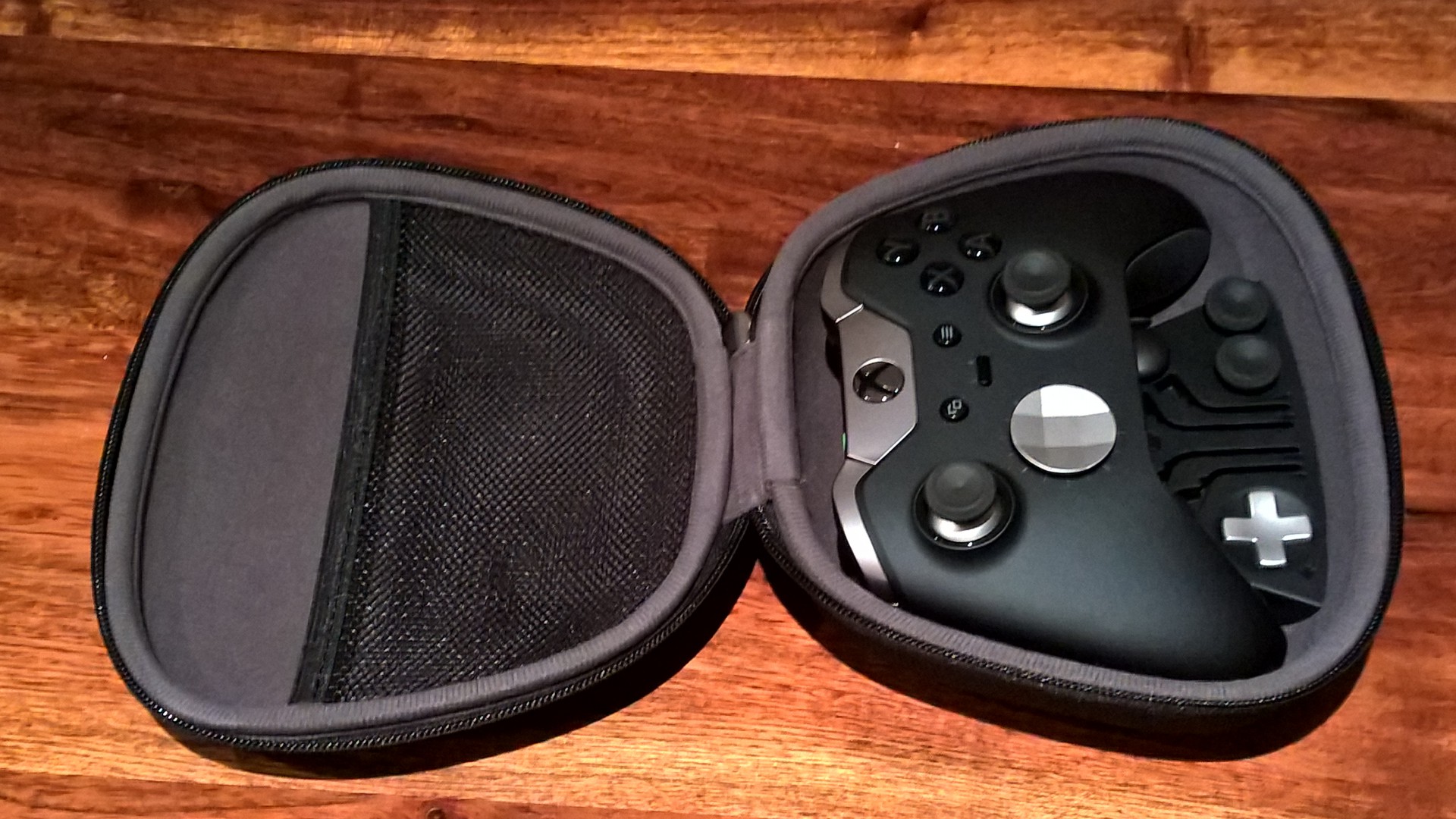
To start, the Elite Controller comes with a fabric-covered clamshell case that not only allows you to keep the extra accessories (thumbsticks, paddles, D-pad and USB cable) safely, but also serves to transport and protect it while you are not using it. This case is quite simple in its design, it’s all black and only has the Xbox logo created with 4 rubber pieces on the center. The interior is lined with soft fabric in order to protect the controller from getting scratched while being transported. It has a net on the top half where you can store the USB cable or extra batteries, on the other half is where you can put the controller and all the accessories. The paddles, thumbsticks, and D-pad have their own place in a rubber compartment where they are held securely.
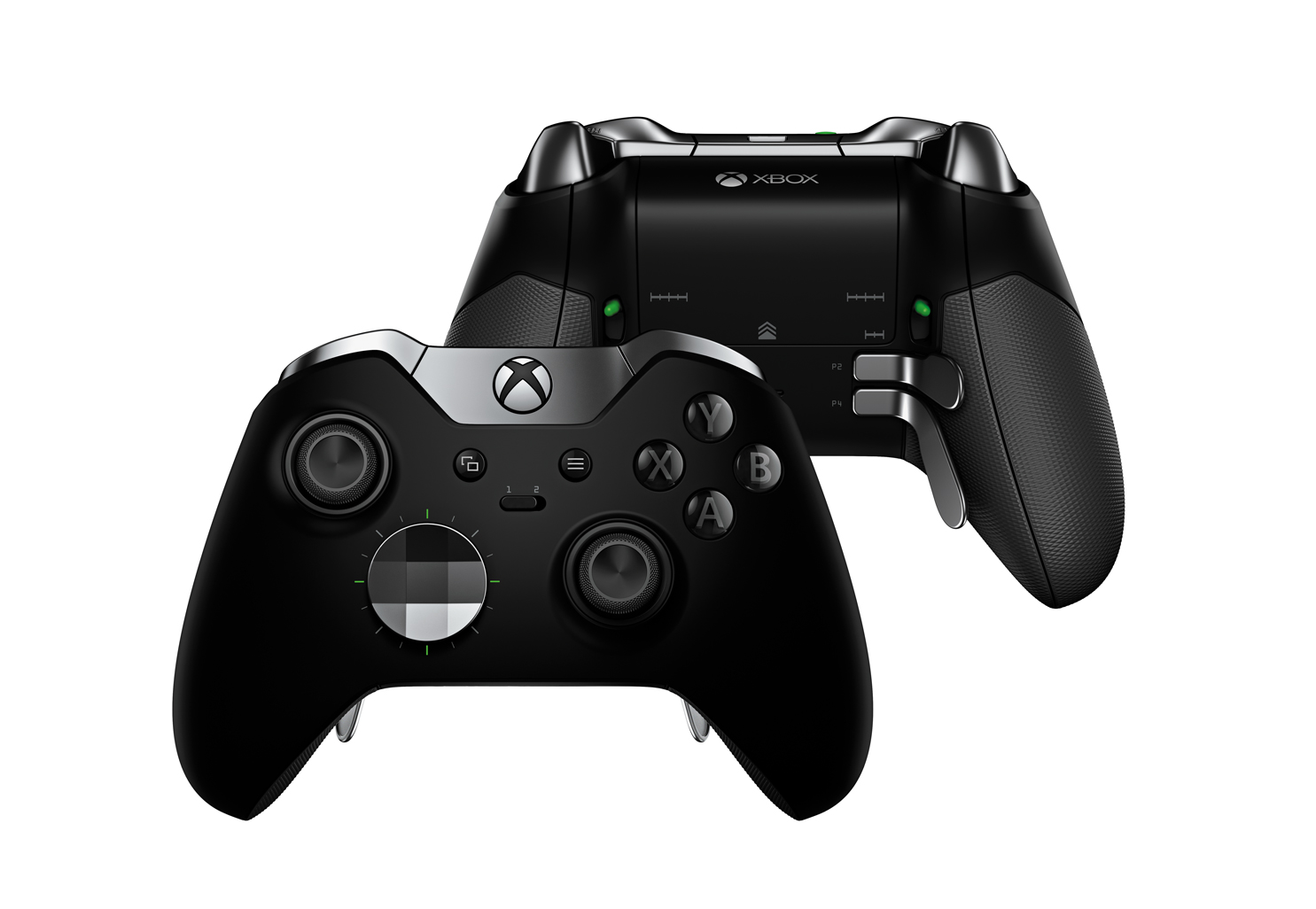
One of the first noticeable aspects that I encountered once I picked it up was the controller’s weight. The Elite Controller is a bit heavier than the regular controller, but once you play with it for a few minutes, you rapidly become familiar with its new weight and you won’t notice the difference. This “new” weight is due to its new innards and metal attachments. Another noticeable aspect about the Elite Controller, either by looking at it or having it in your hands, is its new matte rubber finish. There is also a rubber grip on the underside to prevent it from slipping if your palms become sweaty due to prolonged use.
The colored A, B, X and Y buttons are swapped for monochromatic ones which, when combined with the rest of the controller’s metallic finish, give it a premium look.
The Elite Controller comes with a total of 13 extra accessories: 3 pairs of thumbsticks (the standard concave Xbox One size, the tall concave size, and a medium size where the top is similar to the PlayStation analogs), 2 D-pads (the standard “plus” D-pad and a faced satellite D-pad), and the famous 4 paddles that are attached to the back of the controller. With all of these accessories comes one big question, “What is the best layout to use?”
Well, there is no right answer to that question, since every gamer has their unique way and style of playing. It is entirely up to you to choose which configuration of accessories fits best for every game that you play. The 13th accessory is the 9 ft USB cable that is entirely black with a thin Xbox-green line all around it. It’s perfect for those long hours of competitive gaming without having to worry about batteries dying in the middle of a game. Note that this cable does not serve to charge any batteries.

As I’ve mentioned, all the accessories as well as the bumpers and triggers, alongside the analogs, have a metallic finish which not only serves to give that awesome look to the Elite Controller, but also increases their durability. The analog sockets now have a reinforced ring in order to make them last longer. I’m sure all of you have noticed that the sockets on the regular controller start to wear out after some time, which can detract from your gaming experience especially in shooters.
Another great feature, and especially thinking about first-person shooters, is the possibility to shorten the range of the triggers to half. To do that you only need to change the little green buttons on the back of the controller (above the place where the paddles are placed). You immediately see that once you press the triggers, they will only go half way to where they would normally go.
Now that I’ve explained, and hopefully, left you somewhat familiar with the Elite Controller and its accessories, let’s jump to what you can actually do once you plug it into your Xbox One for the first time.
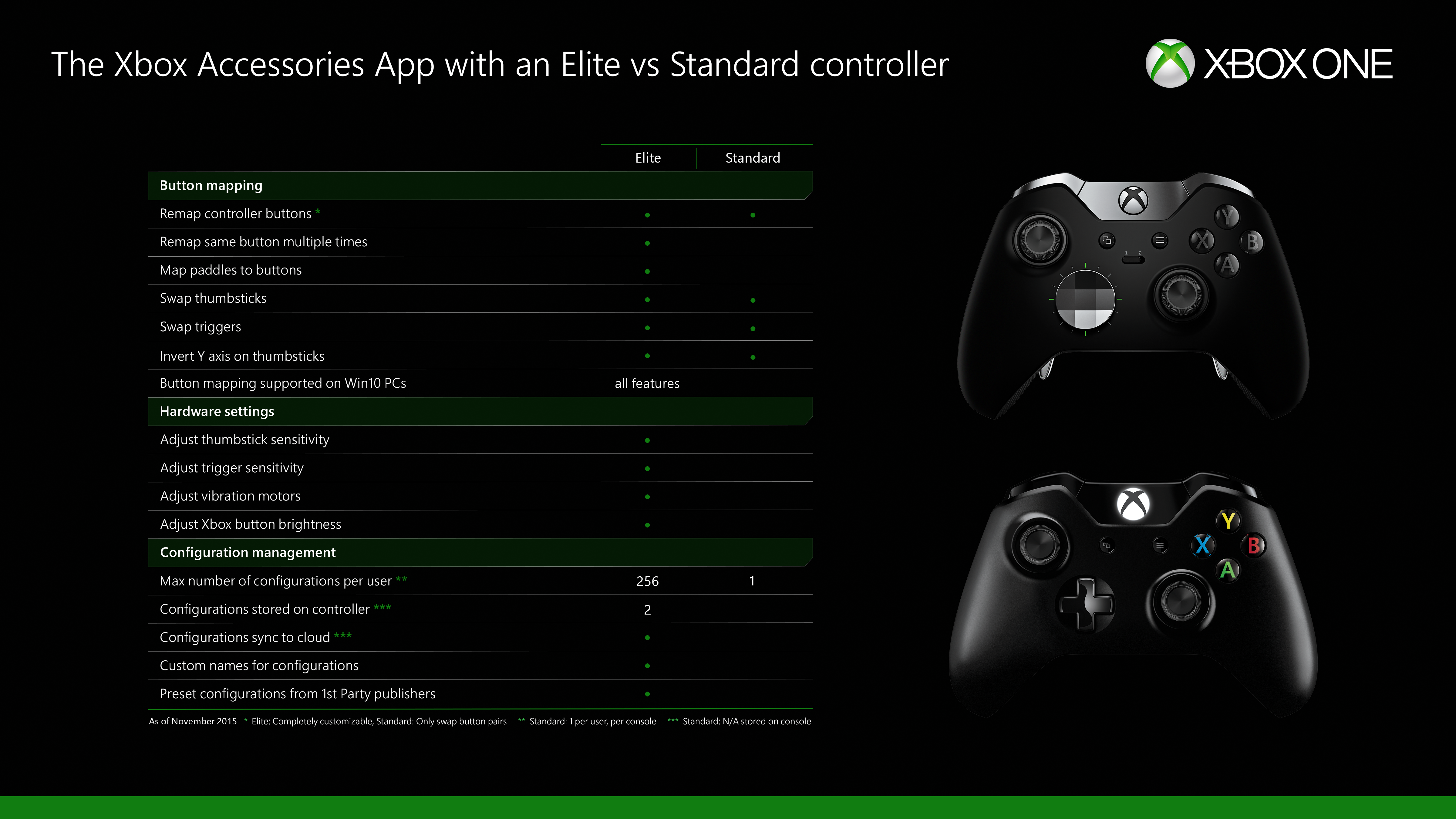
Once you start the Accessories app and connect your Elite Controller to the Xbox One, you will be able to go to the Configurations Menu and it’s in here that you will be able to do all tweaks and custom personalizations. You can change everything from the button mapping to how bright the Xbox button on the controller is. Want to customize it further? You can change the sensitivity of the analogs and how fast, or slow, they respond to your commands. There are two slots which can be accessed by flipping the switch on the face of the controller from 1 to 2. This allows for quick and easy access to different configurations. For example, right now I have Gears of War and Halo 5 set to them.

The Accessories app comes with 9 preconfigured profiles, all of them for some of the biggest Xbox One exclusives, 2 for Forza 6, 2 for Gears of War: Ultimate Edition, 4 for Halo 5, and 1 for Sunset Overdrive. From here it is up to you what you decide to do. Either pick any of them and do the rest of the adjustments you want, or create a profile from scratch. For example, I first selected the Halo 5 Multiplayer profile and made some changes to it that would be more suited to my style. Creating a profile from scratch is a little more complicated.

Once you click on the new configuration menu, the first thing you will need to do is to give it a name. Here’s a little hint, always give it the name of the game where you want to use it. If you want two different configurations for the same game, add something to the name that helps you distinguish between them. Make it as clear as possible. I initially went nuts and regretted it later. After you give it a name, it will show up in the profiles list. Just select it and you will be taken to the next screen where you will have access to all the configuration options such as button mapping, triggers, thumbsticks, and vibration. There are other basic options to rename and delete profiles too.

The button mapping menu is easy because you can select any one of them and make them into another. You can even change what the paddles do. I found this feature really helpful for Halo 5.

For the thumbsticks, triggers and vibration menus, you will have all the options related to them, such as sensitivity and vibration strength. Some of the vibration in Forza 6 is actually quite strong so I’m glad I was able to turn that down. The customization is very thorough and there is even the option to invert the Y axis of each thumbstick.

There are 5 sensitivity options and if you don’t quite understand how the X/Y graphic works, you have the option to test and see how the thumbsticks respond. Give them all a try and find what works for you. The white circle is the real movement you make on the controller and the green circle is the response it registers to that movement.

In the triggers menu, you will have the option to limit the dead zone response of each of them. This means the exact moment when the trigger will start considering that it was pressed as well as the moment when it will recognize as being fully pressured. You can assign different response times to each trigger or use the same for both. Once again all the configurations are completely up to you.

As stated earlier, in the vibration menu, you can adjust the strength of what is felt over the triggers as well as the strength that is felt on the controller itself. Just like during Forza 6, this can come in handy in FPS games where having strong vibration can lead to some missed shots.

In the Xbox button brightness menu, you can choose to have it completely turned off or simply dimmed. I’ve never had any problems with the brightness of it but I know that some of you hate that it’s on when it’s very dark. Having a bright spot in your hand can get annoying I suppose. Well, for those of you who felt annoyed, you can now turn it completely off using the Elite Controller. The brightness is adjusted in real time. You just need to have the profile already assigned to one of the slots and see it change while you move the bar left and right.

From the overview above, it’s clear that there is a lot to the controller. Everything can be changed and the quality is astounding. To sum up this accessory, it is without a doubt the best controller that was ever created for Xbox. The fact that you are able to almost customize every single detail of it is awesome and gives you the chance to try lots of different combinations. While not all games will benefit from little tweaks and changes, the ones that do like Halo 5 make gaming sessions more easy and enjoyable. Using other input devices feels as if you’re controlling them or having to wrestle with them. The Elite Controller becomes an extension of who you are and how you play. It feels more natural and that gives you a significant advantage in my opinion.
As for the accessories themselves, the one that makes me believe like it was created for a specific game genre is the satellite D-pad. It helps a lot and makes it easier to do those crazy combos in fighting games. The only thing that I’ve to mark as a negative is the lack of macros or the option to assign a combination of buttons to the paddles. Maybe sometime in the future Microsoft launches an update to both the app and the controller firmware to allow that.
If you are still wondering if the price of the controller is suitable for the controller itself, my answer to that is YES! I’ve been using the Elite Controller for about a month and believe me that I never want to play with the regular controller ever again. Sell all other controllers you have and get the Elite. It’s worth every penny.

João is a games journalist, Senior Editor at XDA Developers. They contributed 156 articles to ICXM between 2015–2017, focused on game reviews, Windows and PC, and Xbox news: previously reported for Neowin before joining XDA Developers in 2021, where he leads coverage of Windows, Microsoft, and hardware.