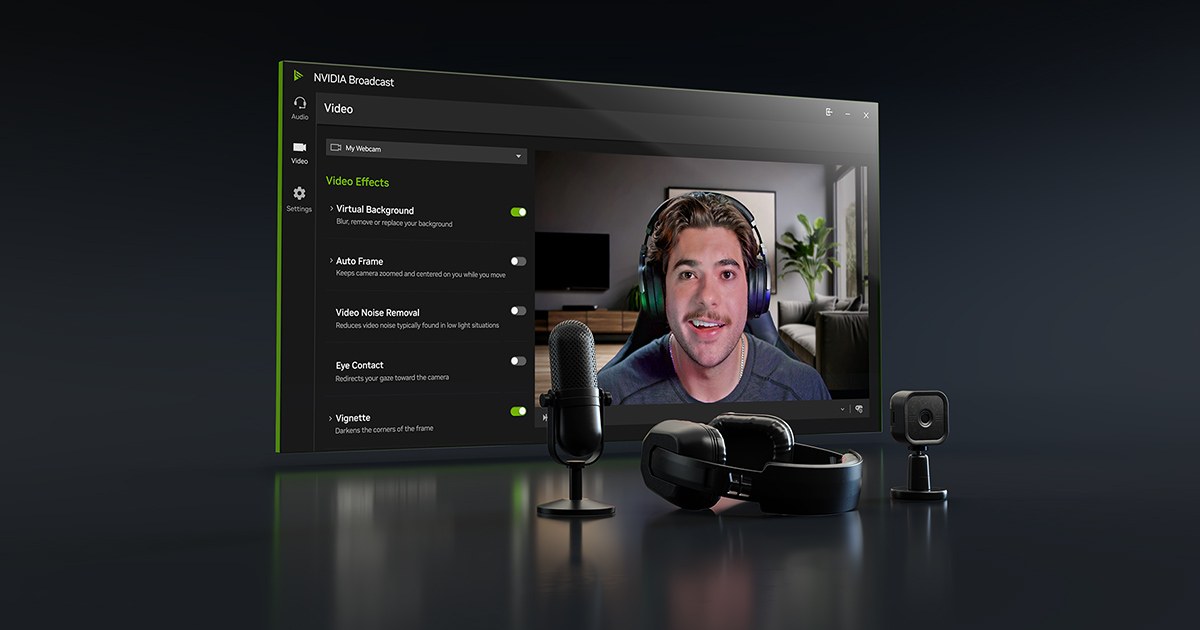
NVIDIA Broadcast is a Windows-only download for PCs with a GeForce RTX 2060, Quadro RTX 3000, TITAN RTX or faster GPU: NVIDIA lists Windows 10 64-bit as its platform and has shipped a fix for Windows 11 version 24H2, and there is no Mac or iPhone version and no official substitute for either.
On this page
The sections below cover the official download, the R570 driver it depends on, installation and app setup, laptop limits, and fixes for installs and virtual devices that misbehave.
Which NVIDIA Broadcast download do you need?
NVIDIA offers one NVIDIA Broadcast download, listed for Windows 10 64-bit. Whether it runs depends on the GPU and driver, so match your setup to a row before downloading.
| Your setup | What to do | Official link |
|---|---|---|
| Windows PC with a GeForce RTX 2060, Quadro RTX 3000, TITAN RTX or newer, driver R570 or later | Download and install NVIDIA Broadcast directly | NVIDIA Broadcast app page |
| RTX GPU, but the driver is older than R570 | Update the Game Ready or Studio driver first, then install Broadcast | NVIDIA drivers |
| You want drivers and Broadcast managed from one place | Install the NVIDIA app, which updates drivers and installs NVIDIA Broadcast | NVIDIA app |
| Windows PC with a GeForce GTX GPU | NVIDIA Broadcast does not support GTX cards; NVIDIA patched RTX Voice, its earlier noise-removal beta, for GTX GPUs instead | None for Broadcast |
| Mac, iPhone or iPad | No version exists and NVIDIA offers no official alternative | None |
Download NVIDIA Broadcast for Windows 11 and Windows 10
Select Download Now on the NVIDIA Broadcast page. The installer then fetches the AI models for your specific GPU, so keep the PC online until setup finishes.
- NVIDIA Broadcast (nvidia.com) (2.2.1): Windows 10 64-bit; setup downloads about 3GB of additional files
- NVIDIA drivers (Game Ready, Studio, RTX Enterprise): Broadcast needs R570 or later in any of the three branches
- NVIDIA app: Updates drivers and lists NVIDIA Broadcast among the NVIDIA applications it installs
Version 2.2.0 took Studio Voice out of beta and added keyboard shortcuts and Elgato Stream Deck support.
Before you download: check that you have NVIDIA graphics
NVIDIA Broadcast runs its effects on the Tensor Cores of RTX GPUs, so the graphics card is the requirement that decides everything. Open Device Manager by right-clicking Start, expand Display adapters, and read the GPU name; right-click it and choose Properties > Driver to see the installed driver.
| Requirement | NVIDIA's minimum | Notes |
|---|---|---|
| GPU | GeForce RTX 2060, Quadro RTX 3000, TITAN RTX or higher | GeForce GTX GPUs are not supported |
| GPU for Studio Voice and Virtual Key Light | GeForce RTX 3060 desktop GPU or higher | The other effects run on any supported RTX GPU |
| Driver | Studio, Game Ready or RTX Enterprise driver R570 and above | Also written as 570.xx or higher |
| Operating system | Windows 10 64-bit | Release 1.4.0.39 fixed the virtual camera after the Windows 11 version 24H2 update |
| RAM | 8GB or higher | |
| CPU (recommended) | Intel Core i5 8600, AMD Ryzen r5 2600 or higher | |
| Storage and connection | About 3GB of additional storage, internet during installation | The installer downloads only the AI models your GPU needs |
How to install NVIDIA Broadcast on Windows 11 and 10
- Download the installer from the NVIDIA Broadcast page with Download Now and run it.
- Stay connected while setup downloads the model files for your GPU; when updating an existing install, choose Express Install so your Windows default devices and app settings are kept.
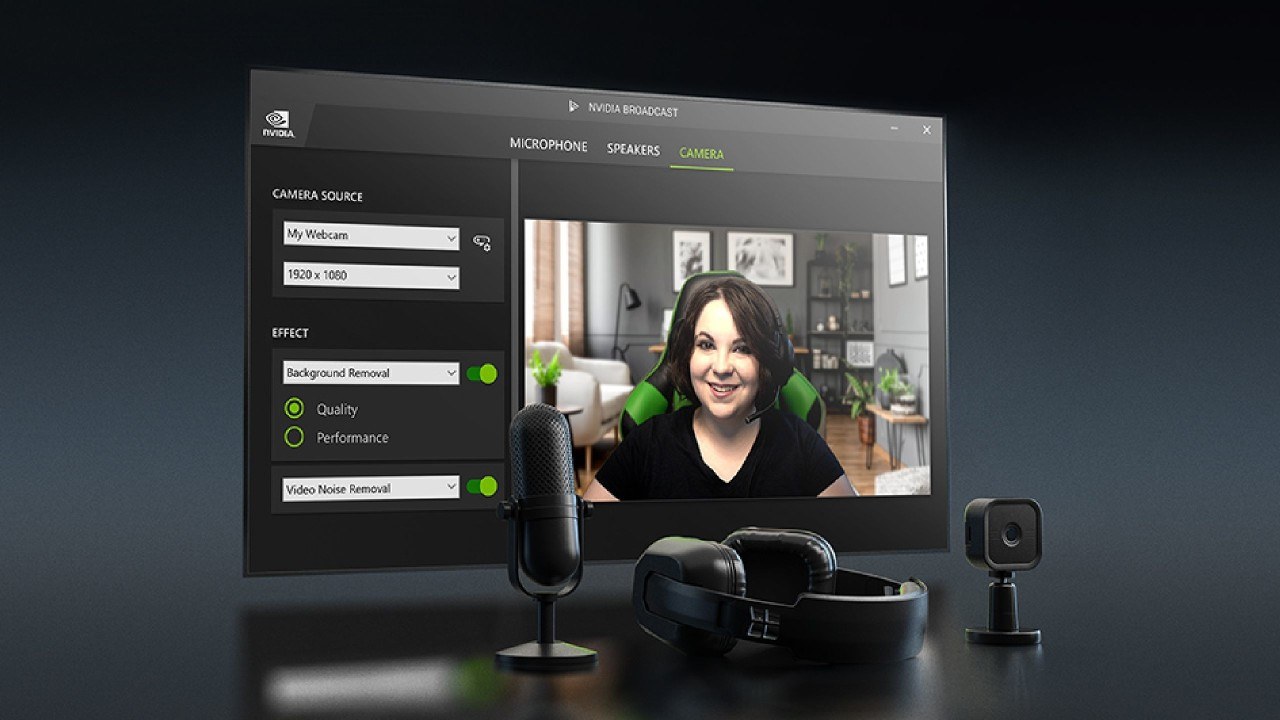
- Open NVIDIA Broadcast, go to each device (microphone, speakers, camera) and select your real input device at the top; if you often plug and unplug headsets, select (Default device) instead.
- Turn on only the effects you need; each extra effect adds GPU load, and Studio Voice cannot be combined with microphone background noise removal.
- Open Windows Settings > System > Sound and keep your headset or speakers as the Output device, not the NVIDIA Broadcast speakers, or every system sound gets filtered.
- In Discord, OBS Studio, Zoom, Teams or any other app, open its audio and video settings and select Microphone (NVIDIA Broadcast), Speaker (NVIDIA Broadcast) and Camera (NVIDIA Broadcast).
- Check it worked: record a short clip with background noise in the microphone test and toggle the effect on and off, then watch the camera preview with the side-by-side before/after view, and turn that view off before going live.
Use the NVIDIA app or GeForce Experience to update drivers
The NVIDIA app incorporates many of the top features of GeForce Experience, and NVIDIA's GeForce Experience address now delivers the NVIDIA app download. It keeps Game Ready and Studio drivers current and can install NVIDIA Broadcast, so one install covers both jobs.
- Open the NVIDIA app page and select Download Now.
- Install the NVIDIA app; it needs Windows 10 or Windows 11, about 600 MB of disk space and GeForce driver 551.52 or later.
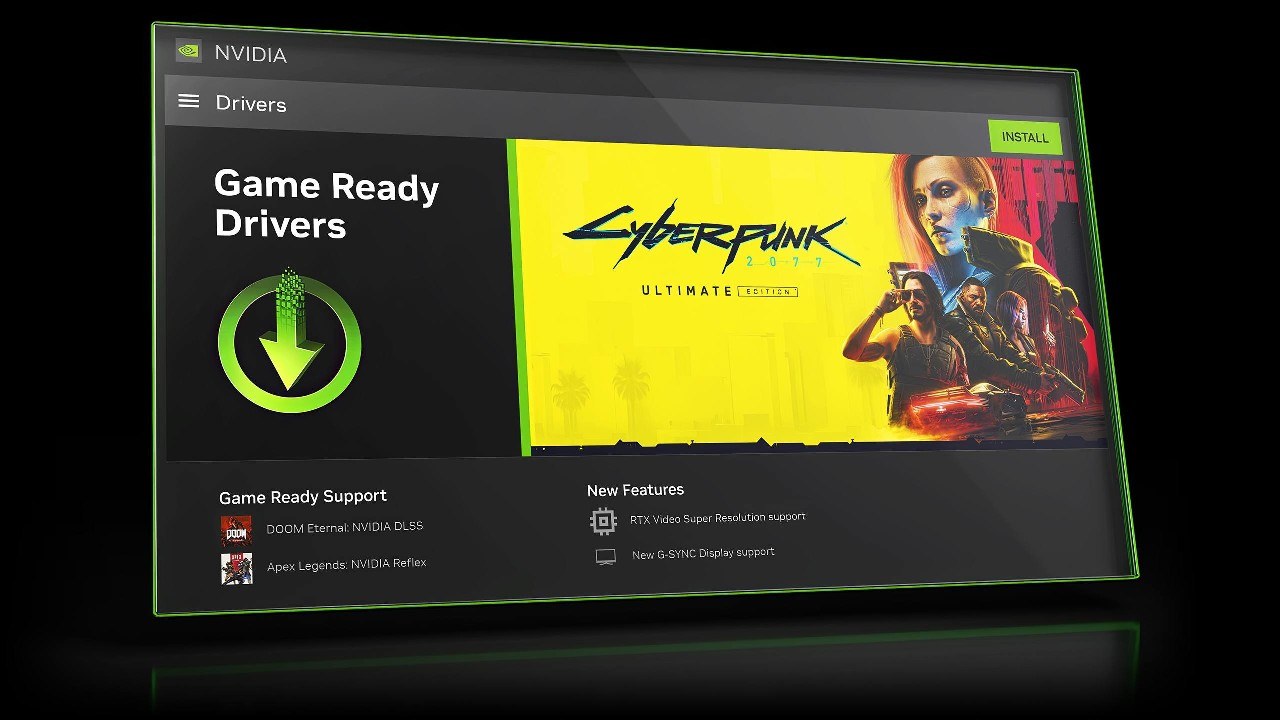
- Open the NVIDIA app and install the latest GeForce Game Ready or NVIDIA Studio driver it offers; Broadcast needs R570 or later.
- If a new driver causes trouble, roll back to the previously installed driver from the same app.
- Find NVIDIA Broadcast in the app's list of NVIDIA applications and install it from there.
How to manually download NVIDIA drivers from the NVIDIA website
Manual driver installs suit PCs where you do not want the NVIDIA app. Windows Update also updates video card drivers on Windows 11 and 10, so whichever route you use, confirm the installed version is 570 or later.
- Open the NVIDIA drivers page and use Manual Driver Search to find the driver for your GPU and your version of Windows.
- Choose the Game Ready driver (gaming) or the Studio driver (creative apps); both qualify for Broadcast at R570 or later.
- Select Download and run the installer.
- To use Windows Update instead on Windows 11, select Start > Settings > Windows Update > Check for Windows updates, then Download & install anything listed.
- On Windows 10, the same button is under Start > Settings > Update & Security > Windows Update.
- Confirm the result in Device Manager > Display adapters > your NVIDIA GPU > Properties > Driver.
- If the new driver misbehaves, select Roll Back Driver on the same tab, then Yes.
Microsoft ended support for Windows 10 on October 14, 2025. NVIDIA Broadcast still lists Windows 10 64-bit, but Windows 10 PCs no longer get free software updates from Windows Update.
Can you download NVIDIA Broadcast on Mac or iPhone?
No. NVIDIA Broadcast has no Mac, iPhone or iPad version, and NVIDIA offers no official web, cloud or mobile edition of it. NVIDIA lists Windows 10 64-bit as the only platform, and every effect runs on the Tensor Cores of an NVIDIA RTX GPU inside the PC.
Fix NVIDIA Broadcast download errors and install problems
Setup stalls or fails while downloading files
The installer pulls about 3GB of AI models for your GPU during setup and needs good connectivity and free space.
- Free at least 3GB on the system drive and confirm the PC is online.
- Run the installer again from the official NVIDIA Broadcast page.
NVIDIA Broadcast will not install on a GeForce GTX card
Broadcast requires the Tensor Cores on RTX GPUs; GTX GPUs are not supported.
- Check the GPU name in Device Manager > Display adapters.
- On a GTX card, use RTX Voice, which NVIDIA patched for GTX GPUs; NVIDIA notes results vary on older cards.
Broadcast does not install or run on an RTX PC
NVIDIA lists driver R570 as the minimum, so check the driver before anything else.
- Read the driver version in Device Manager > Display adapters > Properties > Driver.
- If it is older than 570, install the latest Game Ready or Studio driver from the NVIDIA drivers page or the NVIDIA app, then run the Broadcast installer again.
The NVIDIA Broadcast camera is missing or blank after a Windows 11 update
Version 1.4.0.39 was a hotfix for virtual camera issues some users hit after updating to Windows 11 version 24H2.
- Download the current version from the NVIDIA Broadcast page and install it over the old one with Express Install.
- In your video app, turn the camera off and on again, then reselect Camera (NVIDIA Broadcast).
Noise removal sounds worse or does nothing
The app, headset software or driver is applying its own noise cancelling, so the effect is applied twice.
- Turn off noise cancelling in Discord, Zoom, Teams or your device software.
- Confirm the app uses Microphone (NVIDIA Broadcast) and that Broadcast itself uses your real microphone.
Videos, music and game audio sound filtered
The NVIDIA Broadcast speakers are set as the Windows default output.
- Open Windows Settings > System > Sound.
- Set your headset or speakers as the Output device.
Games lose frame rate with Broadcast running
Each effect uses GPU time; NVIDIA measures 5% to 10% on a GeForce RTX 5090, and does not recommend Studio Voice while gaming.
- Turn off effects you are not using right now.
- Lower the camera resolution or frame rate inside NVIDIA Broadcast, then reload the camera in your streaming app.
Laptop-specific notes: why some NVIDIA Broadcast options are missing
NVIDIA Broadcast is compatible with GeForce and Quadro RTX laptops, but NVIDIA names desktop GPUs for two effects, and PCs with more than one GPU choose which one Broadcast runs on.
Studio Voice or Virtual Key Light does not work on a laptop
NVIDIA lists a GeForce RTX 3060 desktop GPU or higher for these two effects and does not name laptop GPUs.
- Check the GPU model in Device Manager > Display adapters.
- Use Noise Removal, Room Echo Removal and the camera effects, which run on every supported RTX GPU.
Broadcast runs on the wrong GPU in a multi-GPU PC
Since version 2.1.0 Broadcast installs the engines for every GPU in the PC, and the GPU it runs on is switched in the NVIDIA Control Panel.
- Update NVIDIA Broadcast to the current version so the engines for every GPU are installed.
- Open the NVIDIA Control Panel and switch NVIDIA Broadcast to the RTX GPU.
How to uninstall NVIDIA Broadcast
- Select Start > Settings > Apps > Installed apps.
- Find NVIDIA Broadcast and select More > Uninstall.
- If it is not listed there, open the Windows Control Panel and use Programs > Programs and Features instead.
- Set your real microphone and camera back as the defaults in Windows and in each app that used the NVIDIA Broadcast devices.
NVIDIA Broadcast download FAQ
Does NVIDIA Broadcast work on Windows 11?
Yes. NVIDIA lists Windows 10 64-bit as the platform, and release 1.4.0.39 was a hotfix for virtual camera issues some users hit after updating to Windows 11 version 24H2. Keep the app current on Windows 11 so that fix is installed.
Can I use NVIDIA Broadcast with a GeForce GTX GPU?
No. NVIDIA Broadcast uses the Tensor Cores on NVIDIA RTX GPUs for its AI effects. For GTX owners, NVIDIA patched its older RTX Voice beta with GTX support, though it warns that results vary on older cards.
Is NVIDIA Broadcast the same as RTX Voice?
No. NVIDIA Broadcast grew out of the RTX Voice community beta and keeps its noise removal, then adds room echo removal, Studio Voice, virtual background, auto frame, eye contact and other camera effects for RTX GPUs.
Is NVIDIA Broadcast part of the NVIDIA Control Panel?
No. NVIDIA Broadcast is a separate app that creates virtual microphone, speaker and camera devices in Windows. The NVIDIA Control Panel only comes into it on multi-GPU PCs, where it switches which GPU Broadcast runs on.
How much does NVIDIA Broadcast affect game performance?
NVIDIA measures the impact at 5% to 10% on a GeForce RTX 5090, depending on the GPU, game, webcam resolution, frame rate and number of effects. Studio Voice needs more of the GPU and is not recommended while gaming.
Why does NVIDIA Broadcast need the internet to install?
During installation it downloads the latest AI models for your GPU only, which keeps the download smaller. The extra download needs about 3GB of storage, so a stable connection and free space matter before you start.
Can NVIDIA Broadcast run more than one effect at once?
Yes. Since version 2.0.0 you can combine as many microphone, speaker and camera effects as the GPU can handle. Some pairs cannot be combined, such as Studio Voice with microphone background noise reduction, and each effect adds load.
Which apps work with NVIDIA Broadcast?
NVIDIA lists OBS Studio, Streamlabs, XSplit Broadcaster, Discord, TeamSpeak, Zoom, Webex, Microsoft Teams, Slack, Google Meet and more. Broadcast appears to these apps as virtual camera, microphone and speaker devices, so select the NVIDIA Broadcast devices in each app's settings.
Can I control NVIDIA Broadcast with keyboard shortcuts or a Stream Deck?
Yes. Keyboard shortcuts are enabled and remapped in the app's settings, and each press toggles the last effect selection. Elgato Stream Deck owners can install the NVIDIA Broadcast plugin from the Elgato Marketplace.
Do you need an NVIDIA account to download NVIDIA Broadcast?
No account appears in NVIDIA Broadcast's system requirements, which list the GPU, RAM, CPU, driver and an internet connection during installation. Logging in to the NVIDIA app is optional too; NVIDIA says it lets you redeem GPU bundles and rewards.