To delete a Discord server, open the server's Server Settings, scroll down to Delete Server and confirm with the server's name or your 2FA code; only the server owner can do this, and it cannot be undone.
On this page
The steps below cover the desktop app and the mobile app separately, plus transferring ownership instead, what deletion erases, and why the option can be missing.
Delete a Discord server
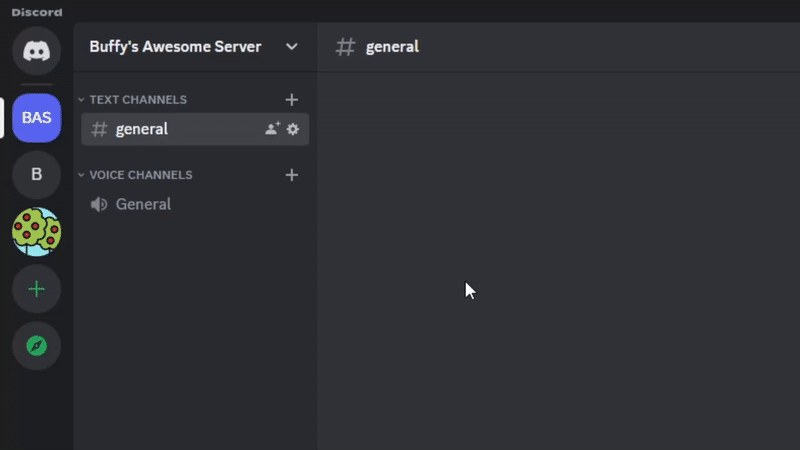
Deleting a server on Discord uses one menu path on each platform. The confirmation differs: a typed server name or a 2FA code on desktop, a Yes tap or a 2FA code on mobile.
| You are on | Path to the delete button | How you confirm |
|---|---|---|
| Discord desktop app | Server name (or right-click it) > Server Settings > scroll down > Delete Server | Type the server's name and select Delete Server, or enter a 2FA code if your account has 2FA |
| Discord mobile app | Three dots (…) next to the server name > Settings > Overview > swipe down > Delete Server | Tap Yes, or enter a 2FA code if your account has 2FA |
Should you delete the server, transfer it or leave it?
Deletion is permanent for everyone in the server. If the community should keep going without you, transferring ownership does that, and a server you do not own can only be left, never deleted.
| Your situation | What to do | What happens |
|---|---|---|
| You own the server and nobody needs it any more | Delete it | The server, its messages and its member list are gone for good |
| You own the server but members still use it | Transfer ownership to a member | The server keeps running under the new owner and you stay on as a member |
| You want a fresh server with the same channels and roles | Create a server template on desktop, build the new server from it, then delete the old one | The template copies categories, channels, roles and permissions; Forum, Announcement and Stage channels are not included |
| You do not own the server | Right-click the server icon and select Leave Server | The server stays up for everyone else; only the owner can delete it |
| You want to delete your Discord account | Transfer or delete every server you own first | Discord blocks account deletion until you no longer own any servers |
How to delete Discord servers on desktop
You must be the server owner. Administrator and other permissions do not unlock the delete button.
- Open the server you want to delete and select the server name to open the drop-down menu, or right-click the server name.
- Select Server Settings.
- Scroll down the settings list and select Delete Server.
- If your account has 2FA enabled, enter your 2FA code, and be completely sure before you type it, because a deleted server cannot be restored.
- If your account does not have 2FA, type the server's name into the prompt and select Delete Server. The server is deleted and cannot be restored.
How to delete a Discord server on mobile (Android & iOS)
- Open the server you want to delete and tap the three dots (…) next to the server name.
- Tap Settings.
- Tap Overview, then swipe down to the Delete Server option and tap it.
- If your account has 2FA enabled, enter your 2FA code.
- If your account does not have 2FA, tap Yes to delete the server or No to cancel.
Not interested in a Discord server? Transfer ownership instead
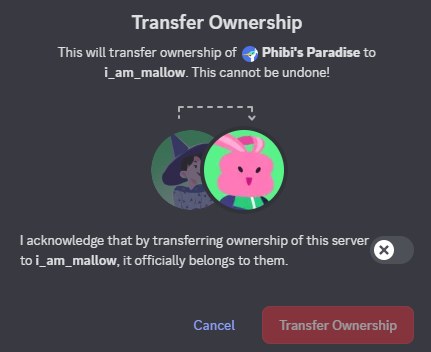
Transferring hands the server to another member, so the community keeps running under a new owner. After the transfer you remain a member, with whatever access your new role gives you. Discord Support cannot transfer a server back once it has moved.
| Step | Desktop or browser app | Mobile app |
|---|---|---|
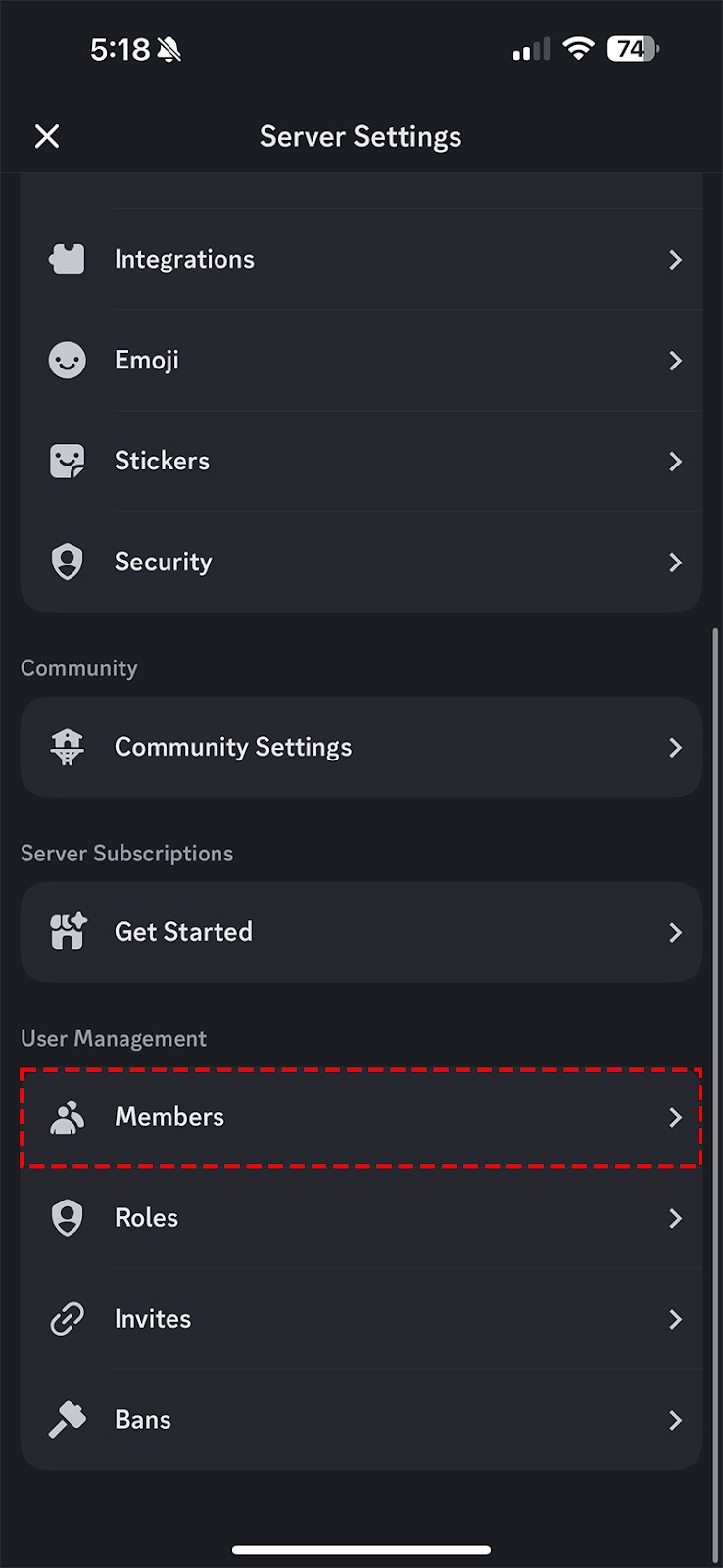
| 1 | Open the server and go to the Members tab in Server Settings | Open the server, tap Server Settings, then Members |
| 2 | Right-click the member who will take over and select Transfer Ownership | Tap the member who will take over, then Transfer Ownership |
| 3 | Select the toggle to acknowledge the transfer, then select Transfer Ownership | Confirm your acknowledgement, then press Transfer |
| 4 | Enter your MFA code if your account uses MFA | Enter your MFA code if your account uses MFA |
How to check the Discord server is deleted or transferred
- After a deletion, check your server list: the deleted server's icon is gone and the server cannot be restored.
- After a transfer, open the server's member list and look for the crown icon, which marks the server owner; it should now sit next to the new owner's name instead of yours.
- If no crown appears anywhere, the server displays an Administrator role separately, which hides the crown; the owner turns off Display role members separately from online members in that role's settings to bring it back.
What happens when you delete a Discord server?
| Item | After the server is deleted |
|---|---|
| The server | Permanently deleted; it cannot be restored, even after an accidental deletion |
| Messages | Cannot be recovered or restored |
| Member list | Cannot be recovered or restored |
| Anything else in the server | Nothing from a deleted server can be recovered or restored, so copy out anything you need first |
| Your Discord account | No longer blocked from deletion by this server; Discord requires every server you own to be transferred or deleted first |
Force delete your account on Discord when you still own servers
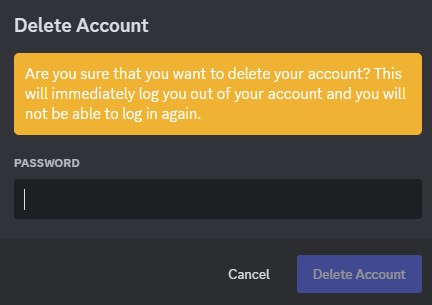
Discord will not delete an account that still owns servers. Selecting Delete Account shows a message telling you to transfer or delete them first, and there is no override in the app.
- Delete each server you own, or transfer it to another member, using the steps above.
- On desktop, select the cogwheel icon to open User Settings, choose My Account and select Delete Account.
- On mobile, tap your profile avatar, tap it again or the gear icon to open Settings, tap Account and select Delete Account.
- Enter your password, plus your multi-factor code if your account uses it.
- Confirm with Delete Account on desktop or Okay on mobile. The account then sits in a pending-deletion state for 15 days before deletion becomes irreversible.
- If the app will not let you start deletion at all, contact Discord's Support Team through support.discord.com.
Fix a Discord server you cannot delete
There is no Delete Server option in Server Settings
The server requires 2FA for certain actions and your account does not have 2FA turned on, or you are not the server owner.
- Check that you own the server; only the owner can delete it.
- Turn on multi-factor authentication: open User Settings > Account, then add a security key with Security Keys > Add, or set up an authenticator app. SMS can be added only after an authenticator app is set up.
- Return to Server Settings and look for Delete Server again.
Discord asks for a 2FA code instead of the server name
Your account has 2FA enabled, so the code replaces the typed name as confirmation.
- Enter the current code from the 2FA method set up on your account.
- Type the code only when you are sure, because a deleted server cannot be restored.
The owner is inactive and the server needs a new owner
Only the owner can delete or transfer a server, so members need Discord Support to move ownership.
- Confirm the server meets Discord's criteria: 100 members by active user count, an owner who has not accessed their account for at least a month, a requester active in the last 30 days with administrator or moderator permissions, and no monetization.
- Turn on Developer Mode, then right-click the server and select Copy Server ID; right-click the owner's and your own avatar and select Copy User ID.
- Go to support.discord.com/hc/requests/new, choose Help & Support, enter your account email, then choose Server Related Requests > Server Ownership Transfer Request.
- Fill in the server name, server ID, and both usernames and user IDs. The new owner must submit the ticket. Discord contacts an inactive owner, who has 7 days to respond; if they approve or do not respond, Discord transfers the server when it meets the criteria.
The server was deleted by accident
Deletion is final; Discord cannot restore a deleted server or anything in it.
- Create a new server.
- Invite members to the new server again.
Discord server deletion FAQ
Can a deleted Discord server be recovered?
No. Once a Discord server is deleted it cannot be restored, and nothing from it, including channels, messages and the member list, can be recovered. Transfer ownership instead if anyone might still want the server to keep running.
Can an admin delete a Discord server?
No. Only the server owner can delete a Discord server, regardless of the permissions other members hold, including the Administrator permission. An admin who wants it gone has to ask the owner to delete it or transfer ownership to them first.
Does deleting a Discord server delete all the messages?
Yes. Deleting a server removes everything in it, and neither the messages nor the member list can be recovered afterwards, by you or by Discord Support. Copy out anything you want to keep, such as pinned rules or links, before you confirm the deletion.
Do you have to delete your servers before deleting your Discord account?
Yes, or transfer them. Discord refuses to delete an account that still owns servers and shows a message telling you to transfer or delete them. Once you own none, Delete Account asks for your password and proceeds.
How long does it take to delete a Discord account?
Fifteen days. After you confirm, you are logged out and the account stays in a pending-deletion state for 15 days; restoring it within that window cancels the deletion. Discord Support cannot speed this up, and after day 15 it is irreversible.
Can Discord undo a server ownership transfer?
No. Once a server has been transferred, Discord's Support team is not able to transfer it back. The new owner would have to transfer it to you again from their own Server Settings.
Why does Discord ask for my server's name before deleting it?
Typing the server's name is the confirmation step on desktop for accounts without 2FA. Accounts with 2FA enter a 2FA code instead, and on mobile an account without 2FA simply taps Yes.
Can I delete a Discord server from a phone?
Yes. In the Discord mobile app, tap the three dots next to the server name, then Settings, then Overview, and swipe down to Delete Server. Confirm with Yes or with your 2FA code.