The NVIDIA app is a Windows 11 and Windows 10 download only, from nvidia.com, for PCs with NVIDIA graphics; NVIDIA makes no Mac or iPhone version, and on those devices the official NVIDIA option is the GeForce NOW cloud gaming service.
On this page
Below: which download fits your PC, install and first settings, NVIDIA Control Panel and the other driver routes, and fixes when the download or install fails.
Which NVIDIA app download do you need?
NVIDIA publishes one consumer app, one workstation edition and separate driver downloads. Match your device to a row.
| Your device | Download | What it does |
|---|---|---|
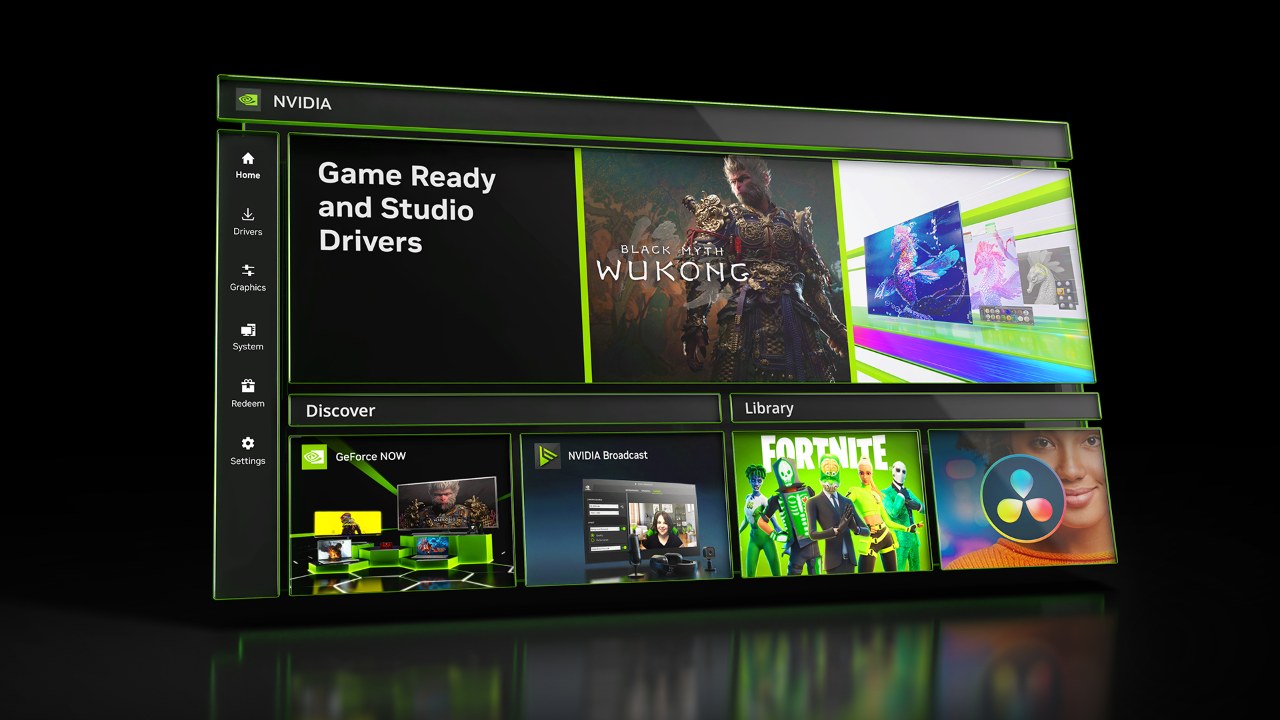
| Windows 11 or 10 PC or laptop with GeForce graphics | NVIDIA app | Game Ready and Studio driver updates, GPU settings, ShadowPlay recording, the in-game overlay |
| Workstation with an NVIDIA RTX professional card | NVIDIA App for Enterprise | The same control center with driver recommendations chosen by workflow |
| You only want the graphics driver | NVIDIA Drivers | Manual driver search by product, with no app |
| You want the classic NVIDIA Control Panel | NVIDIA Control Panel in the Microsoft Store | Display and 3D settings in the classic interface |
| Mac, iPhone or iPad | GeForce NOW download page | NVIDIA's cloud gaming platform, which plays your games from the cloud |
Download NVIDIA app for Windows 11 and Windows 10
Both downloads are on nvidia.com. On the NVIDIA app page, select Download Now to get the Windows installer.
- NVIDIA app download page (11.0.9 · 600 MB disk space required): select Download Now
- NVIDIA App for Enterprise: for NVIDIA RTX workstation cards
The NVIDIA app incorporates many of the top features from GeForce Experience and RTX Experience, so a PC with GeForce Experience moves to the NVIDIA app as an upgrade.
Before you download: check that you have NVIDIA graphics and meet the requirements
The NVIDIA app is built for NVIDIA GPU owners, so confirm the card first: right-click Start, select Device Manager, and expand Display adapters. The NVIDIA entry there is the GPU to compare against the table.
| Requirement | NVIDIA app |
|---|---|
| Operating system | Windows 10, Windows 11 |
| Memory | 2GB system memory |
| Disk space | 600 MB |
| Driver | GeForce 551.52 Driver or later |
| CPU | Intel Pentium G Series, Core i3, i5, i7, or higher; AMD FX, Ryzen 3, 5, 7, 9, Threadripper or higher |
| GPU | GeForce RTX 20, 30, 40, and 50 Series GPUs |
NVIDIA lists older cards inconsistently: the NVIDIA app FAQ still names GeForce GTX 800, 900, 1000 and 1600 Series and MX100, MX200, MX300, 800M and 900M GPUs, while the system requirements list names only the GeForce RTX 20, 30, 40 and 50 Series. On a GTX or MX card, Manual Driver Search on the NVIDIA Drivers page gets the driver without the app.
How to download NVIDIA app on PC and install it
- Open the NVIDIA app page on nvidia.com and select Download Now.
- Open the downloaded installer from your browser's download list and follow its prompts.
- Sign in with an NVIDIA account only if you want to redeem GPU bundles and rewards; the login is optional.
- Install the newest Game Ready Driver if the app offers one, since features such as Smooth Motion and the global DLSS Override need it.
- For first settings, open Graphics > Program Settings > Driver Settings and set DLSS Override for your games on an RTX card.
- Open System > Displays to turn on G-SYNC and adjust display scaling, settings NVIDIA has moved over from the NVIDIA Control Panel.
- Press Alt+Z in a game to open the overlay, then Settings > Video Capture to set ShadowPlay recording quality.
- To prove it worked, select Start > All apps and find the NVIDIA app in the list; the overlay opening on Alt+Z confirms it is running.
ShadowPlay's Instant Replay saves the last 30 seconds of gameplay, and the overlay shows FPS, GPU and CPU utilization and system latency.
What is NVIDIA Control Panel, and how to download it on Windows 10/11
NVIDIA Control Panel is NVIDIA's classic settings app for display and 3D options. The NVIDIA app is absorbing it: NVIDIA's FAQ says the app integrates the Control Panel's 3D Settings, and later releases moved over Anisotropic Filtering, Antialiasing, PhysX, Surround and the CUDA System Fallback policy.
Microsoft's DCH (Declarative, Componentized, Hardware Support App) driver rules require any user interface tied to a driver package to be a Hardware Support App distributed through the Microsoft Store. NVIDIA Control Panel is available as a Microsoft Store app.
- Install or update the latest NVIDIA driver first, from the NVIDIA app or the NVIDIA Drivers page, since a Hardware Support App is paired with a driver package.
- Open the NVIDIA Control Panel listing in the Microsoft Store and install it.
- To open it after downloading, select Start > All apps and choose NVIDIA Control Panel from the list.
- To reinstall it, uninstall it from Settings > Apps > Installed apps, then install it again from the same Store listing.
- Without the Microsoft Store, use the NVIDIA app instead: Graphics carries the 3D settings and System carries G-SYNC, scaling and Surround.
How to update NVIDIA drivers on Windows 10 and 11
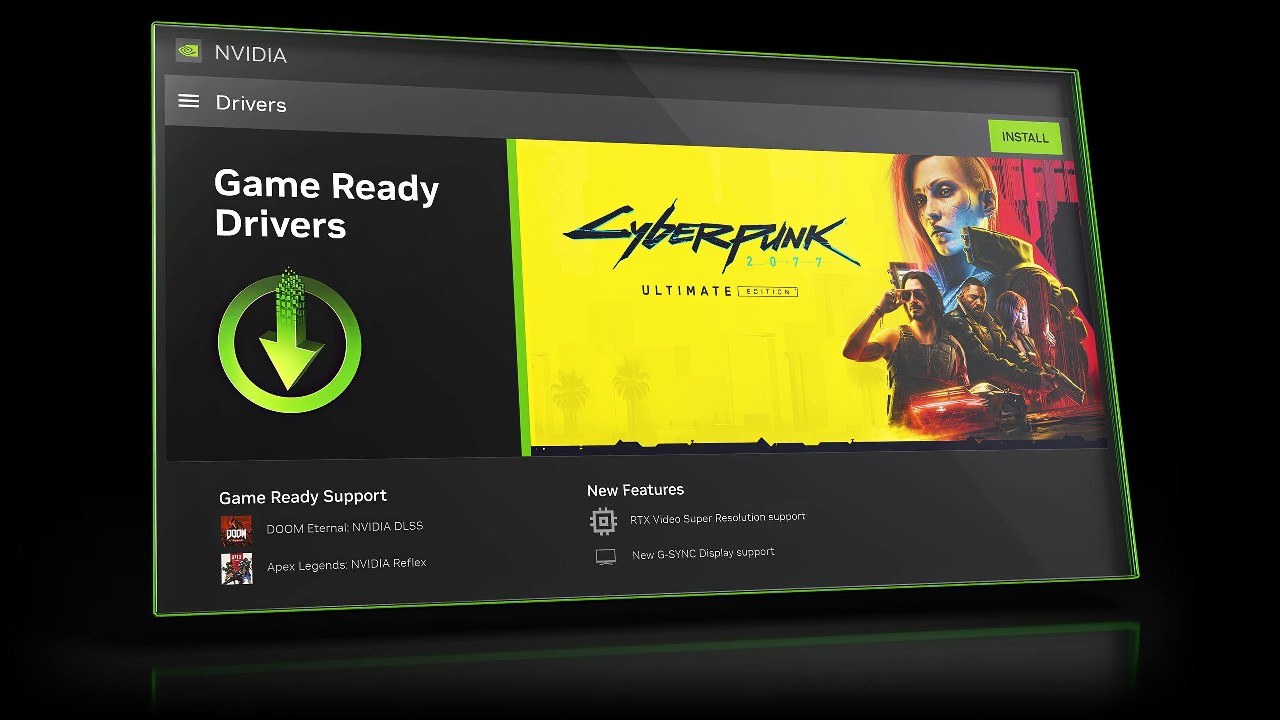
NVIDIA recommends the NVIDIA app for driver updates: it keeps GeForce Game Ready and NVIDIA Studio drivers current, lists what's new and what's fixed in each one, and can roll back to the previously installed driver after the next driver installation. To manually download NVIDIA drivers from the NVIDIA website instead, or to update through Windows, use these steps.
- Open the NVIDIA Drivers page on nvidia.com.
- Under Manual Driver Search, choose your Product Category and graphics card model.
- Pick a download type: Game Ready Drivers for games, or Studio Drivers for creative applications. Both are WHQL-certified by Microsoft.
- Download the driver and run it, then restart if the installer asks.
- To let Windows do it, open Windows Update and install the offered updates; Windows Update delivers drivers for video cards along with other hardware.
- For a single device, right-click Start, open Device Manager, expand Display adapters, right-click the NVIDIA GPU and select Update driver > Search automatically for updated driver software.
Can you download the NVIDIA app on Mac or iPhone?
No. NVIDIA lists Windows 10 and Windows 11 as the only supported systems for the NVIDIA app, and there is no macOS, iPhone or iPad version. The legitimate NVIDIA option on those devices is GeForce NOW, NVIDIA's cloud gaming platform, which plays games from the cloud instead of tuning a local GPU. It has a native macOS app for macOS 10.15 or higher on any Mac introduced in 2009 or later, and it supports an iPhone or iPad with OS version 15.4 or later. The GeForce NOW download page carries the Mac download, the iOS and iPadOS entry, and Launch on Browser for Safari 16.4 or later on a Mac.
Fix NVIDIA app not downloading or installing, and common NVIDIA Control Panel errors
The NVIDIA app will not install
The PC is below a requirement, such as an NVIDIA driver older than version 551.52 or a system older than Windows 10.
- Check that Display adapters in Device Manager lists an NVIDIA GPU; the app is built for NVIDIA GPU owners.
- Install a current driver from the NVIDIA Drivers page with Manual Driver Search.
- Download a fresh installer from the NVIDIA app page and run it again.
The installer fails when the PC is offline
Older installers had an intermittent issue where the NVIDIA app did not install without an internet connection; NVIDIA fixed it in NVIDIA App 11.0.7.
- Connect the PC to the internet.
- Download the current installer from nvidia.com rather than reusing a saved copy.
- Run it and let it finish before disconnecting.
Driver download failed inside the NVIDIA app
The in-app driver download did not complete, so the driver has to come from another official route.
- Download the same driver from nvidia.com/drivers using Manual Driver Search and run it.
- If the display driver is damaged, right-click Start, open Device Manager, right-click the GPU under Display adapters, select Uninstall device, then Uninstall.
- Restart through Shut down or sign out > Restart; Windows attempts to reinstall a driver, and you can then install the NVIDIA one again.
Games misbehave after a driver update
A recent driver update caused the problem, and reinstalling the previous driver often resolves that.
- Use the NVIDIA app's driver rollback to return to the previously installed driver.
- Or open Device Manager, right-click the GPU, select Properties > Driver > Roll Back Driver, and confirm with Yes.
- Sign in with administrator permissions first, since Device Manager needs them to roll back drivers.
NVIDIA Control Panel is missing
NVIDIA Control Panel is its own Microsoft Store app, separate from the driver and the NVIDIA app.
- Install it from the Microsoft Store listing.
- Search Start > All apps for it after the install.
- Or use the NVIDIA app, which now carries the 3D, display and Surround settings.
Advanced Optimus or display options are missing on a laptop
On laptops, the display controls moved into the NVIDIA app, and a running app can block Advanced Optimus.
- Open the NVIDIA app and go to System > Display, where Advanced Optimus Modes and Manage Displays now sit.
- If Advanced Optimus is blocked, close the app the NVIDIA app names as blocking it and check again.
- Confirm the NVIDIA GPU is present under Display adapters in Device Manager.
How to uninstall or reinstall the NVIDIA app
- Select Start > Settings > Apps > Installed apps.
- Find the NVIDIA app, select More > Uninstall, and confirm.
- If it is not listed there, open Control Panel > Programs > Programs and Features, right-click it and select Uninstall.
- To reinstall, download a fresh copy from the NVIDIA app page and run it.
NVIDIA app FAQ
What is the NVIDIA app for?
The NVIDIA app keeps NVIDIA GPU drivers up to date and gathers GPU, game and display settings in one place. It also records gameplay with ShadowPlay, shows a performance overlay, applies Freestyle filters such as RTX HDR, and installs other NVIDIA apps like GeForce NOW and NVIDIA Broadcast.
Should I download the NVIDIA app?
Yes, if your Windows 10 or 11 PC has NVIDIA graphics. It is NVIDIA's recommended route for driver updates and incorporates many of the top features from GeForce Experience. It runs only on Windows 10 and 11 and is built for NVIDIA GPU owners, so it does not apply to a Mac.
Where can I download the NVIDIA app?
Download it only from nvidia.com/en-us/software/nvidia-app, using the Download Now button. Workstation users with NVIDIA RTX professional cards get the enterprise edition from NVIDIA's NVIDIA App for Enterprise page.
Why can't I download or install the NVIDIA app?
Check the requirements first: the app needs Windows 10 or 11, an NVIDIA GPU and a GeForce 551.52 driver or later. Install a current driver from nvidia.com/drivers, then download a fresh installer and run it while connected to the internet.
How do I fix driver download failed in the NVIDIA app?
Download the same driver from nvidia.com/drivers with Manual Driver Search and install it directly. If the installed driver is damaged, uninstall the GPU in Device Manager, restart so Windows attempts to reinstall a driver, then install the NVIDIA driver again.
How do I update the NVIDIA app?
Download the current installer from the NVIDIA app page on nvidia.com and run it. NVIDIA's release highlights page lists NVIDIA app versions and what each one added and fixed, starting with the newest release.
How do I remove or reinstall the NVIDIA app?
Open Settings > Apps > Installed apps, select More next to the NVIDIA app and choose Uninstall. To reinstall, download a new copy from nvidia.com.
Does the NVIDIA app replace NVIDIA Control Panel?
Gradually. NVIDIA describes the app as a step toward unifying NVIDIA Control Panel, GeForce Experience and RTX Experience, and it already holds the Control Panel's 3D settings, G-SYNC, scaling and Surround options. The classic Control Panel is still available from the Microsoft Store.