Change your Minecraft skin in the Skins tab of the Minecraft Launcher if you play Java Edition, or from the Dressing Room on the start screen if you play Bedrock Edition on Windows, a console, a phone or a Chromebook.
On this page
Below are the steps for each edition and device, how to import a skin you drew yourself, the size and arm rules a skin must meet, and fixes for a skin that will not show.
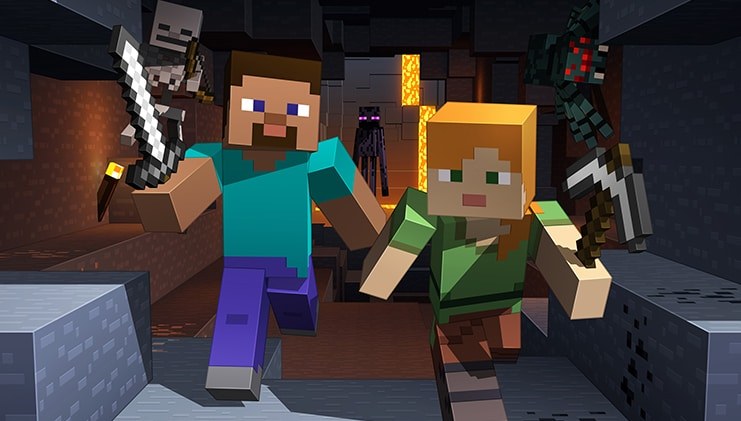
How to change your Minecraft skin on PC, console, and mobile
The edition you play decides where the skin setting lives. Minecraft: Java & Bedrock Edition for PC includes both editions, and each one sets its skin in a different place, so a PC owner who plays both changes the skin twice.
| Your edition and device | Where to change the skin | Skins you can use |
|---|---|---|
| Java Edition on Windows, macOS or Linux | Minecraft Launcher, Skins tab | Nine default skins, or any PNG skin you download online or make yourself |
| Bedrock Edition on Windows, Android, iOS or Chromebook | Dressing Room on the start screen | Featured skins, free and paid Minecraft Marketplace skins, the Character Creator, and custom skins imported on Windows or mobile |
| Bedrock Edition on Xbox, Nintendo Switch or PS5 | Dressing Room on the start screen | Featured skins, Minecraft Marketplace skins and the Character Creator; custom skins cannot be imported on consoles |
| Minecraft Education | Not available | Custom skins are not supported for players or NPCs |
How to change a skin in Minecraft Java Edition
Java Edition changes skins in the Minecraft Launcher, not inside a world. A custom Java skin syncs between devices, so the skin you save here follows you to other computers.
- Find or make a skin and download it to the computer as a flat, unwrapped .png image.
- Open the Minecraft Launcher and choose Minecraft: Java Edition in the left-side menu.
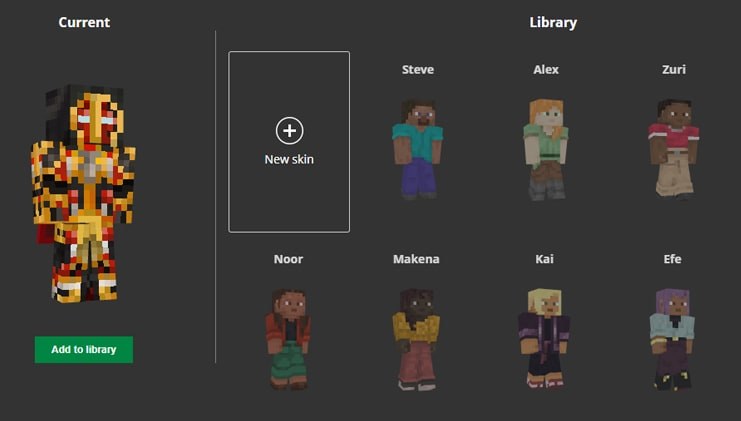
- Click the Skins tab at the top of the window, between Installations and Patch Notes.
- Pick one of the nine default skins, or click New Skin to import your own.
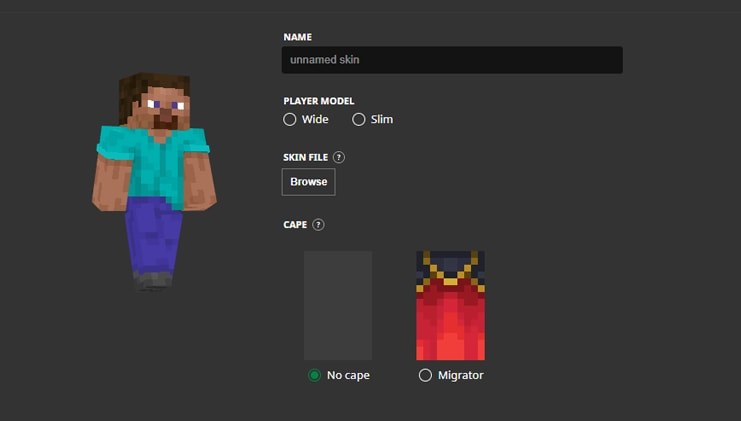
- Give the skin a name, then choose Classic/Wide or Slim, whichever arm model the PNG was drawn for.
- Click Browse, select the PNG you downloaded and upload it.
- Click Save and use to put the skin on your character in-game.
How to change a skin in Minecraft Bedrock and Pocket Edition
Bedrock Edition runs on Windows, consoles, mobile and Chromebook, and every version changes skins from the same Dressing Room. Minecraft on Android and iOS is Bedrock Edition, which was called Pocket Edition before the Bedrock version took the name Minecraft on every platform.
- Start Minecraft on Windows, Android, iOS or Chromebook and select Dressing Room on the start screen.
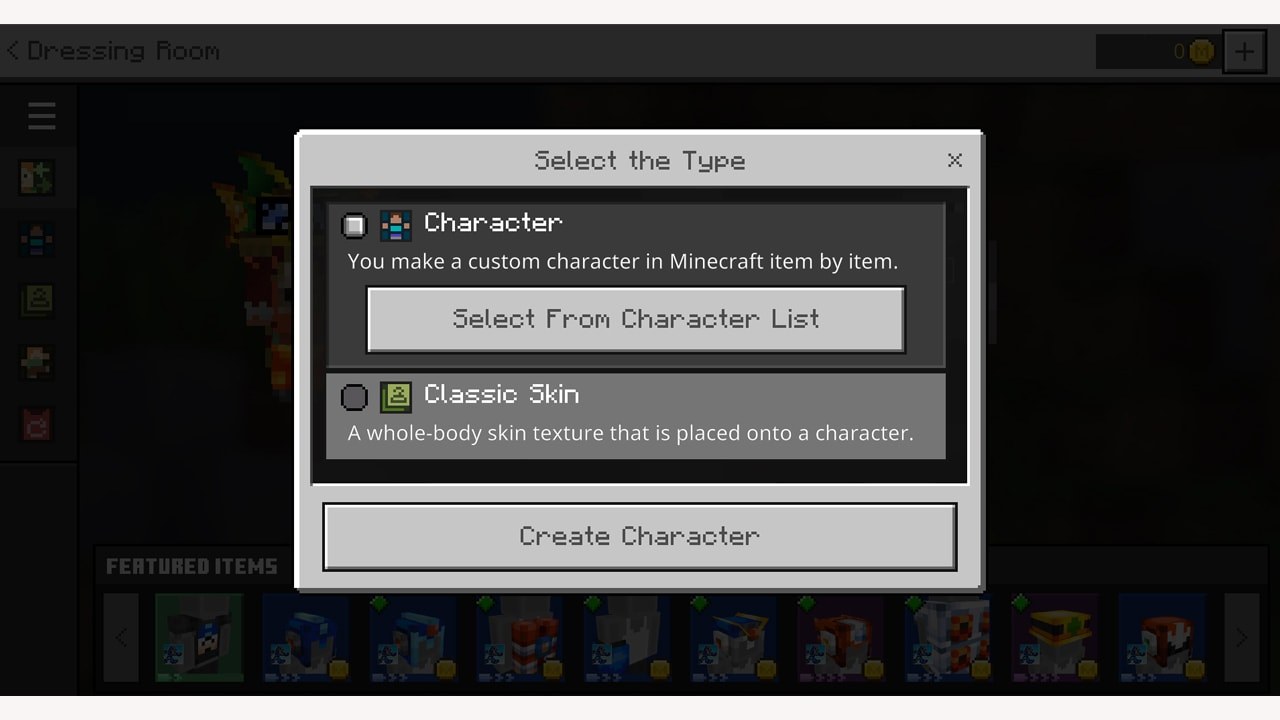
- If the game asks you to choose between Character Creator and Classic Skin, choose Classic Skin to wear a complete skin.
- Select the little green Featured Skins button with the clothes hanger on it.
- Pick the skin you want, then select Equip.
To build a look instead, choose the Character Creator, pick one of the nine default skins as a base, and add hairstyles, eye colors, wings, tails and other items. The Character Creator is free, and backing out of it saves the character to the Dressing Room. Bedrock keeps five character slots, so you can switch between saved looks without rebuilding them.
How to change Minecraft skins on consoles
Xbox, Nintendo Switch and PS5 run Bedrock Edition, so the Dressing Room works the same way. Consoles cannot import a custom skin file, so a skin you drew yourself works only on Windows and mobile; console players choose from featured skins, Minecraft Marketplace skins and the Character Creator.
- Start Minecraft on the console and select Dressing Room on the start screen.
- Choose Classic Skin to wear a complete skin, or Character Creator to build one item by item.
- Open Featured Skins, pick a skin and select Equip.
- For more skins, open Minecraft Marketplace from the start screen and download a free skin or buy a skin pack: Minecoins pay on Xbox and Switch, Tokens on PS5.
- Return to the Dressing Room, where the new skin is added to your wardrobe, and equip it.
Marketplace purchases and Minecoins roam across Windows, Xbox, mobile and Switch. Tokens are used only on PlayStation consoles, and Minecoins cannot be used on PlayStation. Skin packs, from paid Marketplace sets to the occasional free skin pack, are where console players find most new skins.
How to get your new custom skin into Minecraft Bedrock
A skin you drew yourself goes into Bedrock Edition as a skin pack: a few files zipped into one .mcpack that Minecraft imports on its own. Microsoft publishes a sample skin pack on GitHub to check your work against.
- Create a folder named something like My_Skin_Pack and put your skin PNG inside it.
- Add a manifest.json with two generated UUIDs: one in the header and one in a module of type skin_pack.
- Add a skins.json that lists each skin with its localization_name, the geometry geometry.humanoid.custom, the texture file name and the type free.
- Create a texts folder holding a language file such as en_US.lang that names the skin and the pack.
- Zip the contents of the folder and save the file with the .mcpack extension.
- Double-click the .mcpack. Minecraft launches and imports it into the skin_packs folder inside your com.mojang directory, with messages that the import started and succeeded.
- Select Dressing Room, choose Classic Skin if asked, open Featured Skins, select your skin and select Equip.
What size and format a Minecraft skin needs
The arm widths apply to every Minecraft skin. The size and file limits come from Bedrock Edition's skin pack validation rules, which treat a pack that breaks them as an error.
| Rule | Requirement |
|---|---|
| Image format | A flat, unwrapped PNG image |
| Arm width | Classic (Steve) arms are four pixels wide; Slim (Alex) arms are three pixels wide |
| Skin texture size in a Bedrock skin pack | 64×64 or 128×128 pixels |
| Cape texture size in a Bedrock skin pack | Typically 64×32 pixels |
| Skins per Bedrock skin pack | No more than 80; split larger sets into several packs |
| Model in skins.json | A valid player model target, slim or wide arms |
| Names in skins.json | localization_name and serialize_name must have the same value |
| Files in a Bedrock skin pack | manifest.json, skins.json, the skin PNG files and a .lang file in the texts folder |
How to check your new Minecraft skin worked
- On Bedrock, reopen the Dressing Room and confirm the skin you picked is the one equipped.
- On Java, start the game from the Minecraft Launcher after Save and use.
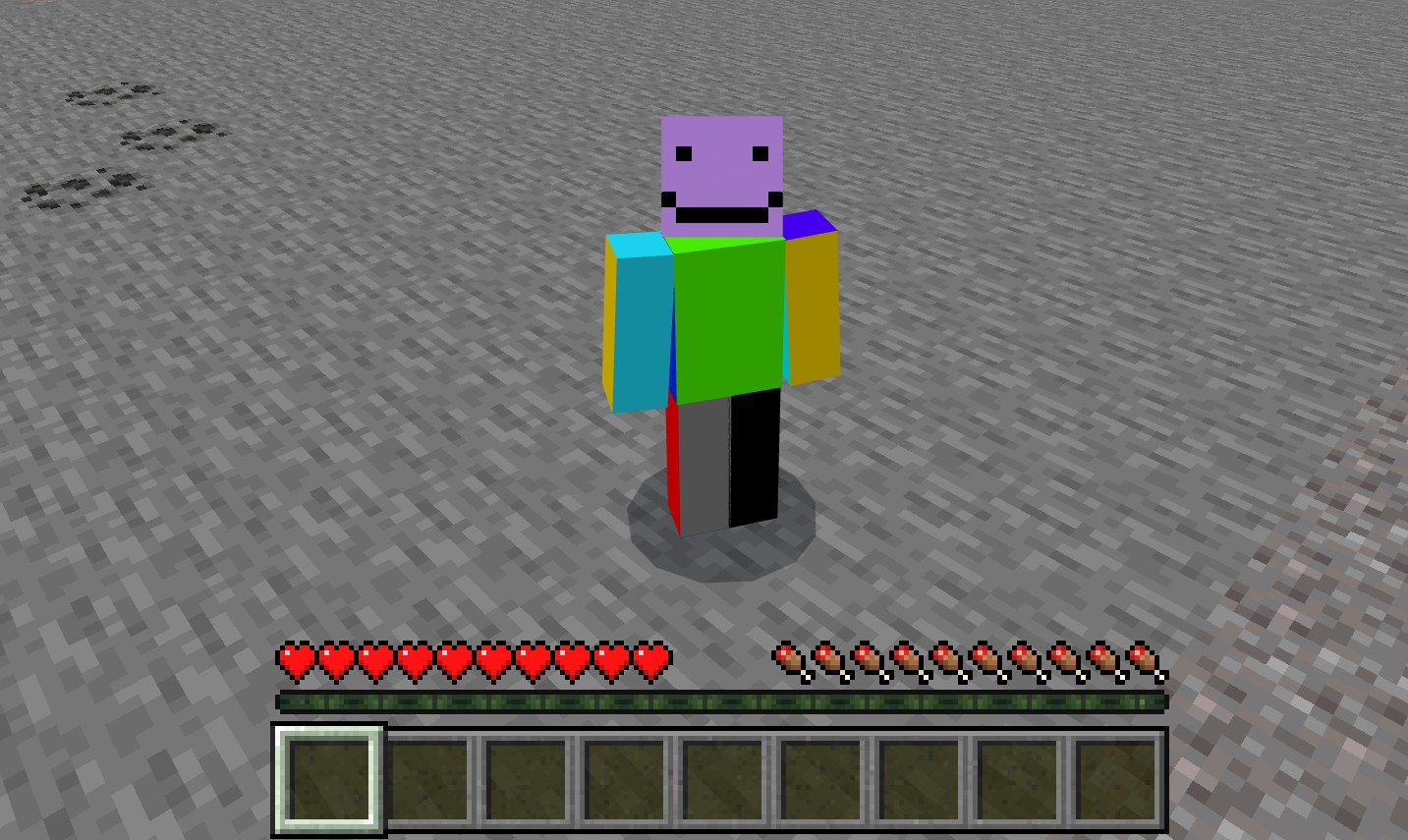
- Load a world and switch the camera to a third-person view so your own character is on screen.
- Check the arms: a skin drawn for Slim arms shown on the Classic/Wide model, or the reverse, is the wrong model.
- In a multiplayer world, confirm another player sees the new skin on your character.
Fix a Minecraft skin that does not change
A custom skin does not show up in Bedrock
Minecraft only shows trusted skins while the trusted-skins setting is on.
- Open the main Minecraft Settings page.
- Select the General tab.
- Turn Only Allow Trusted Skins off, then equip the skin again in the Dressing Room.
The arms on a Java skin look wrong
The skin was saved with the other arm model: Classic/Wide arms are four pixels wide and Slim arms are three.
- Open the Minecraft Launcher and click the Skins tab.
- Click New Skin and add the same PNG again, this time choosing the other model, Classic/Wide or Slim.
- Click Save and use and check the character again.
A custom Bedrock skin is missing on another device
Custom skins do not sync between devices on Bedrock Edition, unlike Java Edition.
- Import the skin again on the other device, which works on Windows and mobile.
- On a console, where custom skins cannot be imported, pick a Minecraft Marketplace skin or build a look in the Character Creator instead.
The skin pack imports but the skin is missing or broken
A file in the pack fails one of the skin pack validation rules.
- Confirm the pack contains a skins.json file and that it is valid JSON.
- Check that localization_name and serialize_name in skins.json have the same value.
- Resize the skin texture to 64×64 or 128×128 pixels and save it as PNG.
- Compare your files with Microsoft's sample skin pack, then rebuild the .mcpack and import it again.
Parts of the skin are invisible or look wrong
The model geometry and the texture do not line up, or the outer layer is blank.
- Check that the skin's geometry matches a valid player model, slim or wide arms.
- Fill in the outer layer of the texture, especially on slim-arm skins.
- Re-import the pack and view the skin from several angles in the Dressing Room.
A skin pack bought on another device is missing on PS5
Marketplace purchases roam across Windows, Xbox, mobile and Switch, while the PS5 Minecraft Store uses Tokens and does not accept Minecoins.
- Open Minecraft Marketplace on the PS5 and check whether the pack is listed as owned.
- If it is not, buy it on the PS5 with Tokens, then equip it from the Dressing Room.
Additional FAQs about Minecraft skins
Can I use custom skins in Minecraft Education?
No. Minecraft: Education Edition does not support custom skins for players or for NPCs. It is also not compatible with Java or Bedrock, so neither the Java launcher steps nor the Bedrock Dressing Room steps apply to it.
Is Minecraft Pocket Edition the same as Bedrock Edition?
Yes. Bedrock Edition was called Pocket Edition before the Bedrock version took the name Minecraft on every platform. Skins on Android and iOS change from the Dressing Room exactly as on Windows, consoles and Chromebook, and mobile players can import custom skins too.
Can I import a custom skin on Xbox, Switch or PS5?
No. Custom skin import works in Bedrock Edition on Windows and mobile, not on consoles. Console players change their look with featured skins, Minecraft Marketplace skins or the Character Creator, all from the Dressing Room on the start screen.
Can I use my Java skin in Minecraft Bedrock?
Yes, on Windows and mobile. Import the same PNG file into Bedrock Edition as a custom skin. The two editions set skins in different places, so changing the skin in the Java launcher's Skins tab does not change it in Bedrock.
Can Java Edition use Minecraft Marketplace skins?
No. Minecraft Marketplace, with its skin packs, is a Bedrock Edition feature and is not included in Java Edition. Java players use one of the nine default skins or upload their own PNG skin, downloaded online or made themselves, in the Minecraft Launcher.
Can I use Minecoins to buy skins on PlayStation?
No. The Minecraft Store on PS5 uses Tokens, which work only on PlayStation consoles, and Minecoins cannot be used on PlayStation. Minecoins and Marketplace purchases roam across Windows, Xbox, mobile and Nintendo Switch instead.
How many skins can I save in Minecraft Bedrock?
Bedrock Edition keeps five character slots in your profile, and each slot can hold a skin or a character made in the Character Creator. Switch between them in the Dressing Room instead of rebuilding a look each time.
Are there free Minecraft skins?
Yes. Java Edition includes nine default skins in the launcher's Skins tab. In Bedrock Edition, Minecraft Marketplace has many free skins alongside paid ones, and the Character Creator is free to use, with items you can earn by completing achievements.