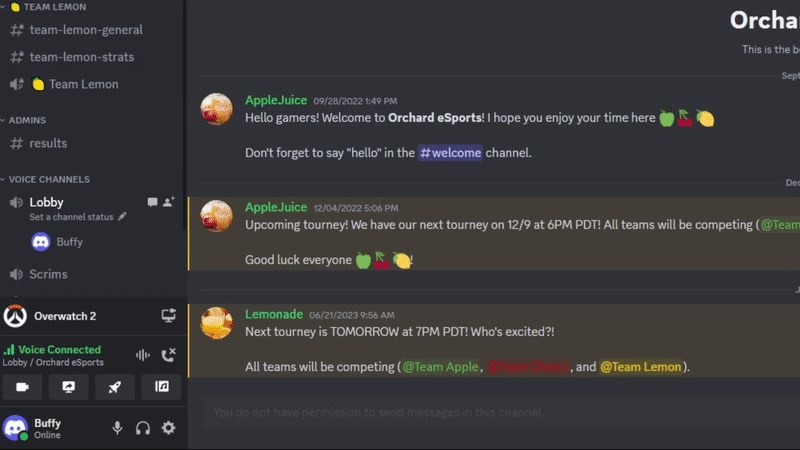
To stream through Discord's Go Live, join a server voice channel on the desktop app, select the screen streaming icon in the voice status panel, choose a window, screen or game, and press Go Live.
On this page
The steps below cover games, DM calls, macOS, iPhone and Android, how friends watch, stream quality limits, server permissions and the fixes for streams that fail.
How to go live with Discord
Go Live shares one application window or a whole screen into a server voice channel or a voice call. Up to 50 people can share their video or screen at a time in one Discord voice chat.
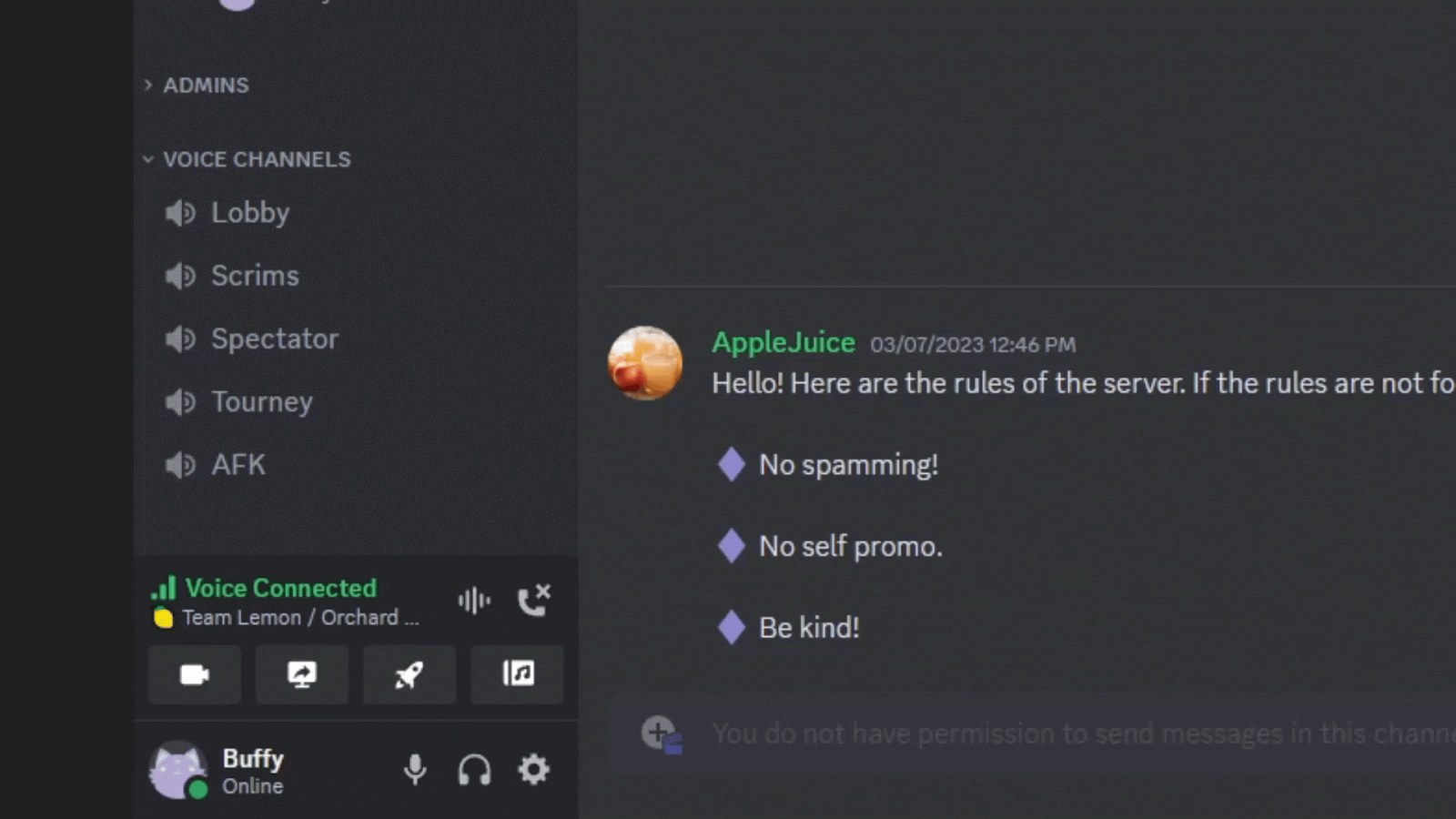
- Open the Discord desktop app and join a server voice channel where you are allowed to screen share.
- Select the screen streaming icon in the voice status panel near the bottom-left corner. A new window opens.
- Pick a single application window, or pick an entire screen.
- Press Go Live at the bottom of the window to start the stream.
Which Discord go live method should you use?
| Your situation | Route | Why |
|---|---|---|
| Playing a recognized game while in a server voice channel | The Stream icon next to the game, then Go Live | Lets you pick the voice channel and set quality and frame rate before going live |
| Already inside a game with the overlay enabled | Discord overlay (Shift+` by default), then Stream | Starts the stream from the in-game overlay |
| Showing your screen to one friend or a small group | Start a DM voice or video call, then Share Your Screen | Shares into the call itself, with Change Window to swap apps mid-stream |
| Sharing from a phone | Swipe up in a voice call and press Screenshare | Works on iOS and Android in DMs, group DMs and server voice channels |
| Using Discord in a web browser | Discord in Chrome | Chrome is the only browser that captures stream audio, and browser streams cannot change quality |
What you need before you go live on Discord
| Requirement | Detail |
|---|---|
| Video permission | Screen sharing in a server voice channel is locked behind the Video permission. It is on by default, but a server can switch it off for a role or a channel. |
| Game detection | A game must be recognized by Discord's game detection, or added manually, before it can be streamed as a game. |
| Stream quality, free accounts | Up to 720p at 30fps |
| Stream quality, Nitro and Nitro Classic | Up to 4K at 60fps on desktop; Nitro on iOS streams up to 1080p at 60fps |
| Audio sharing | Windows desktop, macOS desktop, Chrome and the mobile apps. Not available on Linux or other browsers. |
| Android | Screen sharing on Android 5 and up; audio sharing on Android 10 and up |
| Viewers | Up to 50 concurrent viewers per stream, plus the broadcaster |
How to add a game to Discord go live
Discord streams a game only after its built-in game detection recognizes it. If the game is missing, add it by hand while it is running.
- Start the game and leave it running.
- In Discord, open User Settings with the cogwheel in the bottom-left corner.
- Select Game Activity, choose Add it and add the running game.
- Join a voice channel while the game is open and select the Stream icon to stream your game.
- Pick the voice channel to stream to if you are not in one, set quality and frame rate, and press Go Live.
A game that neither game detection nor the manual add recognizes cannot be streamed as a game. Go Live can still share any application window, or the entire screen, from the voice channel screen icon.
How to stream a game through the Discord overlay
- With the game open, press the overlay hotkey. The default is Shift+`.
- Select Stream and choose the stream settings.
- Press Go Live to start streaming.
How to screen share with Discord in a direct message
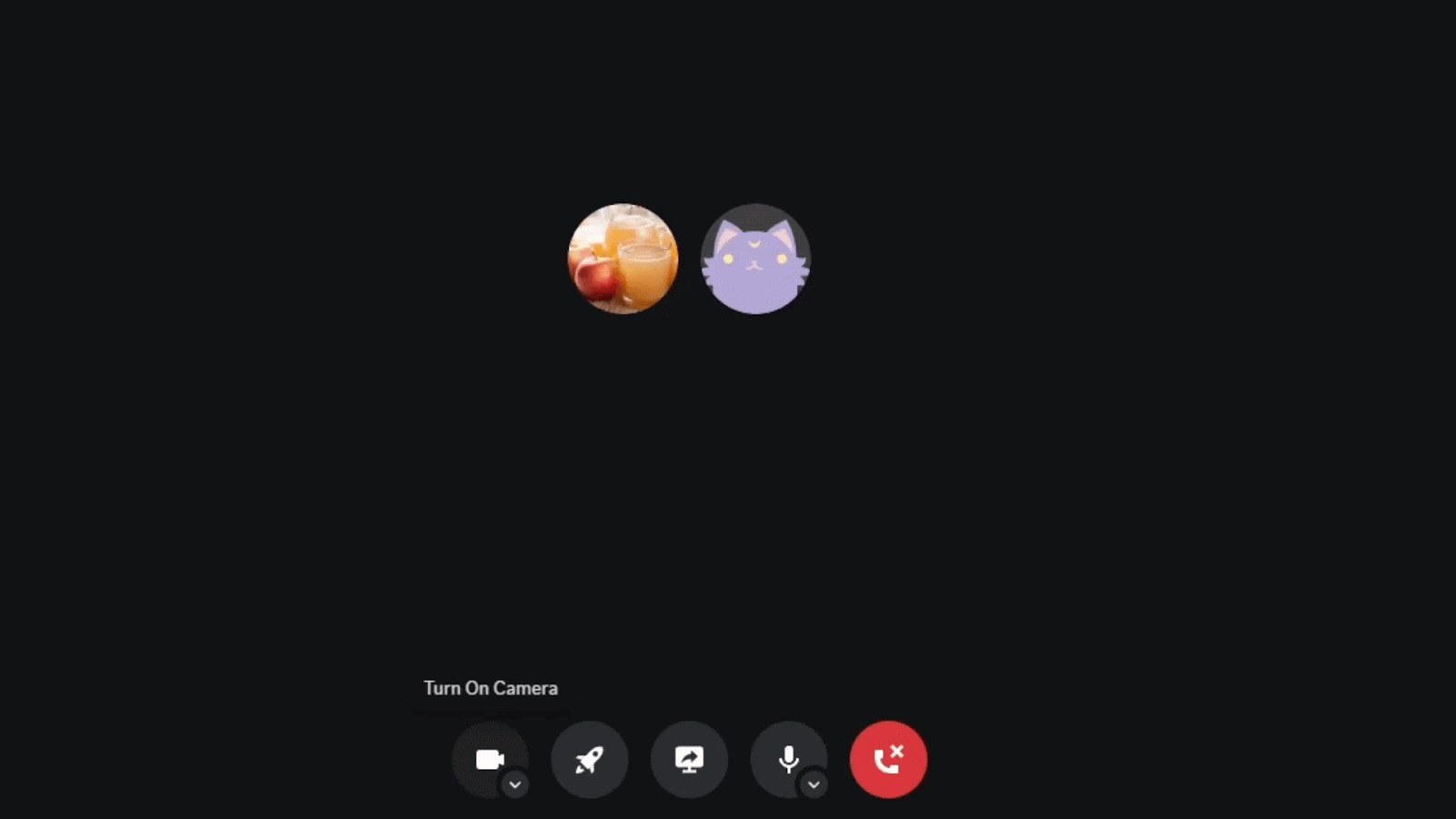
A DM screen share runs inside a call, so start the call first with the phone or video icon in the DM header.
- Open the DM and select the phone or video icon in the top header to start a call.
- Select the Share Your Screen icon.
- Choose the Application to stream, or the Screen to share.
- Pick the stream settings and press Go Live.
- To switch to another app mid-stream, use Change Window.
How to let a role stream in a Discord server
Server owners and members with Administrator permissions control who can go live, either for a whole role or for one voice channel.
Allow a role to stream anywhere in the server
Streaming follows the role's Video permission.
- Open Server Settings and select the Roles tab.
- Select the role to edit.
- Scroll to Voice Channel Permissions and enable Video.
Allow or block streaming in one voice channel
The same Video permission can be set per role on a single voice channel.
- Right-click the voice channel and select Edit Channel.
- Select Permissions and scroll to Voice Channel Permissions.
- Under Video, enable or disable streaming for each role.
How to watch a Discord stream
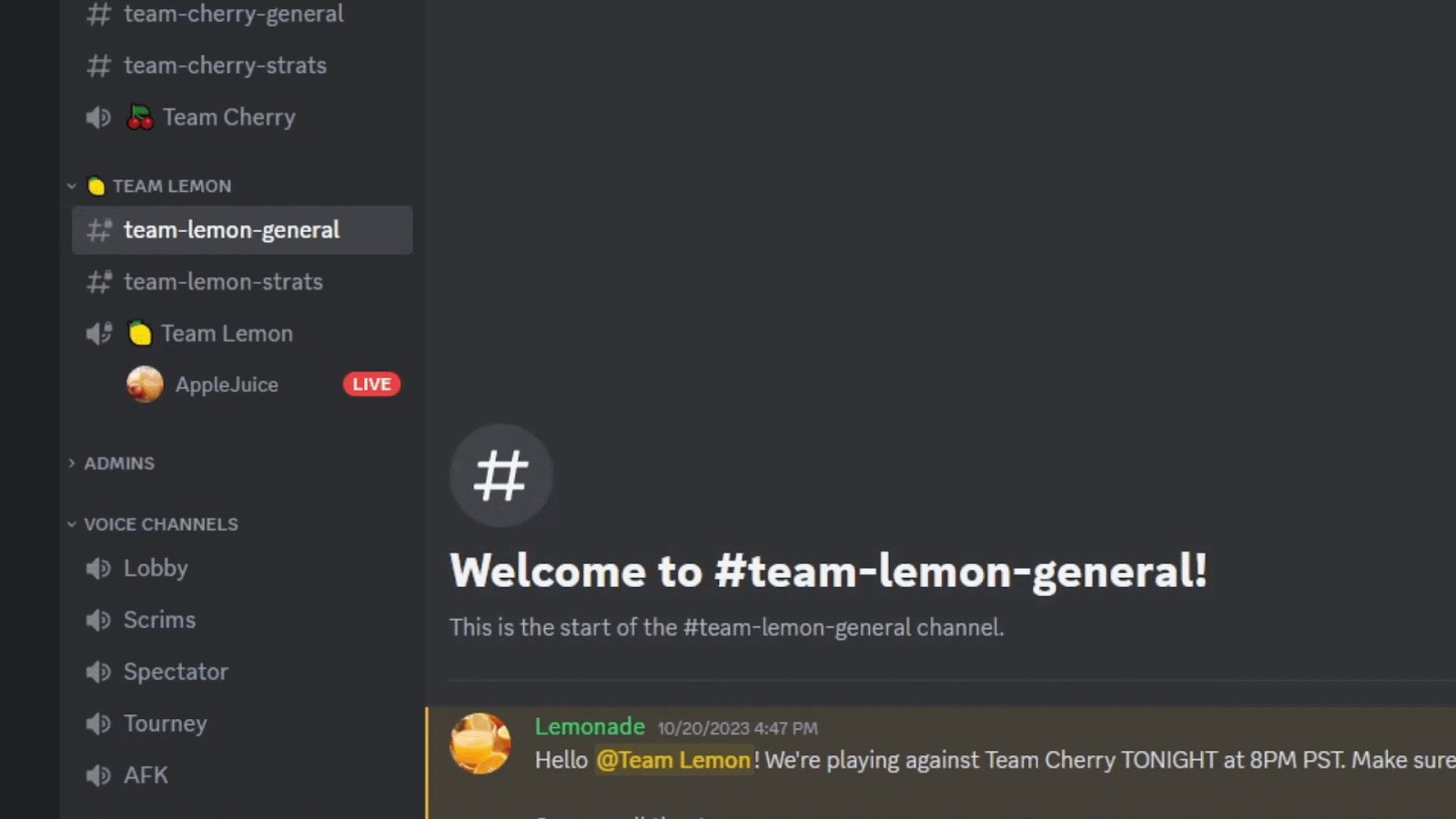
A Go Live badge to the right of a username in a voice channel means that person is streaming.
- Find someone with the Go Live badge in a voice channel and join that channel.
- Double-tap their username to join the stream, or select the username and choose Watch Stream.
- Resize or move the viewing window, and hover over the stream to change its volume.
- Select Pop Out to open the stream in its own resizable window, and Stay On Top to pin it above other windows.
- Use Focus View to make one stream the largest tile, and Hide Members to hide the other streams.
Joining a voice channel does not force you to watch, so you can stay in voice and chat without opening the stream. On mobile, press Join/Watch Stream when a friend starts streaming, and swipe up from the bottom of the screen to control the stream volume.
How to screen share on Discord on macOS
- Join a voice channel where you have screen share permission and select the Screen Share icon.
- Choose Share entire screen, share a window, share an app, or Or share a device.
- Set Stream Quality, Resolution and Frame Rate, then select Next.
- When macOS prompts you, select Make Selection and click what you want to share.
- If macOS blocks the capture, open System Preferences > Security & Privacy > Privacy and tick Discord under Screen Recording.
How to screen share on Discord mobile (iPhone and Android)
- Update Discord from the App Store or Google Play Store, then join a DM call, group DM call or server voice channel.
- In a voice-only call, swipe up from the bottom of the screen and press Screenshare. In a video call, press the Screenshare icon in the bottom row of controls.
- Confirm the system dialog with "Start now". Discord counts down from 3 and starts sharing.
- Press the Video icon in the control panel if you want your camera on at the same time.
- To end, press Stop Sharing in the chat window, the Screenshare icon in the control panel, or Stop Streaming in the notification panel.
Netflix and Spotify block both screen share and audio share. Mobile screen share is unavailable on Xiaomi devices running MIUI.
How to check your Discord stream is live
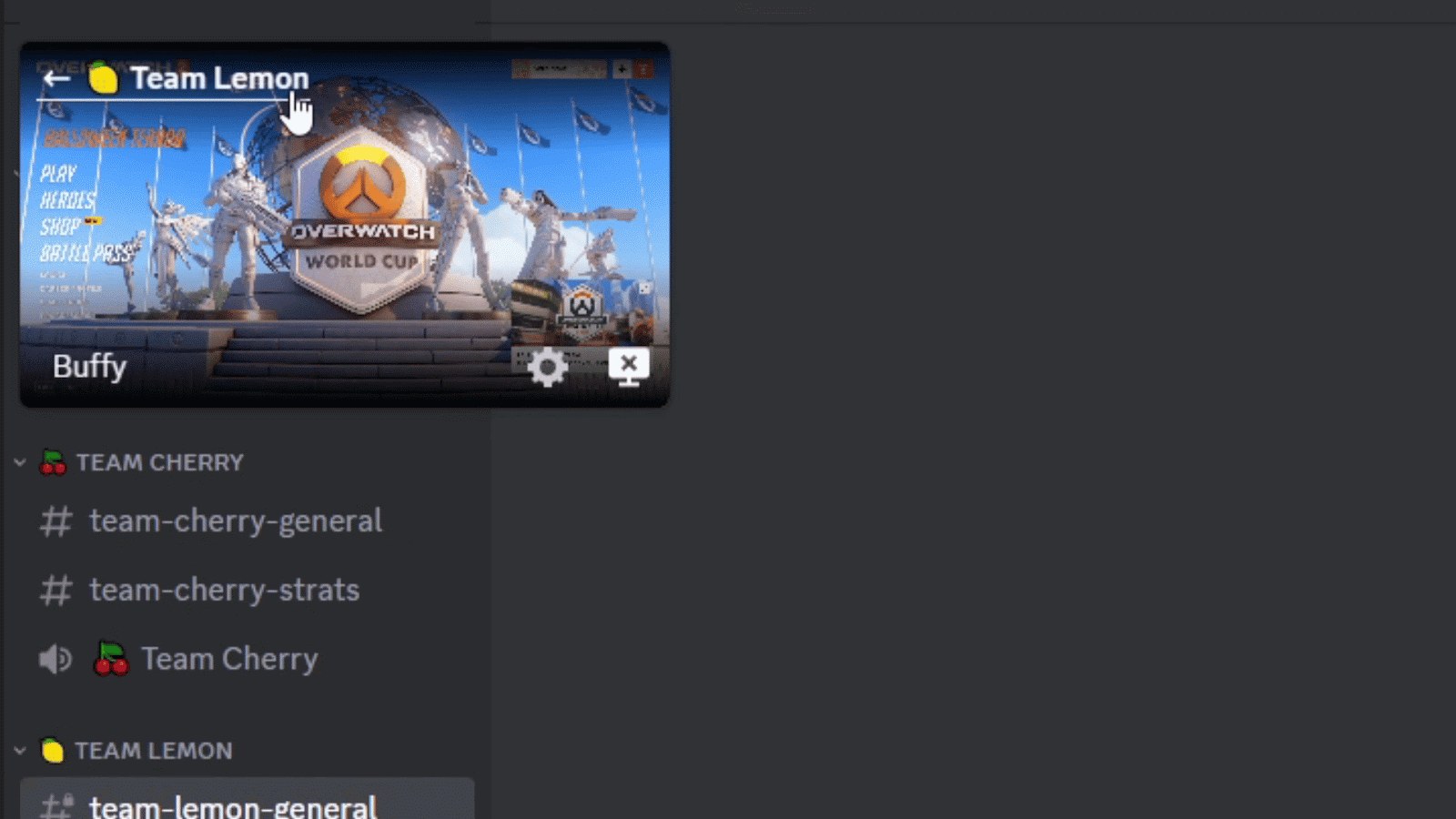
- Look for the small picture-in-picture window of what you are sharing, which shows how the stream looks. It pauses automatically while the game has focus.
- In the overlay, an eyeball icon next to a name confirms that person is watching.
- Ask a viewer to select your name and choose Watch Stream; if your picture appears for them, the stream works.
How to change Discord stream quality while live
Frame rate and resolution can change at any time during a desktop stream, and the Screen button above your status bar opens Stream Quality in both DMs and server voice channels. Streams started from a browser cannot change quality.
Streaming in a server voice channel
Quality controls sit behind the gear icon on the picture-in-picture window.
- Hover over the picture-in-picture window and select the gear icon.
- Select Stream Quality.
- Change Frame Rate and Resolution.
Streaming in a direct message call
DM calls put the same controls under a down arrow.
- Select the down arrow while streaming.
- Select Stream Quality.
- Adjust Frame Rate and Resolution.
How to stop a Discord stream or hide its preview
- On desktop, hover over the picture-in-picture window and use its option to end the stream.
- On mobile, press Stop Sharing in the chat window.
- To stop server members seeing a preview before they join, open User Settings > Voice & Video and turn off Stream Previews.
- To hide the preview for one stream only, tick Hide stream preview when you start the screen share.
- On mobile, tap your avatar, then the cogwheel, select Voice and toggle Stream Previews.
Fix Discord go live when it does not work
There is no screen share or go live option in the server
Your role lacks the Video permission in that server or channel, which hides the option.
- Ask the server owner or an administrator to enable Video under Voice Channel Permissions for your role.
- Check the channel itself too: Edit Channel > Permissions can block Video for one voice channel.
The game does not appear in the go live list
Game detection has not recognized it.
- Keep the game running and open User Settings > Game Activity.
- Select Add it and choose the game.
- If it still cannot be added, share the game window or the entire screen instead.
A full-screen game does not capture properly on Windows 11
Windows Graphics Capture, the default on Windows 11, does not work for full screen exclusive games.
- Press Windows + G to open Xbox Game Bar. If the game minimizes, it runs in full screen exclusive mode.
- Open the game's display settings and switch from Full Screen to Borderless.
- Start the stream again.
Viewers can see the stream but hear no audio
Audio capture is limited to the Windows and macOS desktop apps, Chrome and mobile, or the viewer has muted the stream.
- Stream from the Windows or macOS desktop app, or Chrome, rather than Linux or another browser.
- As a viewer, right-click the stream window and untick Mute.
- Raise the Stream Volume slider in the same menu.
The stream is lagging or stuttering
An unstable internet connection, Hardware Acceleration or the streamer's quality settings.
- Lower Stream Quality from the picture-in-picture gear icon.
- Use a wired connection if possible.
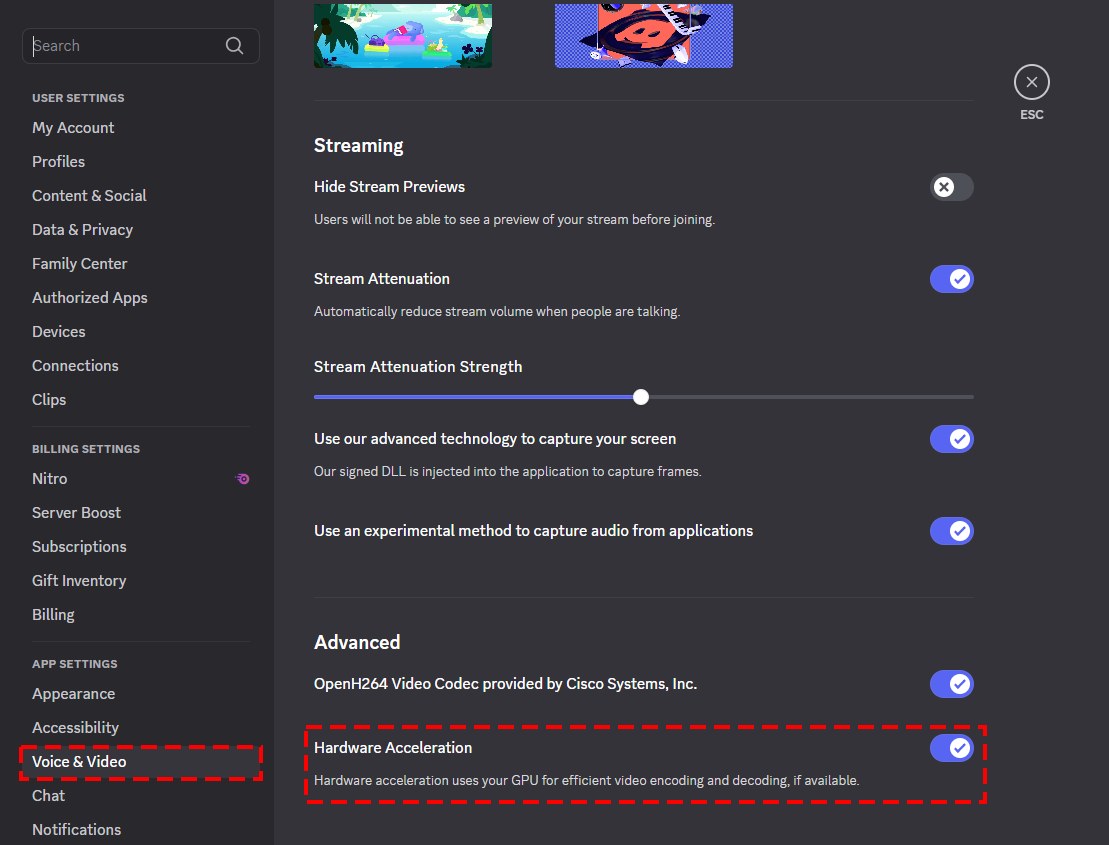
- Open User Settings > Voice & Video > Video and turn off Hardware Acceleration.
- Restart Discord and update it to the latest version.
Screen share does not work on a Windows PC or Mac
Discord lacks the desktop permissions it needs to record the screen.
- On Windows, right-click the Discord icon and choose Run as administrator.
- On Windows, check Settings > Privacy > Screen Recording allows Discord.
- On macOS, tick Discord under Screen Recording in Security & Privacy > Privacy.
The stream disappeared while watching
Joining another voice channel disconnects you from the Go Live session.
- Rejoin the voice channel the streamer is in.
- Select their name and choose Watch Stream again.
Discord go live FAQ
How many people can watch a Discord go live stream?
A Go Live stream holds up to 50 concurrent viewers, plus the broadcaster. Separately, up to 50 people can share their video or screen at the same time in one voice chat.
Do you need Nitro to go live on Discord?
No. Every account can stream at up to 720p and 30fps. Nitro and Nitro Classic raise the desktop limit to 4K at 60fps, and Nitro on iOS allows up to 1080p at 60fps.
Can you go live on Discord from a phone?
Yes. iOS and Android can screen share in DM calls, group DM calls and server voice channels. Android needs version 5 or later to share the screen and version 10 or later to share audio.
Why can't I stream audio on Discord go live?
Audio is captured only by the Windows desktop app, the macOS desktop app, Chrome and the mobile apps. Streams from Linux or other browsers carry picture only. On Android, audio sharing needs Android 10 or later.
Can you go live on Discord in a web browser?
Yes, but a browser stream cannot change quality, and Chrome is the only browser that captures audio. Changing resolution and frame rate mid-stream needs the Windows or macOS desktop app.
Why is the go live button missing in my Discord server?
The screen share option is hidden when your role lacks the Video permission for that server or voice channel. Screen sharing is on by default, but owners and administrators can disable Video for a role or a single channel.
Can you watch more than one Discord stream at once?
No. You can view one stream in one voice channel at a time, and joining another voice channel disconnects you from the current Go Live session. Inside one channel, switch streams with Watch Stream.
Can you stream Netflix through Discord go live on mobile?
No. Netflix and Spotify restrict both screen share and audio share in the Discord mobile app, and Discord does not support screen sharing those streaming apps.