To fix a Discord update failed loop on Windows, end every Discord process, delete the %AppData%/Discord and %LocalAppData%/Discord folders, restart the PC and reinstall Discord from discord.com.
On this page
If the loop comes back after a clean reinstall, check the network (DNS, a VPN, a proxy or the firewall) and Windows Security next; each has its own fix below, along with the macOS version of the same repair.
Clear Discord’s cache files and app folders on Windows
Discord's cache lives in %appdata%/discord/Cache, and the installed app versions live in %LocalAppData%/Discord. Deleting both Discord folders and reinstalling is Discord's fix for update problems, for installer errors and for the "Well, it looks like your Discord installation is corrupt." banner.
- Quit Discord from the system tray and close any Discord tab in your browser.
- Open Task Manager and end every Discord process still listed.
- Press Windows key + R, type %appdata% and press Enter.
- Delete the Discord folder in the window that opens.
- Press Windows key + R again, type %localappdata% and press Enter.
- Delete the Discord folder there too.
- Restart the PC.
- Download Discord from discord.com/download with Download for Windows and run DiscordSetup.exe.
Discord advises backing up your Discord settings and data before any installation fix. To try a lighter fix first, delete only the Cache folder inside %appdata%/discord and relaunch; if the update still fails, run the full cleanup.
Which Discord update loop fix matches your symptom?
| What you see | Most likely cause | Fix to run |
|---|---|---|
| Update fails or repeats on the first try | Damaged or out-of-date files in the Discord folders | Clear both Discord folders and reinstall |
| The Desktop row on discordstatus.com is not Operational | A Discord outage | Wait for the incident to be resolved |
| Loop returns right after a clean reinstall | DNS, VPN, proxy or firewall interfering with the updater | Switch DNS, disconnect the VPN, clear the proxy, allow Discord through the firewall |
| Protection history in Windows Security lists a Discord file | Microsoft Defender Antivirus quarantined or blocked it | Restore that one file from Protection history |
| Installer errors even after a clean reinstall | Permission or compatibility problem | Run Discord as an administrator in Windows 7 or 8 compatibility |
| You need Discord right now | Desktop app still stuck | Use Discord in the browser or the PTB client |
Check Discord service status before reinstalling
Discord reports outages on discordstatus.com, with a separate status for the Desktop client, so check it before you delete anything. Each component shows one of five states: Operational, Degraded Performance, Partial Outage, Major Outage or Maintenance.
| Component on discordstatus.com | Where it sits on the page | If it is not Operational |
|---|---|---|
| Desktop | Under Client | Wait for the incident to be resolved before reinstalling |
| API | In the first group, above Voice | Wait; local fixes will not change it |
| CloudFlare | Under Third-party; Discord is hosted on Cloudflare servers | Wait for the incident to be resolved |
| Past Incidents | At the bottom, listed day by day | Match the incident time to when the loop started |
Every component reading Operational points to your PC or network, so carry on with the reinstall.
Remove and reinstall Discord on Windows 11 and Windows 10
Uninstalling through Windows Settings removes Discord from the Installed apps list as well as deleting the program, and the folder cleanup then clears what is left. Discord's desktop app needs Windows 10 or later, with at least 4GB of RAM recommended.
- End every Discord process in Task Manager.
- Select Start > Settings > Apps > Installed apps.
- Find Discord, select More > Uninstall and confirm.
- Delete the Discord folders in %appdata% and %localappdata% if they are still there.
- Restart the PC.
- Go to discord.com/download, select Download for Windows and open DiscordSetup.exe.
- Sign in to your existing account when the app opens.
Run Discord as an administrator in compatibility mode
When a clean reinstall still fails, Discord's next step is to run the current Discord app as administrator in Windows 7 or Windows 8 compatibility, trying both.
- Close all instances of Discord, including any browser tab.
- Press Windows key + R, type %localappdata% and press Enter, then open the Discord folder.
- Open the folder for the most recent app version.
- Right-click the Discord application, select Properties and open the compatibility tab.
- Turn on running the program as an administrator.
- Set the compatibility mode to Windows 7, apply the change and launch Discord.
- If the update still loops, repeat with Windows 8.
Check your internet connection, DNS, VPN, proxy and firewall settings
Discord lists a stuck update loop among the problems a DNS change fixes, and recommends Google Public DNS or Cloudflare 1.1.1.1. For update problems it also says to disable a proxy or VPN during installation and to check firewall settings.
Change your DNS provider
Your current DNS provider is not reaching Discord reliably.
- Open the Start menu, search for Control Panel and open it.
- Select Network and Internet > Network and Sharing Center > Change adapter settings.
- Right-click the connection you use and select Properties.
- Select Internet Protocol Version 4 and enter the IPv4 addresses Google Public DNS or Cloudflare lists.
- Select Internet Protocol Version 6 and enter their IPv6 addresses.
- Select OK twice and relaunch Discord.
Disconnect a VPN or clear a proxy
A VPN or proxy sends Discord's traffic through another server instead of connecting directly from your PC.
- Disconnect any VPN app and relaunch Discord.
- Open Settings > Network & internet > Proxy.
- Under Manual proxy setup, select Set up next to Use a proxy server.
- Turn off Use a proxy server if you do not need it, then select Save.
- On a work or school network that requires a proxy, ask the IT department instead of changing it.
Allow Discord through Windows Firewall
A firewall rule is blocking Discord from connecting.
- Open Windows Security and select Firewall & network protection.
- Select Allow an app through firewall, then Change settings.
- Tick the box next to Discord, or select Allow another app and enter the path to the Discord app in %LocalAppData%/Discord.
- Select OK and relaunch Discord.
Adding Discord to the list of allowed apps keeps the firewall on, and an allowed app opens the ports it needs only when needed, which Microsoft calls safer than opening a port.
Should you disable Windows Defender or your antivirus to fix the Discord update?
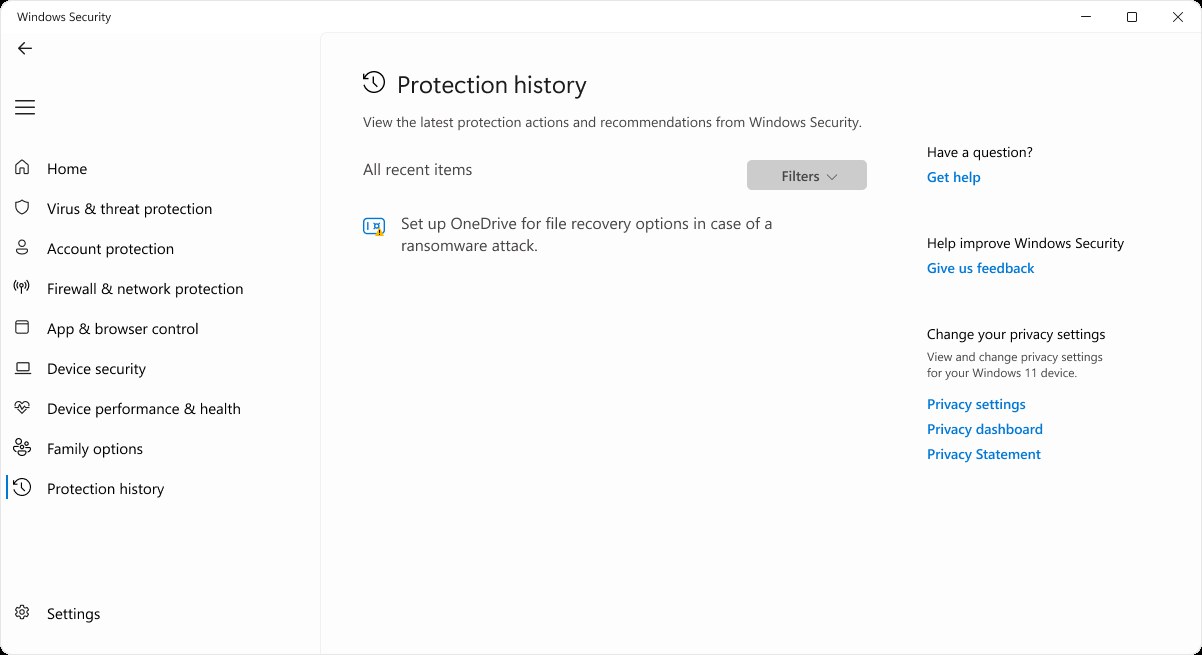
No. Keep Microsoft Defender Antivirus on and restore only the Discord file it caught. Protection history lists every action Defender has taken, but it keeps events for two weeks only, so check it soon after the failed update. Restore a file only if it is the Discord installer or app you downloaded from discord.com.
- Open Windows Security and select Protection history.
- Select the card that names a Discord file to expand it.
- For a quarantined file, open Actions and select Restore.
- Defender then raises a new Threat found – action needed alert; select Allow on device only if the file is the Discord installer or app from discord.com.
- For a file that was blocked and removed, select Actions > Allow, then download Discord again.
- With another antivirus app, look in its quarantine or history for the Discord file and restore it there rather than uninstalling the antivirus.
Reviewing threat details in Protection history needs admin privileges on the PC. To undo an allow later, open Allowed threats and remove the entry.
How to fix the Discord update loop on macOS
On a Mac the loop shows up as an endless update or an unexplained install error, and the fix is the same idea with Mac folders. Discord's desktop app needs macOS 11 (Big Sur) or later.
- Quit Discord with Command + Q, then end any Discord process left in Activity Monitor.
- In Finder, select Go > Go to Folder, enter ~/Library/Application Support and move the Discord folder to the Trash.
- Repeat with /Library/Application Support; if there is no Discord folder there, skip it.
- Open Applications, drag Discord to the Trash and empty the Trash.
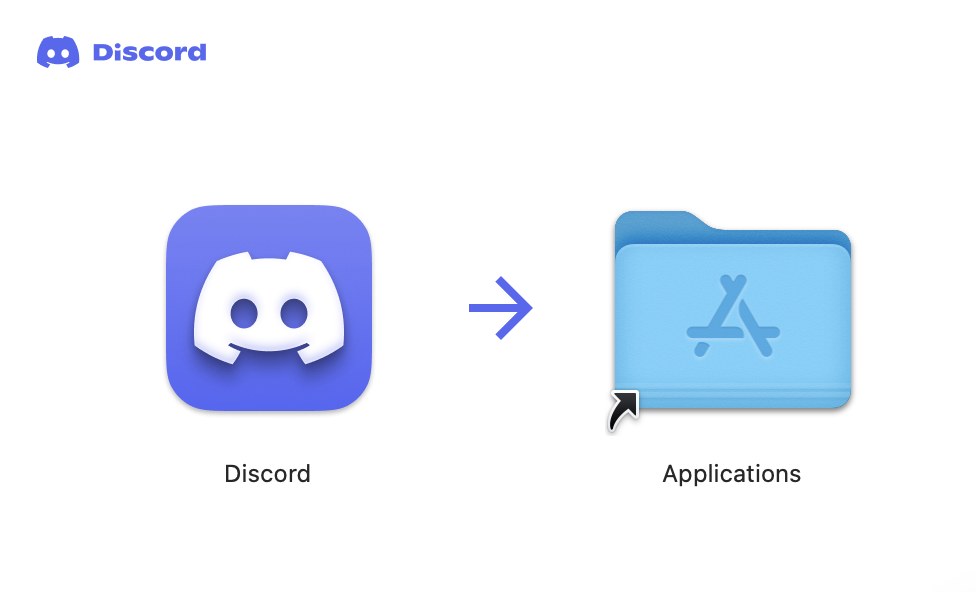
- Restart the Mac, download Discord from discord.com/download with Download for Mac, open Discord.dmg and drag Discord onto the Applications folder.
- If the loop continues, open System Preferences > Network, choose your connection, select Advanced… and on the DNS tab add 8.8.8.8 and 8.8.4.4.
- Still stuck: on the TCP/IP tab select Renew DHCP Lease, then OK, and relaunch Discord.
How to check the Discord update loop is fixed
- Launch Discord once from the Start menu and let the update screen run without interrupting it.
- Confirm the app moves past the update screen to the sign-in page or your server list.
- Quit Discord fully from the system tray and launch it again; it should open without another failed update.
- Leave any DNS, proxy or firewall change you made in place.
Use Discord in a browser or the PTB client while the app is stuck
The Stable version of Discord also runs in a browser at discord.com, so a stuck desktop app does not lock you out while you repair it. Discord's public test build (PTB) is a second desktop client from the same download page.
| Option | Where to get it | Trade-off |
|---|---|---|
| Browser (Stable) | discord.com | Select open Discord; nothing to install |
| PTB (public test build) | discord.com/download | More bugs than Stable but should not hinder normal use |
| Canary (alpha) | canary.discord.com | Least stable build, with lots of updates; use at your own risk |
Internet Explorer and versions of Microsoft Edge before version 17 cannot run Discord in the browser.
Fix Discord update errors that survive a reinstall
Windows says a Discord folder cannot be deleted because it is in use
A Discord process is still running in the background or at startup.
- Open Task Manager and end every Discord entry.
- Check the Startup tab and stop Discord from starting with Windows.
- Close any Discord tab in the browser.
- Delete the folder again.
macOS says the Discord folder cannot be deleted because it is in use
A Discord process is still running on the Mac.
- Open Activity Monitor, for example from Spotlight.
- Quit every Discord process listed.
- Drag the Discord folder to the Trash again.
Discord is missing from Installed apps or will not uninstall from Settings
Some apps cannot be uninstalled from the Settings app.
- In search on the taskbar, enter Control Panel and open it.
- Select Programs > Programs and Features.
- Right-click Discord, select Uninstall and follow the directions on screen.
- Delete the two Discord folders and reinstall.
The Discord installer still fails or shows an error
Leftover files, a blocked download or a permissions problem.
- Repeat the folder cleanup and restart.
- Check Protection history for a blocked Discord file.
- Run Discord as an administrator in Windows 7 or 8 compatibility.
- If nothing works, contact Discord support at dis.gd/contact.
Discord update failed loop FAQ
Why does Discord keep saying update failed?
The Discord files on the PC are damaged or out of date, or the network is interrupting the update. Deleting the %AppData%/Discord and %LocalAppData%/Discord folders and reinstalling fixes the first; changing DNS, disconnecting a VPN or allowing Discord through the firewall fixes the second.
Can I clear only the Discord cache instead of reinstalling?
Yes, as a first try. Quit Discord fully, delete the Cache folder inside %appdata%/discord (on a Mac, ~/Library/Application Support/discord/Cache) and relaunch. If the update still fails, delete both Discord folders and reinstall from discord.com/download.
Should you rename the Discord update executable file?
Renaming files is not part of Discord's documented repair. Discord's fix deletes the whole %LocalAppData%/Discord folder, which holds every installed app version, along with %AppData%/Discord, and then reinstalls from discord.com, so the updater is replaced with everything else.
How long does Windows Security keep a record of a blocked Discord file?
Two weeks. Protection history keeps events for two weeks and then drops them, so check it soon after a failed install. Reviewing the details of a blocked or quarantined file needs admin privileges on the PC.
How do I know if Discord is down?
Open discordstatus.com and look at the Desktop row under Client and the API row near the top. If either shows anything other than Operational, such as Partial Outage or Major Outage, wait for the incident to be resolved before reinstalling.
Can I use Discord while the desktop app is stuck updating?
Yes. Open discord.com in a browser and select open Discord to use the Stable version without installing anything. Internet Explorer and Microsoft Edge versions before 17 are not supported. The PTB client from discord.com/download is another option.
What version of Windows or macOS does Discord need?
Discord's desktop app needs Windows 10 or later, or macOS 11 (Big Sur) or later, and Discord recommends at least 4GB of RAM. Check this before reinstalling on an older PC or Mac.
Why does Discord get stuck updating on a Mac?
The same causes apply: damaged files or a network problem. Delete Discord from both Application Support folders and Applications, restart and reinstall, then switch DNS to 8.8.8.8 and 8.8.4.4 or renew the DHCP lease if it continues.
Does running Discord as administrator fix the update loop?
It fixes some installs that still fail after the folder cleanup. Run the current Discord app from %LocalAppData%/Discord as administrator with Windows 7 compatibility, then Windows 8 if the first setting changes nothing.