On Windows, open Settings > Windows Update > Advanced options > Optional updates and install any display driver listed, or use the NVIDIA app or AMD's auto-detect tool for the newest release; on a Mac, run Software Update in System Settings, which installs the Apple software updates compatible with your Mac model.
On this page
Below are the steps for Windows Update, Device Manager, NVIDIA, AMD and Intel graphics, macOS, and Windows in Boot Camp, plus how to confirm the new driver, roll it back and fix Device Manager error codes.
The fastest way to update graphics drivers on Windows 11
Windows Update installs recommended drivers on its own, but optional drivers are not installed automatically. Updated display adapter drivers can appear in that optional list.
- Select Start, then Settings > Windows Update > Advanced options.
- Make sure Receive updates for other Microsoft products is turned On.
- Under Additional options, select Optional updates.
- If a driver for your display adapter is listed, select it, then select Download and install.
- When the install finishes, right-click Start and select Shutdown or sign out > Restart, even if Windows did not ask for a restart.
On Windows 10 the path is Settings > Update & Security > Windows Update > Advanced options; turn on Receive updates for other Microsoft products when you update Windows, go back, select Check for updates, then View optional updates. Windows 10 support ended on October 14, 2025, so Windows Update no longer sends it free updates.
Which method should you use to update your graphics driver?
First check which graphics you have: right-click Start, select Device Manager and expand Display adapters. A laptop may list two adapters, an integrated GPU for lighter work and a discrete GPU for heavier work, and each adapter runs its own driver.
| Your situation | Use this | Why |
|---|---|---|
| Any Windows PC, you want the least effort | Windows Update optional updates | Windows offers drivers for the hardware it detects, and Download and install does the rest |
| NVIDIA GeForce card, you play new releases | The NVIDIA app | It keeps Game Ready and Studio drivers current and can roll back to a previously installed driver |
| AMD Radeon graphics on Windows 11 or 10 | AMD Auto-Detect and Install tool | It detects the GPU and Windows version and downloads the latest supporting driver |
| Intel graphics, or a laptop or prebuilt PC | Windows Update first, then the PC maker's or chip maker's driver page | Some drivers are available only from the manufacturer's website, not through Windows Update |
| You already downloaded a driver package | Device Manager > Browse my computer for drivers | Points Windows at the folder and installs the newer driver |
| A Mac running macOS | Software Update in System Settings | Software Update installs the Apple software that is compatible with your Mac model |
| An Intel-based Mac running Windows in Boot Camp | Boot Camp support software, or AMD's Boot Camp drivers | Mac hardware in Windows needs Apple's Windows support software |
How to update graphics drivers in Windows 11/10 with Device Manager
Device Manager can search for a driver itself or install one you downloaded from the card maker. Graphics cards are listed under Display adapters.
- Right-click Start and select Device Manager.
- Select the arrow next to Display adapters to expand it.
- Right-click the graphics adapter and select Update driver.
- Select Search automatically for updated driver software to let Windows look for a newer driver and install it.
- If you downloaded a driver from the manufacturer instead, unzip it if needed, select Browse my computer for drivers, then Browse…, pick the folder, select OK and then Next.
- If Windows shows The best drivers for your device are already installed, it has nothing newer in that location. Select Close.
When no newer driver turns up, select Search for updated drivers on Windows update from the same window, or get the driver from the manufacturer's own site. Microsoft warns against downloading drivers from any site other than the manufacturer's official one, and the driver must match your version and architecture of Windows.
How to update NVIDIA drivers with the NVIDIA app or a manual download
The NVIDIA app incorporates many of the top features of GeForce Experience and keeps GeForce Game Ready and NVIDIA Studio drivers updated. It runs on Windows 10 and Windows 11 and needs the GeForce 551.52 driver or later already installed.
- Download the NVIDIA app from nvidia.com and install it.
- Open the app and look at the latest driver's notes, which list what's new and what's fixed, with callouts on game support.
- Install the update from the app and restart if the installer asks.
- Without the app, open the NVIDIA drivers page, use Manual Driver Search to pick your product and operating system, and download the driver.
- Choose Game Ready Drivers for gaming or Studio Drivers for creative apps, then run the downloaded installer.
Both Game Ready and Studio drivers are certified by Microsoft's Windows Hardware Quality Labs (WHQL).
How to automatically update your AMD Radeon driver and keep it updated on Windows
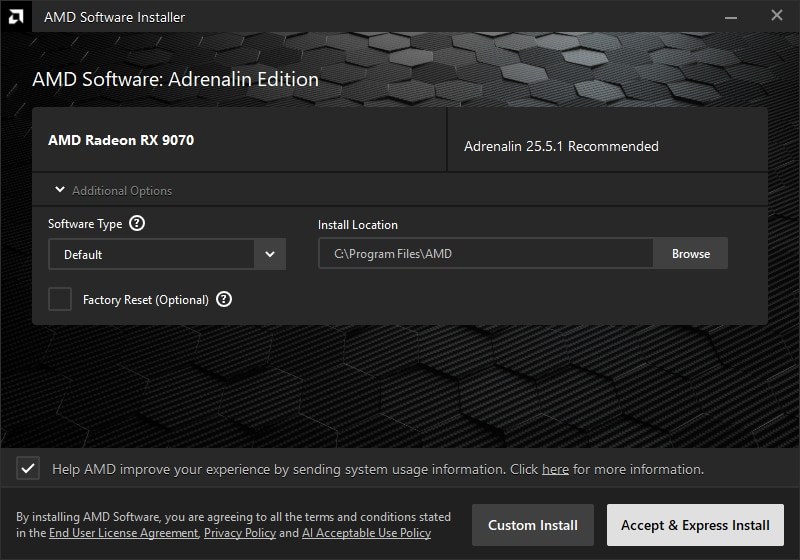
AMD's Auto-Detect and Install tool checks the PC for Radeon graphics and Ryzen chipsets and pulls the latest supporting drivers. It runs on Windows 11 version 21H2 and later and Windows 10 64-bit version 1809 and later.
- Download the tool from AMD Drivers and Support on the PC you want to update.
- Open the downloaded file and select Install to unpack the setup files, keeping the default location.
- Let AMD Software Installer check the hardware. To keep the current driver, select Skip; to quit, select Cancel.
- Pick a package: Recommended drivers are certified by Microsoft and focus on stability, while Optional drivers are the most recent and carry the newest fixes.
- Pick an install type: Default for every AMD Software feature, Minimal for basic controls, or Driver Only for no interface at all.
- Select Accept & Install. The display may flicker for a moment; that is normal.
- Before selecting Close, turn on automatic updates to keep AMD Software current from then on.
Factory Reset removes every earlier AMD Software version and pauses Windows Update during the install, and afterwards you cannot roll back to the previous driver.
How to manually download an older AMD Radeon graphics driver
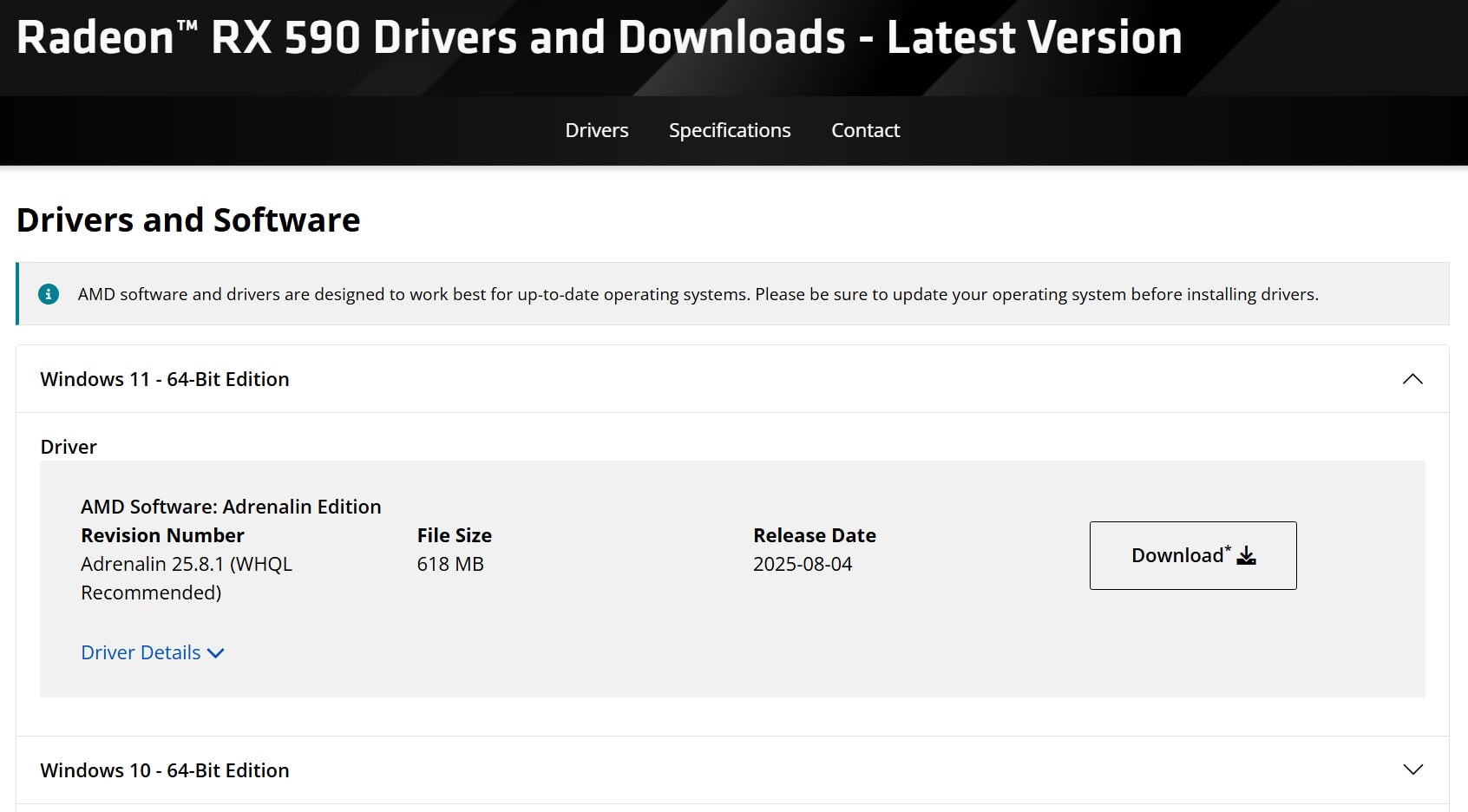
- Open AMD Drivers and Support and use the product selector.
- Choose Graphics, find your Radeon model in the list and select Submit.
- Select your operating system to see its current drivers.
- Select Previous Drivers near the bottom of the page to list earlier versions.
- Download the version you want and run its installer.
AMD's reference drivers cover most OEM products, but laptops and prebuilt PCs with vendor-specific features may need the custom driver from the PC maker instead.
How to update Intel graphics driver in Windows 11/10, including Intel Iris Plus Graphics
Intel graphics, Iris Plus Graphics included, follows Microsoft's order for any display driver: Windows Update first, then the manufacturer's website when Windows Update has nothing.
- Run Windows Update and install any Intel display driver under Optional updates.
- If nothing is offered, open your laptop or PC maker's support page and download the graphics driver listed for your exact model.
- Otherwise download the driver from Intel's site, matching your version and architecture of Windows.
- Run the installer, or in Device Manager right-click the Intel adapter under Display adapters, select Update driver > Browse my computer for drivers and point it at the unzipped folder.
- Restart the PC when the install finishes.
How to update graphics drivers on a Mac
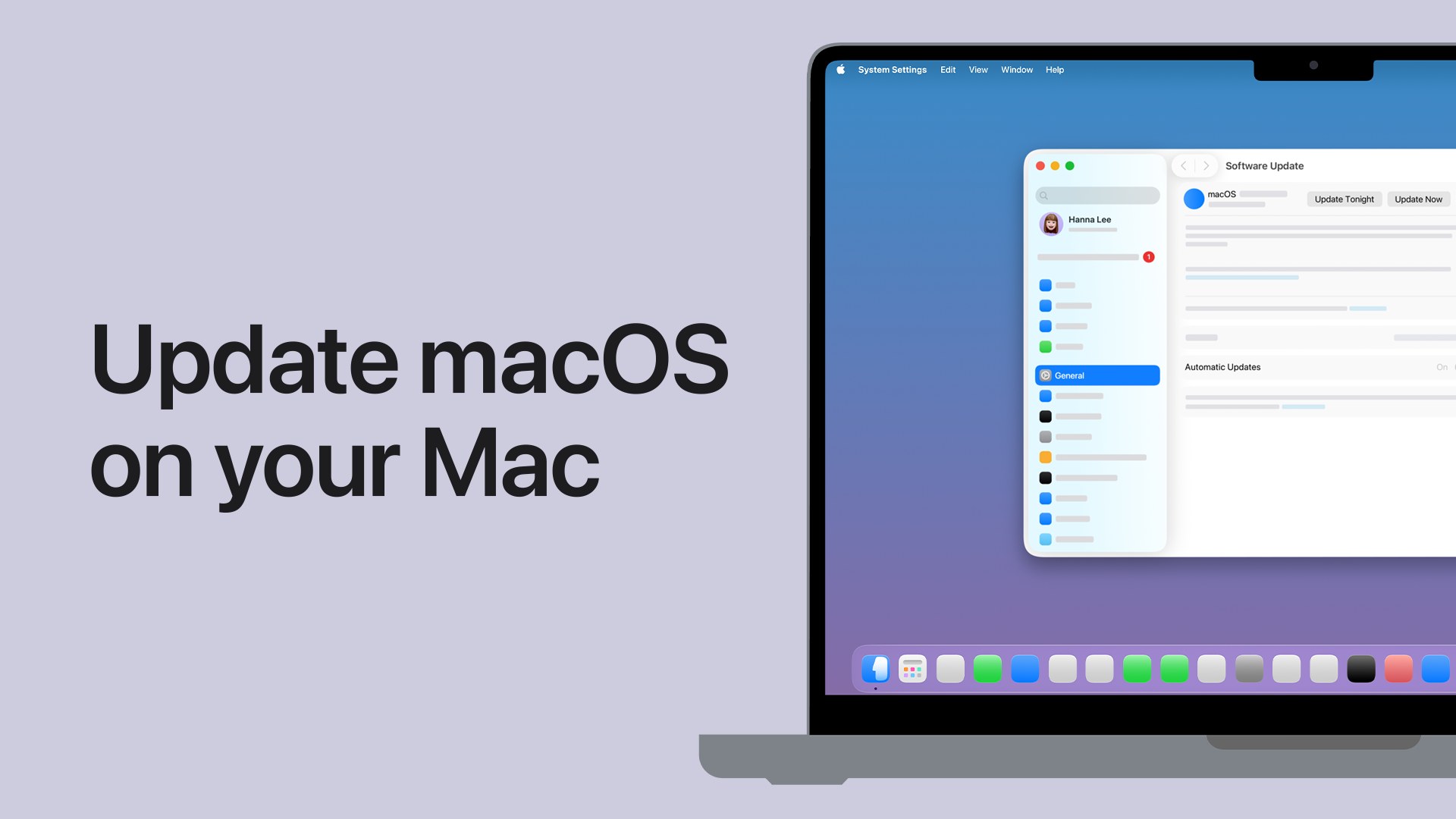
Software Update finds, downloads and installs the Apple software updates that are compatible with your Mac model, and it checks for new Apple software on its own.
- Choose System Settings from the Apple menu.
- Click General in the sidebar, then click Software Update on the right.
- If an update is listed, click the button to update, upgrade or restart now.
- Enter your administrator password, the one you use to log in to the Mac.
- Leave the Mac awake with the lid open until installation finishes; it may restart several times.
- If Software Update says the Mac is up to date, click Check for Updates to look again.
How to update graphics drivers for Windows in Boot Camp on a Mac
In Windows on a Mac, Apple's Windows support software includes the drivers for the Mac's hardware. Install the latest macOS updates first, since they can include Boot Camp updates.
| Your Mac | Update graphics with | How |
|---|---|---|
| 15-inch MacBook Pro introduced in 2015 through 2019, 16-inch MacBook Pro introduced in 2019, 27-inch iMac introduced in 2014 through 2020, 21.5-inch iMac with Retina display introduced in 2017 through 2019, iMac Pro introduced in 2017, or Mac Pro introduced in 2013 through 2019 | AMD's Boot Camp graphics drivers | These Intel-based models use AMD graphics; compare Driver Packaging Version with AMD's Boot Camp driver page |
| Any other Mac running Windows | Apple's Windows support software | Download it with Boot Camp Assistant and run Repair |
For one of those AMD models, start the Mac in Windows, open AMD Radeon Settings from the desktop right-click menu, click the System tab, then the Software tab, and read the version under Driver Packaging Version. If AMD's Boot Camp graphics driver page lists a higher version for your Mac, download it, extract the ZIP and run the Setup app.
For every other Boot Camp driver, format a 16GB or larger USB flash drive as MS-DOS (FAT) in Disk Utility, open Boot Camp Assistant and choose Download Windows Support Software from the Action menu. Start the Mac in Windows, run Setup from the WindowsSupport or BootCamp folder on the drive, click Repair, then Finish and restart.
How to check the new graphics driver is installed
- Open Device Manager and expand Display adapters. Your card's own name should appear, not Microsoft Basic Display Adapter.
- Right-click Start, select Run, enter dxdiag.exe next to Open: and select OK.
- In the DirectX Diagnostic Tool, open the Display tab and read the adapter next to Name:. A PC with two GPUs shows more than one Display tab; check each.
- On an AMD Boot Camp Mac, compare Driver Packaging Version with the version you downloaded.
- Start a game you play often and confirm it runs at its usual resolution and settings.
Microsoft Basic Display Adapter is a generic driver built into Windows. Seeing it means no manufacturer driver is in use, so the display misses the faster performance, higher resolutions and multi-monitor support that manufacturer drivers often add.
How to roll back a graphics driver that causes problems
- Sign in with an administrator account; rolling back needs administrator permissions.
- Right-click Start, select Device Manager and expand Display adapters.
- Right-click the adapter and select Properties.
- Open the Driver tab and select Roll Back Driver.
- Choose a reason when prompted, select Yes and restart if asked.
The NVIDIA app can also roll back to a previously installed driver. An AMD driver installed with Factory Reset cannot be rolled back; install an older one from Previous Drivers instead.
Device Manager error codes on Windows 11 for a graphics card, with solutions
| Code | What Windows says | Solution |
|---|---|---|
| Code 22 | This device is disabled | In Device Manager, click Action > Enable Device and follow the wizard |
| Code 28 | The drivers for this device are not installed | Right-click the device, select Uninstall, then Action > Scan for hardware changes; supply the maker's driver if asked |
| Code 31 | Windows cannot load the drivers required for this device | Right-click the device and choose Update Driver; if asked for the driver, download the latest one from the hardware maker |
| Code 43 | Windows has stopped this device because it has reported problems | Reinstall the driver with Uninstall and Scan for hardware changes; if it persists, check the hardware documentation or contact the manufacturer |
| Code 52 | Windows cannot verify the digital signature for the drivers | Install the latest driver from the hardware manufacturer's website, as in the next section |
Fix "Windows cannot verify the digital signature" (Code 52) for a graphics driver
Code 52 means Windows cannot verify the digital signature for the drivers the device needs: the driver may be unsigned or corrupted.
- Download the latest driver from the graphics card maker's own site, or from your PC maker for a laptop.
- In Device Manager, right-click the adapter under Display adapters, select Uninstall device and confirm with Uninstall.
- Run the installer you downloaded, or select Update driver > Browse my computer for drivers and point it at the driver folder.
- Restart and check Display adapters again.
- If the code returns, contact the card or PC manufacturer for help.
Fix a graphics driver update that does not work
Windows says the best drivers are already installed, but the card maker has a newer one
Some drivers are available only directly from the display adapter manufacturer's website, so Windows has nothing newer to offer.
- Download the driver from the card maker, or use the NVIDIA app or the AMD auto-detect tool.
- Install it with the maker's installer or through Browse my computer for drivers.
- Restart and check Display adapters.
Display adapters shows Microsoft Basic Display Adapter
No manufacturer driver is installed, so Windows is using its generic driver.
- Try Optional updates in Windows Update first.
- If nothing is offered, download the driver from the card or PC maker's site and install it.
- If neither has a Windows driver for that adapter, the generic driver is the only option short of replacing the card.
A new AMD driver will not install cleanly over the old one
Previously installed AMD graphics drivers and software are still on the system; AMD Cleanup Utility removes them to prepare for a new install.
- Let Windows Update finish first; AMD Cleanup Utility exits if Windows Update is running.
- Download AMD Cleanup Utility from AMD Drivers and Support, run it, and choose Yes to run it in safe mode. Allow up to 15-20 minutes.
- Reboot, then install the driver again with the auto-detect tool.
- If the PC misbehaves afterwards, use the restore point AMD Cleanup Utility created before cleaning.
Boot Camp Assistant cannot save the Windows support software to the USB drive
The drive is too small, formatted wrong or connected through a hub.
- Use a drive with at least 16GB and format it as MS-DOS (FAT) with the Master Boot Record scheme.
- Plug it straight into a USB port on the Mac, not a display, hub or keyboard.
- Check the Mac's internet connection and try Download Windows Support Software again.
Software Update on the Mac shows nothing new
Software Update offers only what is compatible with that Mac model.
- Click Check for Updates or press Command-R to check again.
- If it still says the Mac is up to date, there is no compatible Apple software update for that Mac right now.
Graphics driver update FAQ
How do I update my graphics driver?
On Windows 11, open Settings > Windows Update > Advanced options > Optional updates and install any display driver listed. For the newest release, use the NVIDIA app on GeForce cards or AMD's auto-detect tool on Radeon graphics. On a Mac, run Software Update in System Settings.
How do I update my graphics drivers on a PC without extra software?
Use Windows Update optional updates or Device Manager. In Device Manager, expand Display adapters, right-click the card, select Update driver and choose Search automatically for updated driver software. Both are built into Windows 11 and Windows 10.
Is it safe to update your NVIDIA drivers?
Yes, when the driver comes from NVIDIA. Game Ready and Studio drivers are certified by Microsoft's Windows Hardware Quality Labs, and the NVIDIA app can roll back to a previously installed driver if a new one causes trouble. Device Manager's Roll Back Driver also works.
Do you need to update your AMD Radeon graphics driver?
Only for a reason. AMD lists three: support for a newly installed graphics product, operating system, game or app; new features or performance improvements; and fixing driver conflicts or known bugs. If none apply, the current driver can stay.
Where do I read a graphics driver's patch notes?
AMD publishes release notes with each driver listing bug fixes, game optimizations and new product support. The NVIDIA app shows what's new and what's fixed for each driver before you install it. Reading them tells you whether the update touches your games.
Should I pick a Recommended or Optional AMD driver?
Pick Recommended for stability, since those drivers are certified by Microsoft. Pick Optional when you need the newest features or a specific bug fix, because Optional drivers are the most recent AMD releases. The auto-detect tool shows both for your GPU.
Game Ready or Studio driver: which NVIDIA driver should I install?
Install Game Ready drivers if you mainly play games, since NVIDIA tests them against new releases and their DLC. Install Studio drivers if you work in creative applications. Both are WHQL-certified and both are offered in the NVIDIA app and on NVIDIA's driver page.
Do I need to restart after updating a graphics driver?
Yes, restart Windows once the driver is installed, even if the update did not ask for it. A Factory Reset install of AMD Software restarts the PC on its own and continues the installation after the reboot. A Mac may restart several times while Software Update installs.
Should I use my laptop maker's graphics driver or AMD's?
Use AMD's driver unless your laptop relies on vendor-specific features. AMD's reference drivers support most OEM products but give limited support for those features, and custom drivers for such products are only available from the PC maker. Install the maker's driver if a feature stops working.