The quickest way to play Fortnite on a Google Chromebook is to stream it in Chrome from xbox.com/play, which needs only a free Microsoft account, or from GeForce NOW on its Free membership.
On this page
Below are both cloud routes, the Android app for Chromebooks that run Google Play apps, Chrome Remote Desktop for anyone with a Windows PC at home, and fixes for each.
The fastest way to play Fortnite on a Chromebook: Xbox Cloud Gaming
Xbox Cloud Gaming streams free-to-play games such as Fortnite to anyone with a free Microsoft account in a supported region. No Game Pass subscription is needed for Fortnite, and nothing installs on the Chromebook.
- Pair a controller over Bluetooth or USB, or plug in a mouse and keyboard. Fortnite's Xbox Cloud Gaming page lists controller, touch, and mouse and keyboard play.
- Open Chrome and go to xbox.com/play.
- Select Sign in and use your Microsoft account. Create one for free if you do not have one.
- Search for Fortnite and open its page.
- Start Fortnite from its page and play.
Which websites and apps can I play Fortnite on?
| Your situation | Route | What it costs and needs |
|---|---|---|
| You want to play right now with no sign-up fees | Xbox Cloud Gaming (xbox.com/play) | Free Microsoft account in a supported region; controller, touch, or mouse and keyboard |
| You want 1600p at 120 FPS, or Xbox Cloud Gaming is not offered in your region | GeForce NOW | Free membership with up to two minutes of video ads and possible queues; Ultimate is required for 1600p and 120 FPS on a Chromebook |
| Your Chromebook runs Google Play apps and you want touch controls | Fortnite on Google Play | Installs only if Google Play offers it for your model; a school or work Chromebook may not allow Google Play |
| You own a Windows PC that already runs Fortnite | Chrome Remote Desktop | The PC stays on at home and does the work; the Chromebook only shows the screen |
What your Chromebook needs to stream Fortnite
| Requirement | Xbox Cloud Gaming | GeForce NOW |
|---|---|---|
| Account | Free Microsoft account in a supported region | NVIDIA account with a Free, Performance or Ultimate membership |
| Browser | A supported browser such as Google Chrome or Microsoft Edge | Chrome browser 77.x or later |
| Chromebook memory | Not listed | At least 4GB RAM |
| Internet speed | 10 Mbps minimum; 20 Mbps recommended on PCs and tablets | 15 Mbps for 720p at up to 60 FPS; 25 Mbps for 1080p at 60 FPS |
| Network | 5 GHz Wi-Fi recommended | Wired Ethernet or 5 GHz Wi-Fi, and less than 80ms latency to an NVIDIA data center |
| Controls | Controller over Bluetooth or USB, touch, or mouse and keyboard, all listed for Fortnite | Xbox controllers or PS5 DualSense and DualShock 4; a USB gaming mouse is recommended |
Play Fortnite on your Chromebook with GeForce NOW
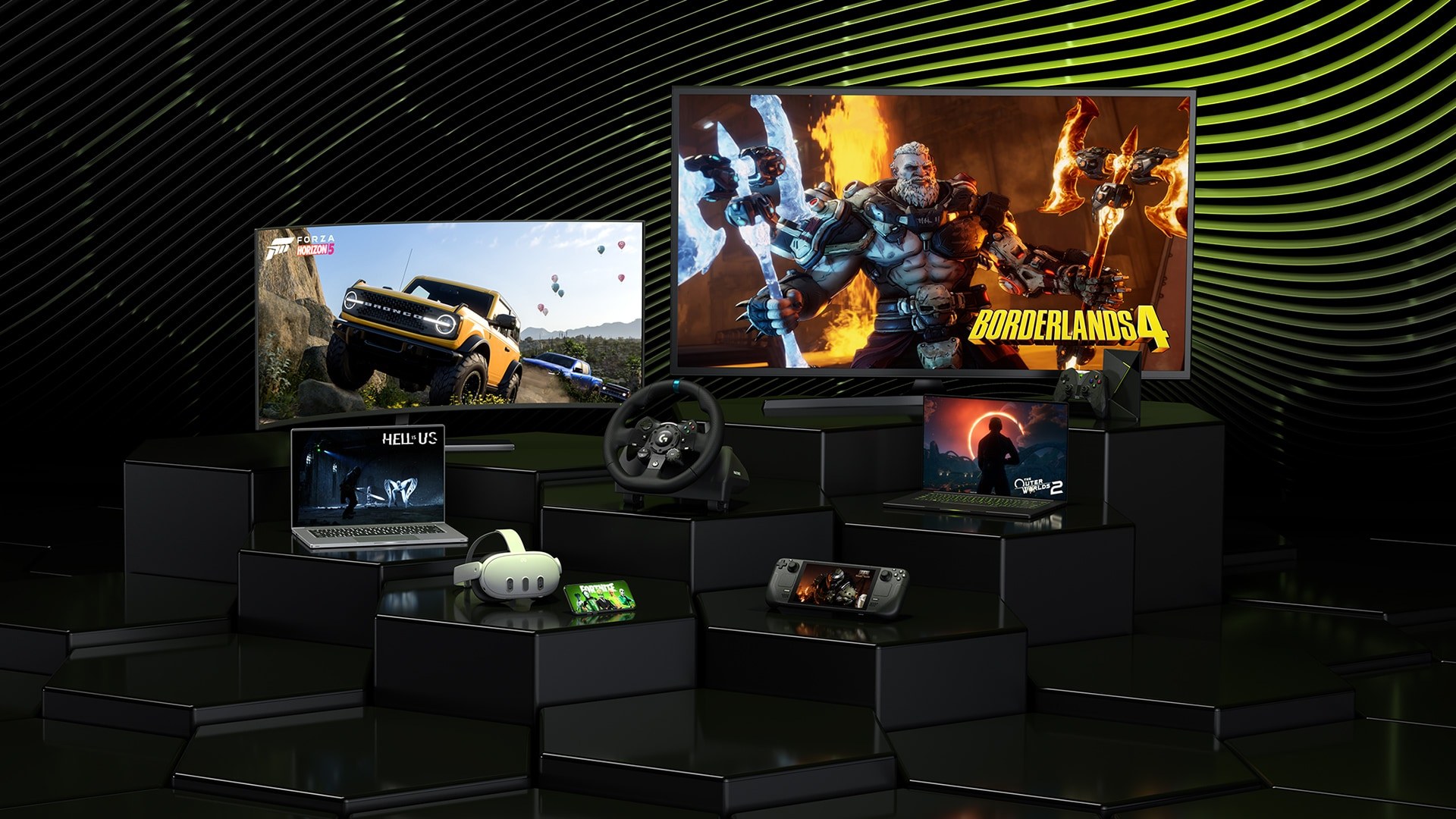
GeForce NOW runs Fortnite on NVIDIA's cloud PCs and streams the picture to Chrome. NVIDIA runs the service in North America, Europe, Japan and India, and through partners elsewhere. The Free membership needs no payment method, but free sessions open with up to two minutes of video ads and can wait in a queue at busy times.
Performance and Ultimate memberships skip ahead in the queue and include 100 hours of playtime a month. A Day Pass gives premium access for 24 hours without a monthly commitment.
- Go to geforcenow.com, select Join Now and choose a membership. Free is enough for Fortnite.
- Create or sign in to your NVIDIA account.
- On the Chromebook, open Chrome and go to play.geforcenow.com.
- Open Settings > Connections and link your Epic Games account, so Fortnite signs you in automatically at launch.
- Search for Fortnite in the library and launch it.
- Wait through the queue and the ads on a Free membership, then play with a controller, or a keyboard and mouse.
How to play Fortnite using the Android app
Epic Games publishes Fortnite on Google Play. Google notes that the Play Store is available on only some Chromebooks, and that some apps do not work with some Chromebooks, so Google Play will not let you download them. Try the steps below; if Fortnite does not offer an Install button, use one of the cloud routes.
- Update ChromeOS first, since Android apps need an up-to-date version.
- At the bottom right of the screen, select the time.
- Select Settings > Apps > Manage Google Play preferences. If that option is missing, the Chromebook does not run Android apps.
- In the window that opens, select More and follow the prompts to accept the Terms of Service.
- Open the Google Play Store, search for Fortnite by Epic Games, and select Install.
- Open Fortnite from the Launcher at the bottom left and sign in with your Epic Games account.
On a school or work Chromebook, the administrator decides whether Google Play can be added. If Manage Google Play preferences is missing there, ask the administrator or stream the game instead.
How to play Fortnite using remote desktop
Chrome Remote Desktop shows a Windows, Mac or Linux computer's screen inside Chrome on the Chromebook. It suits Fortnite only if you own a Windows PC that already runs the game, because the PC does all the work and must stay on and online.
- On the Windows PC, open Chrome and go to remotedesktop.google.com/access.
- Under Set up Remote Access, click Download and follow the directions to install Chrome Remote Desktop, then choose a PIN.
- On the Chromebook, open Chrome and go to remotedesktop.google.com/access.
- Click Access next to the PC, enter the PIN and select the arrow to connect.
- Launch Fortnite on the PC from the remote session.
- When you finish, close the tab or select Options > Disconnect.
Why doesn't Fortnite work on Chromebooks?
Fortnite reaches a Chromebook in one of two forms: a video stream in Chrome, or the Android app on models where Google Play offers it. The form decides which hardware actually runs the game, and so whether the internet connection or the Chromebook itself sets the quality.
| Route | Where Fortnite actually runs | What the Chromebook does |
|---|---|---|
| Xbox Cloud Gaming | Microsoft's cloud servers | Shows the video stream in Chrome and sends controller input |
| GeForce NOW | NVIDIA cloud PCs with GeForce GPUs | Shows the video stream in Chrome and sends input |
| Android app | The Chromebook itself | Runs the Android version, if Google Play offers it for that model |
| Chrome Remote Desktop | Your own Windows PC | Shows the PC's desktop in Chrome |
How to check Fortnite is running properly on your Chromebook
- Reach the Fortnite lobby and check that your Epic Games display name appears. If a different name shows, sign out and sign in with the Epic Games account you use on your other devices.
- Move both sticks and press each button in the lobby to confirm the controller responds.
- Drop into a short match and watch for blur or input delay. Sharp video with instant response means the connection meets the speed the service needs.
- If the picture drops in quality, compare your speed against the 10 Mbps Xbox minimum or the 15 Mbps GeForce NOW minimum for 720p.
Fix Fortnite on a Chromebook when it does not work
Fortnite will not stream from xbox.com/play
Xbox Cloud Gaming needs a free Microsoft account in a supported region, a supported browser and at least 10 Mbps.
- Open xbox.com/play in Google Chrome or Microsoft Edge.
- Select Sign in and confirm you are signed in to your Microsoft account.
- Test your connection: Microsoft lists 10 Mbps as the minimum and 20 Mbps for the best quality on PCs and tablets.
- If Xbox Cloud Gaming is not offered in your region, use GeForce NOW, which NVIDIA runs in North America, Europe, Japan and India.
Manage Google Play preferences is missing from Settings
The Chromebook does not support Android apps, or an administrator has blocked Google Play.
- Update ChromeOS and check Settings > Apps again.
- On a school or work Chromebook, ask the administrator.
- If the option is still missing, stream Fortnite from xbox.com/play or play.geforcenow.com instead.
Google Play will not let you install Fortnite
Some apps do not work with some Chromebooks, so Google Play does not let you download them.
- Check that you are signed in with the account that signed in to the Chromebook first. Google Play and Android apps work only for that account.
- Install the latest ChromeOS update and search for Fortnite again.
- If there is still no Install button, stream Fortnite from xbox.com/play or play.geforcenow.com instead.
The Google Play Store won't open or load
A bad internet connection or out-of-date ChromeOS can stop the Play Store from working.
- Turn the Chromebook off, then turn it on again.
- Check the internet connection and reconnect if it has dropped.
- Install the latest ChromeOS update, then open the Play Store again.
The Fortnite stream stutters, lags or turns blurry
The connection is too slow, too far from the data center, or on crowded Wi-Fi.
- Move to a 5 GHz Wi-Fi network or use a wired Ethernet connection.
- Close other tabs and pause downloads on the same network.
- On GeForce NOW, keep latency to an NVIDIA data center below 80ms.
- If a mouse causes stutter, lower its polling rate to 125Hz.
GeForce NOW keeps you waiting before Fortnite starts
Free members wait in a queue and watch up to two minutes of ads before each session.
- Wait out the queue, or play at a quieter time of day.
- Buy a Day Pass or a Performance or Ultimate membership for priority access.
- Use xbox.com/play as the free alternative.
Chrome Remote Desktop will not connect to the PC
The PC is offline, or the network blocks remote access.
- Check that both the PC and the Chromebook are online.
- Update Chrome on the PC and ChromeOS on the Chromebook.
- If the PC sits on a work or school network, ask the administrator whether remote access is allowed.
Fortnite on Chromebook FAQ
Can you play Fortnite on a Chromebook for free?
Yes. Xbox Cloud Gaming streams Fortnite in Chrome at xbox.com/play with only a free Microsoft account, and GeForce NOW's Free membership also streams it, with up to two minutes of ads and a possible queue before each session.
Do I need Game Pass to play Fortnite on Xbox Cloud Gaming?
No. Fortnite is one of the free-to-play games Xbox Cloud Gaming streams to anyone with a free Microsoft account in a supported region. Most of the rest of the cloud library needs a Game Pass Ultimate, Premium or Essential subscription.
Can I play Fortnite on a school Chromebook?
Only if the administrator allows it. A work or school Chromebook may not be able to add the Google Play Store or download Android apps, and administrators can control access to Chrome Remote Desktop. Ask the administrator rather than trying to get around the block.
Which Chromebooks can install the Fortnite Android app?
Only Chromebooks that run Google Play apps, and only if Google Play offers Fortnite for that model. Check for Manage Google Play preferences under Settings > Apps; if it is missing, the Chromebook does not run Android apps and streaming is the way to play.
Can you play LEGO Fortnite and Fortnite Festival on a Chromebook?
Yes. LEGO Fortnite and Fortnite Festival are modes inside Fortnite rather than separate games, and both Fortnite's Xbox Cloud Gaming page and its Google Play listing name them. Open either mode from the Fortnite lobby after launching the game.
Can I play Fortnite on a Chromebook with a keyboard and mouse?
Yes. Fortnite's Xbox Cloud Gaming page lists mouse and keyboard play alongside controller and touch, and GeForce NOW recommends a USB gaming mouse for its Chromebook streams. Either service works in Chrome without a controller.
How much RAM does a Chromebook need for Fortnite?
GeForce NOW asks for a Chromebook with at least 4GB RAM and Chrome 77 or later, and Microsoft lists no memory requirement for Xbox Cloud Gaming. On both services the game runs on cloud servers, so the internet connection matters more than the Chromebook's own hardware.
What internet speed do I need to stream Fortnite on a Chromebook?
Xbox Cloud Gaming needs at least 10 Mbps. GeForce NOW needs 15 Mbps for 720p at up to 60 FPS and 25 Mbps for 1080p at 60 FPS, plus under 80ms latency to an NVIDIA data center.
Can a Chromebook run Fortnite at 120 FPS?
Yes, through GeForce NOW with an Ultimate membership, which NVIDIA requires for 1600p resolution and 120 FPS streaming on a Chromebook. That stream needs about 35 Mbps of bandwidth and less than 80ms of latency to an NVIDIA data center.