To join a Discord server, press its invite link and select Accept, or press the + icon at the bottom of your server list, choose Join a Server, paste the link and press Join Server.
On this page
Below are the desktop, mobile and Xbox routes, public servers in the Discover tab, and what each invite error means.
The fastest way to join a Discord server
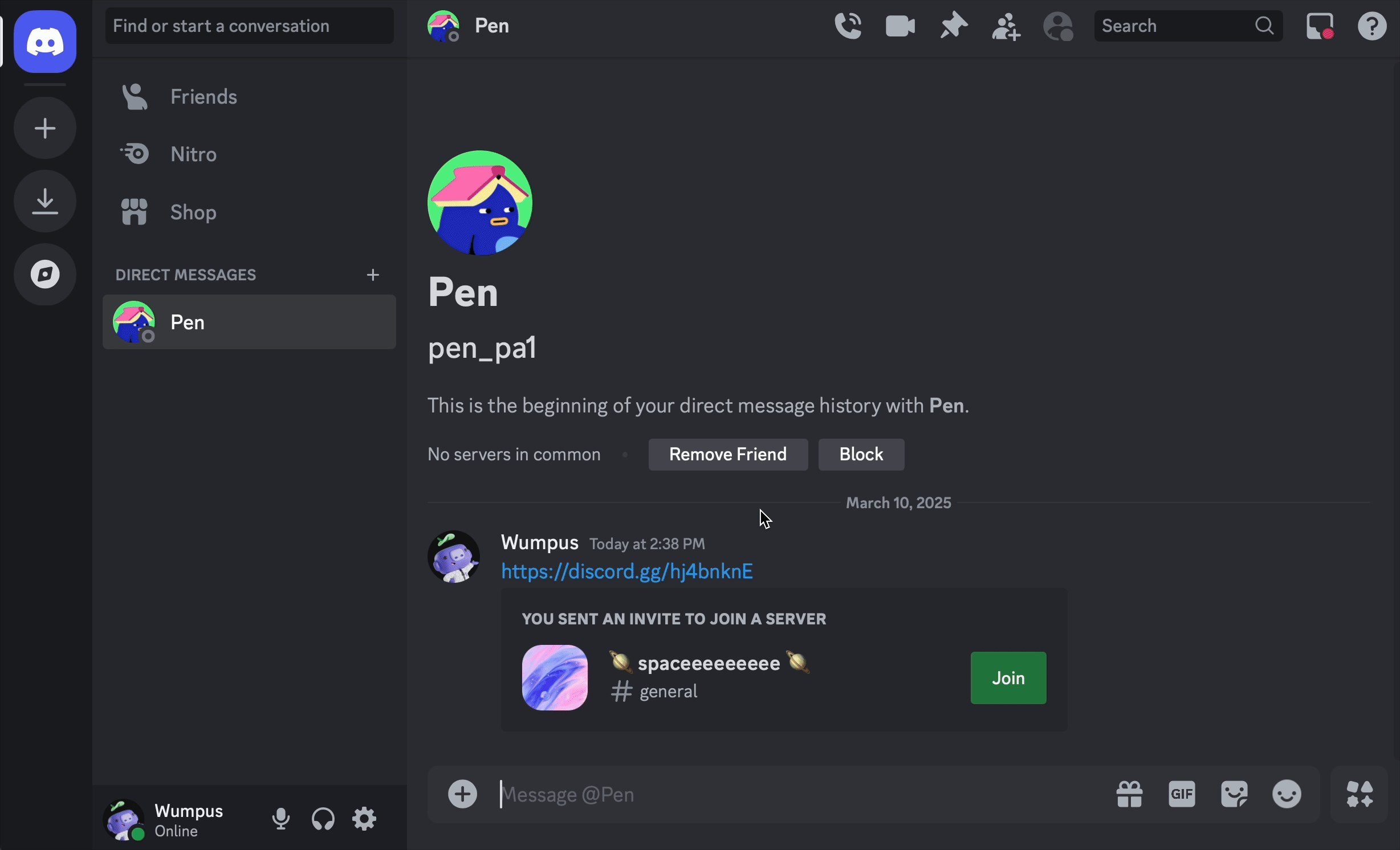
An invite link is the quickest route, because pressing it opens the server's join screen directly. Sign in to Discord first in the app or browser.
- Press the invite link you were sent, for example a link that starts with discord.gg/.
- On the join screen, set your server nickname and choose whether to allow direct messages from server members and show your activity status.
- Select Accept.
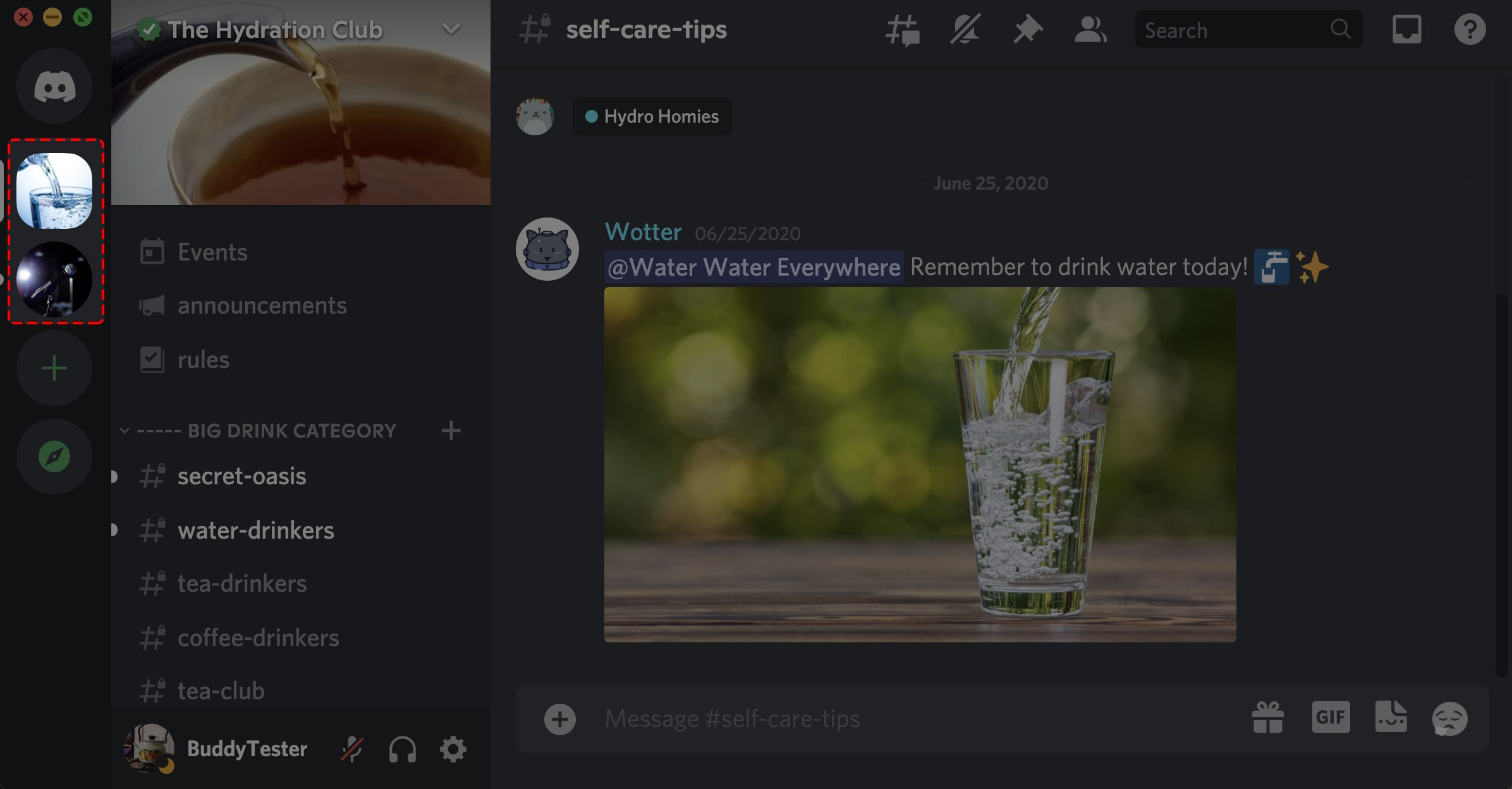
- The server appears as a small round icon in the server list on the left.
Which way of joining a Discord server should you use?
| Your situation | Method | Why |
|---|---|---|
| Someone sent you a clickable link | Press the link, then Accept | One tap, and you can set your nickname and privacy options before joining |
| You have the link or only the code as text | + icon > Join a Server > paste > Join Server | The mobile app accepts the full link or only its last string |
| You have no invite and want a public community | Discover icon > Servers tab | Lists discoverable Community servers by category; the tab is experimental and available to only a percentage of users |
| The server asks you to apply | Submit the application form | Servers set to Apply to Join need an admin to approve you first |
| You are on an Xbox console | Join on PC or phone, then use Discord Voice on the console | The console uses Discord for voice channels |
Joining public & private servers on Discord
Server owners choose how people join in Server Settings > Access, and that setting decides which route works for you. Only servers set to Discoverable appear in Discover, so a private server needs an invite or an approved application.
| Server setting | Public or private | How you get in |
|---|---|---|
| Invite Only | Private (the default for all servers) | Only through a valid invite link from someone in the server |
| Apply to Join | Private, screened | Fill in the server's application questions and wait for an admin to approve; you see no server content while it is pending |
| Discoverable | Public | Find it in Discover and join directly; only Community servers that meet Discord's discovery requirements are listed |
How to join a Discord server with an invite code on desktop or in a browser
Use this when the invite arrived as text you cannot press, such as a link read out in a stream or pasted into a game chat. An invite link is discord.gg/ followed by a code, and codes are case sensitive, so paste rather than retype when you can.
- Open the Discord desktop app or Discord in your browser.
- Press the + icon at the very bottom of the server list on the left.
- Choose Join a Server.
- Paste the full invite link. If you only have the code, enter it after discord.gg/ exactly as written.
- Press Join Server.
How to join a Discord server on iPhone or Android
Pressing an invite link from a friend on your phone joins the server directly. To enter an invite by hand, use the steps below.
- Open the Discord app and tap the green plus sign button in the left side bar.
- Select Join a Server.
- Enter the invite link, or the last string of the link you received.
- Tap Join Server.
- Accept the invitation to confirm you are joining the correct server.
How to use a Discord server on Xbox
On an Xbox console, Discord provides voice chat in the servers your account belongs to. Update the console to the latest version, link the accounts once, join new servers on PC or phone, then open their voice channels from the console guide.
- Press the Xbox button on the controller and go to Profile & System > Settings > Account > Linked social accounts.
- Under Not Linked, choose the Discord tile, select Link and follow the prompts.
- If you linked the accounts before Discord Voice on Xbox was available to you, remove the link and link them again.
- Join the server you want with the desktop or mobile steps above.
- Back on the console, press the Xbox button, open Parties & chats and select Discord Voice.
- Select the Discord server, then choose the voice channel to join.
How to find and join public Discord servers without an invite
The Discover tab lists discoverable Community servers, sorted into categories and ordered by member count. Discord marks it as experimental and available to only a percentage of users, and server search inside it works on desktop only.
- On desktop, select the Discover icon at the bottom of the server list. On mobile, select the Discover icon at the bottom of the app.
- Select the Servers tab.
- Pick a category such as gaming, music or entertainment from the category bar at the top, or type a keyword in the search bar on desktop.
- Press a server to preview it.
- Join the server from its preview to become a member.
How to check you joined the Discord server
- Look at the server list on the far left: the server's small round icon now sits in the column.
- Open the server and check that its text and voice channels are listed.
- Send a message in a text channel. If a bar asks for more steps or the message is blocked, use the fixes under "Why you can't talk after joining a Discord server".
Fix a Discord invite that will not let you join
The invite says Unknown/Expired Invite
The invite link has expired, which happens after 7 days with the default invite settings, or the invite was deleted; a deleted code cannot be recreated.
- Ask someone in the server for a new invite link.
- Open the new link and select Accept.
The invite says Invalid
The code is wrong or mistyped, and codes are case sensitive.
- Copy the invite again from the original message instead of retyping it.
- Paste it into Join a Server and press Join Server.
- If it still fails, ask for a new invite link.
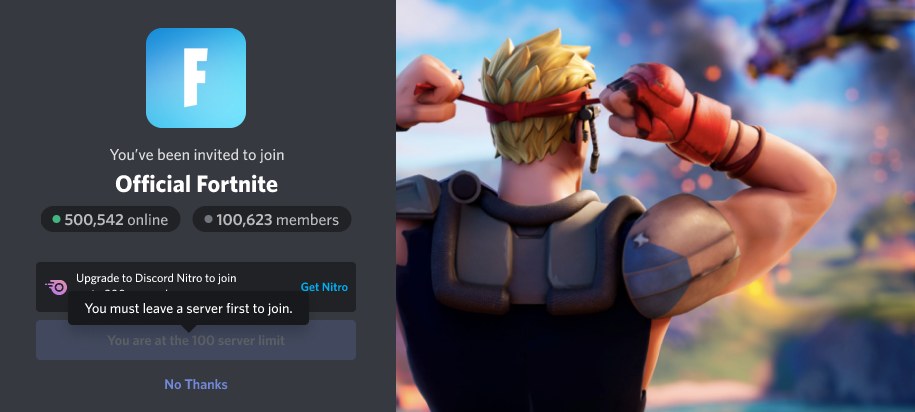
You get the 100 server limit message
An account can be a member of 100 servers, or 200 with Discord Nitro.
- Leave a server you no longer use.
- Open the invite again.
- If your Nitro expired while you were in more than 100 servers, leave enough to drop below 100 before joining another.
The invite says you are banned
Server bans are based on IP addresses.
- Contact the server's admins.
- Ask them to revoke the ban in their Server Settings.
- Try the invite again once they confirm.
The invite says invites are paused
Someone with the Manage Server permission turned on Pause Invites, which blocks joining through the server's invite links, embeds and vanity URLs.
- Wait until the server turns invites back on; you are not notified when that happens.
- Try the same link again later, since pausing does not change it.
Why you can't talk after joining a Discord server
You joined but cannot send messages or join voice
The server's verification level asks for more than your account has.
- Verify the email address on your Discord account; Low and every level above it require a verified email.
- Wait out any time requirement: Medium needs the email verified for longer than five minutes, and High needs an account registered for more than 5 minutes plus more than 10 minutes as a server member.
- For Highest, add a verified phone number, which satisfies every level on its own.
A bar at the bottom says you need to complete a few more steps
The server uses rules screening, so new members must agree to the rules before they can talk, react or send direct messages.
- Open the bar and read the server rules.
- Agree to them and press submit.
You applied but still cannot see the server
The server is set to Apply to Join, and your application is waiting for an admin.
- Wait for an approve, reject or interview message; there is no set review time.
- To change your answers, withdraw the application and submit a new one.
- If you know a moderator, ask for an invite link that skips the application; members with the Kick Members permission can create one.
Your application to a server was rejected
An admin reviewed and declined it, and Discord notified you.
- Apply again later from the server's application link.
- If the server banned you, a new application is not possible until the admins lift the ban.
Joining Discord servers FAQ
How many Discord servers can you join?
A Discord account can join or create up to 100 servers. Subscribing to Discord Nitro raises that cap to 200 servers. When you reach the cap, leave a server before joining a new one.
What happens if you are in more than 100 servers and lose Nitro?
Discord does not remove you from any server you already joined. You cannot join new servers, though, until you leave enough of them to bring your total under 100.
Can you join a Discord server without an invite?
Yes, for public servers. Discoverable Community servers are listed in the Discover tab, where you can preview one and press Join. Private servers set to Invite Only need a valid invite link, and Apply to Join servers need an approved application.
Do Discord invite links expire?
Often, yes. A new invite shows a 7 days link by default, and its creator can change how long it lasts, from 30 minutes to never expiring in a Community server, and how many times it works. An expired link shows Unknown/Expired Invite, so ask for a new one.
Are Discord invite codes case sensitive?
Yes. A code with one letter in the wrong case is treated as invalid. Copy and paste the code or the full link into Join a Server instead of retyping it.
Can you change your nickname before joining a Discord server?
Yes. Press the invite link directly and the join screen lets you set a server nickname, allow or block direct messages from server members and show or hide your activity status before you select Accept.
Can you join a Discord server on Xbox?
Join the server on PC or phone first. On the console, Discord provides voice chat: link your accounts, then open Parties & chats, select Discord Voice, pick the server and choose a voice channel.
Can a banned user rejoin a Discord server?
Only if the server's admins lift the ban. Server bans are tied to IP addresses, so a new invite link does not help. Contact the admins and ask them to revoke the ban in Server Settings.