GPU-Z is a free Windows-only program from TechPowerUp: it runs on Windows 11 and Windows 10 PCs (and older Windows back to XP), and there is no Mac or iPhone version.
On this page
Below are the official download routes, the winget install, what GPU-Z shows, the built-in alternatives on Mac and Windows, and fixes for install problems.
Which GPU-Z download do you need?
| Your device | What to get | Where |
|---|---|---|
| Windows 11 or Windows 10 PC, comfortable with a terminal | GPU-Z through winget, the Windows Package Manager, which checks the installer hash | TechPowerUp.GPU-Z in the winget repository |
| Windows 11 or Windows 10 PC, prefer a normal download | The GPU-Z file from TechPowerUp's own GPU-Z page (techpowerup.com/gpuz) | Publisher site, TechPowerUp |
| Windows 8, 7, Vista or XP | The same GPU-Z file; TechPowerUp lists support for these versions, 32 and 64 bit | Publisher site, TechPowerUp |
| Mac | No GPU-Z build exists; use the System Report in macOS | System Information User Guide for Mac |
| iPhone or iPad | No GPU-Z app exists | Not available |
| You want processor and memory details instead | CPU-Z from CPUID, also in winget | CPUID.CPU-Z in the winget repository |
Download GPU-Z for Windows 11 and Windows 10
TechPowerUp publishes GPU-Z on its own site at techpowerup.com/gpuz, and the same installer is listed in Microsoft's winget repository under the ID TechPowerUp.GPU-Z.
The winget entry points at TechPowerUp's download server and stores a SHA256 hash of the file, so winget stops when a download does not match.
- TechPowerUp GPU-Z package (winget-pkgs, Microsoft) (2.71.0): Freeware, x86 installer that runs on Windows, both 32 and 64 bit
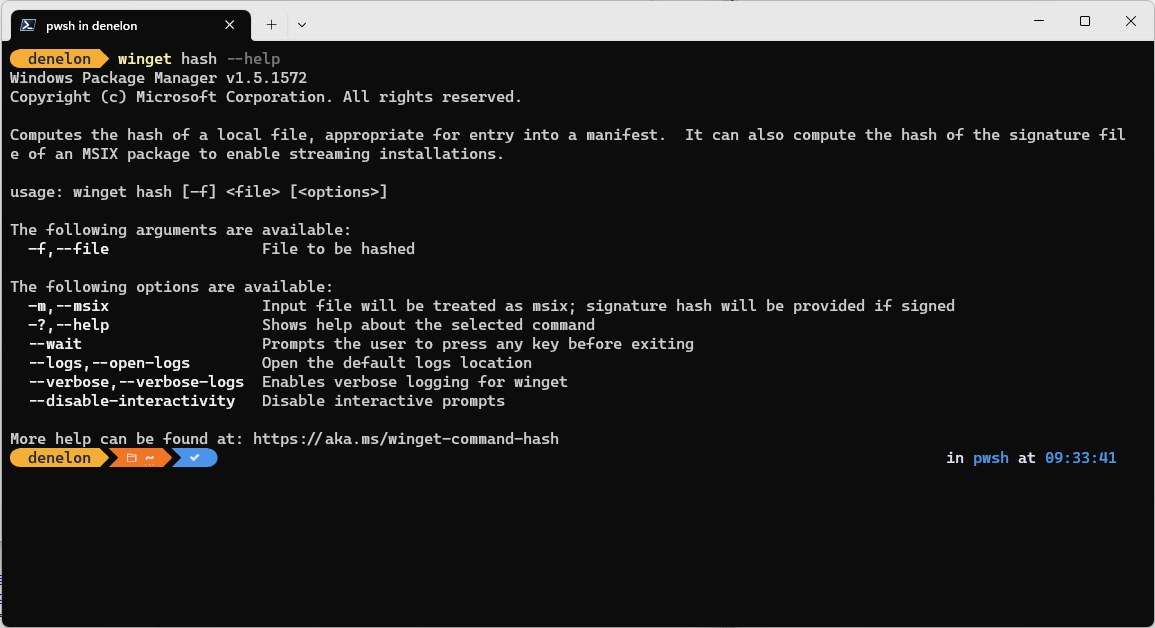
To check a file downloaded from TechPowerUp by hand, run winget hash --file followed by the path to the file. For version 2.71.0 the result should be A2412D6720E091F65925622561C3F274A25ECD0B9FB0F50AB3B910918F01DEE9, the hash stored in the winget entry.
Install GPU-Z with winget on Windows 11 and 10
WinGet is part of App Installer and works on Windows 11 and on Windows 10 version 1809 (build 17763) or later.
- Search for Terminal or Command Prompt from Start and open it.
- Type
winget install --id TechPowerUp.GPU-Z -eand press Enter. The--idand-eoptions limit the match to the exact GPU-Z package. - Accept the winget source agreement if winget asks for it.
- Approve the Windows elevation prompt. GPU-Z installs for the whole machine, and declining the prompt stops the install.
- Run
winget list TechPowerUp.GPU-Zto confirm the install. The installed GPU-Z version appears in the list.
How to install GPU-Z on Windows 11 and 10 or run it portable
GPU-Z needs no installation. The downloaded file runs as a standalone program, and the same file carries the optional installer.
- Download the GPU-Z file from TechPowerUp's GPU-Z page; the file name carries the version, such as GPU-Z.2.71.0.exe.
- Double-click the file to run GPU-Z without installing it.
- Keep the file in any folder and run it from there each time for a portable copy.
- To install it instead, run the file with the
-installswitch from an administrator command prompt, or-installSilentfor an install with no windows.
Is GPU-Z free?
Yes. GPU-Z is freeware from TechPowerUp LLC. The winget manifest for GPU-Z 2.71.0 lists the license as Freeware, with TechPowerUp LLC as the author and techpowerup.com/gpuz as the package page.
What is GPU-Z? A lightweight utility designed to give you all information about your GPU
GPU-Z is designed to give you the vital details of your video card and graphics processor, from the clock speeds to the memory bus width, without installing anything.
| Item | Detail |
|---|---|
| Graphics vendors supported | NVIDIA, AMD, ATI and Intel graphics devices; the 2.71.0 release also covers Qualcomm Adreno and Snapdragon X2 graphics |
| What it reports | Adapter, GPU and display information; default, overclock and boost clocks; memory size, type, speed and bus width |
| Extra tools | A GPU load test that checks the PCI-Express lane configuration, a backup of the graphics card BIOS, and online validation of results |
| Windows versions | Windows 11, 10, 8, 7, Vista and XP, both 32 and 64 bit |
| Installer | x86 Inno Setup installer; running without installing is supported |
| Latest version in winget | 2.71.0, released 2026-09-22 |
| New in 2.71.0 | GeForce 50 Hot Spot sensor, memory chip temperatures, a PCI-Express bandwidth sensor for NVIDIA, and support for RTX 5060 (GB205), the AMD Steam Machine GPU and Intel Panther Lake |
Can you download GPU-Z on Mac or iPhone?
TechPowerUp lists only Windows versions for GPU-Z, so there is no macOS download and no App Store app for iPhone or iPad.
| Device | GPU-Z available? | Official alternative |
|---|---|---|
| Mac | No | Choose Apple menu > System Settings > General > About, then click System Report; the report lists the hardware installed in the Mac |
| Mac, faster route | No | Hold the Option key and choose Apple menu > System Information |
| iPhone or iPad | No | No official alternative app exists |
How to check your GPU-Z version and update it
- Open Terminal or Command Prompt.
- Run
winget list TechPowerUp.GPU-Zto see the installed version. - Run
winget show --id TechPowerUp.GPU-Zto see the newest version in the repository and its release notes. - Run
winget upgrade --id TechPowerUp.GPU-Zto install the update. GPU-Z's winget entry upgrades by running the new installer over the old one. - For a portable copy, download the newer file from TechPowerUp and replace the old file.
Fix GPU-Z not downloading, installing or reading your GPU
winget is not recognized as a command
App Installer is missing, Windows 10 is older than version 1809, or Windows has not registered winget for your account yet.
- Check your Windows version; winget needs Windows 11 or Windows 10 version 1809 (build 17763) or later.
- Install or update App Installer from the Microsoft Store.
- If App Installer is present, open PowerShell and run
Add-AppxPackage -RegisterByFamilyName -MainPackage Microsoft.DesktopAppInstaller_8wekyb3d8bbwe. - Close and reopen the terminal, then run the GPU-Z install command again.
winget lists several packages instead of installing GPU-Z
A plain winget install gpu-z does a substring search and can match more than one package.
- Run
winget install --id TechPowerUp.GPU-Z -eso only the exact ID matches. - If more than one source is configured, add
--source winget.
The install fails right after the permission prompt
GPU-Z installs machine-wide, and the install stops if the elevation prompt is declined.
- Run the install command again.
- Approve the elevation prompt this time.
- If you cannot approve elevation on the PC, run the GPU-Z file without installing instead.
winget reports an installer hash mismatch
The downloaded file does not match the SHA256 hash stored in the winget repository.
- Run
winget source update, then retry the install. - If it still fails, download GPU-Z from TechPowerUp's own page instead.
- Do not add
--ignore-security-hash; Microsoft marks that option as not recommended.
GPU-Z shows missing or wrong graphics card details
GPU-Z adds support for new graphics chips release by release, as the 2.71.0 notes for the RTX 5060 and Intel Panther Lake show, so an older copy can miss a newer GPU.
- Update GPU-Z to the latest version with
winget upgrade --id TechPowerUp.GPU-Z. - Install the current driver from NVIDIA or AMD for your card.
- Restart the PC and open GPU-Z again.
How to uninstall GPU-Z
- Select Start > Settings > Apps > Installed apps.
- Find GPU-Z in the list, then select More > Uninstall.
- Alternatively, run
winget uninstall --id TechPowerUp.GPU-Zin a terminal. - For a portable copy that was never installed, delete the GPU-Z file.
How to check your GPU on Windows without GPU-Z
| Tool | Where to find it | What it shows |
|---|---|---|
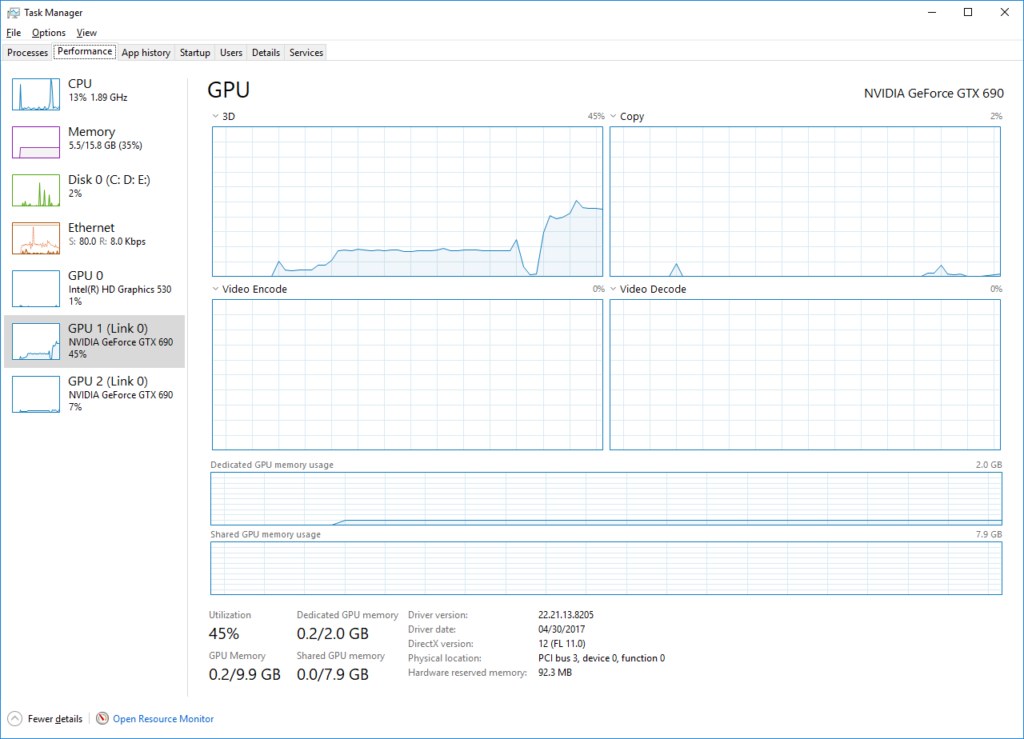
| Task Manager | Open Task Manager and select the Performance tab, then GPU 0 | GPU utilization per engine and video memory use, read directly from the Windows graphics kernel; needs a WDDM 2.0 driver |
| DirectX Diagnostic Tool | Search for dxdiag, open it, then select the Display tab | Display driver details, including the Driver Model under Drivers; Save All Information… saves the full report to share |
Frequently asked questions
How do you download GPU-Z?
Download GPU-Z from TechPowerUp's GPU-Z page at techpowerup.com/gpuz, or run winget install –id TechPowerUp.GPU-Z -e in Terminal on Windows 11 or Windows 10. Both deliver the same TechPowerUp installer, and the file also runs without installing.
Is GPU-Z safe to download?
Yes, when it comes from TechPowerUp's own site or through winget. The winget entry stores a SHA256 hash of TechPowerUp's installer and stops when a file does not match. Copies on download portals add an extra party you have to trust.
How do you use GPU-Z?
Open GPU-Z to see the adapter, GPU and display details, memory size, type, speed and bus width, and default and boost clocks. The sensors tab shows sensor readings that can be logged to a file, and the advanced tab adds NVIDIA overclocking readouts.
Does GPU-Z work on Windows 11?
Yes. TechPowerUp lists Windows 11 support alongside Windows 10, 8, 7, Vista and XP, both 32 and 64 bit. The same file covers every supported version, so there is no separate Windows 11 download.
Is there a portable version of GPU-Z?
The standard GPU-Z file is the portable version. It runs without installation, and the installer it contains is optional, so you can keep the file in any folder and run it on any supported Windows PC.
How do you download CPU-Z?
CPU-Z comes from CPUID at cpuid.com, and it is also in winget: run winget install –id CPUID.CPU-Z -e in Terminal. CPU-Z is freeware and reports the processor, mainboard, chipset and memory, while GPU-Z covers the graphics card.
How do you download GPU drivers for NVIDIA?
Download NVIDIA drivers from nvidia.com/drivers, either through manual driver search for your card or with the NVIDIA App, which keeps drivers up to date automatically. Game Ready Drivers are certified by Microsoft's Windows Hardware Quality Labs.
How do you download AMD GPU drivers?
Use AMD's drivers page at amd.com, where the Auto-Detect and Install tool finds the right driver for Radeon graphics on Windows 11 or Windows 10 64-bit version 1809 and later. You can also search for your exact product.
Where should you download GPU-Z?
Only from TechPowerUp, the developer, at techpowerup.com/gpuz, or through Microsoft's winget, which fetches the file from TechPowerUp's server. Mirrors and repackaged downloads are not published by TechPowerUp.