When NVIDIA Control Panel will not open in Windows 10 or Windows 11, end its stuck processes in Task Manager, use Restart rather than Shut down, and then repair or reset the app from Installed apps.
On this page
The fixes below run from the quickest to the most thorough: an administrator launch, ending NVIDIA processes, NVIDIA services, repair or reinstall, a fresh graphics driver, Fast Startup, and the NVIDIA app for the same settings.
The fastest way to get NVIDIA Control Panel opening again
NVIDIA Control Panel is a free Microsoft Store app from NVIDIA Corp., so Windows repairs it like any other installed app. These steps close a stuck copy of the app, restart Windows fully and then repair the app package.
- Press Ctrl+Shift+Esc to open Task Manager, select Processes, right-click NVIDIA Control Panel under Apps and select End task.
- Select Start > Power > Restart. Fast Startup does not apply to Restart, while Shut down with Fast Startup on puts the PC into hibernation instead of a full shutdown.
- After Windows loads, type NVIDIA Control Panel in Start search and open it.
- If it still does not open, select Start > Settings > Apps > Installed apps.
- Select More next to NVIDIA Control Panel, then Advanced options.
- Select Repair. If the app still will not open, return to the same page and select Reset.
Which NVIDIA Control Panel fix should you use?
| What you see | Fix to use | What it does |
|---|---|---|
| Nothing happens when you open it | Disable NVIDIA processes in Task Manager, then Restart | Closes a copy of the app that stopped responding so the next launch starts a new one |
| It opened before and now fails every time | Repair or reset NVIDIA Control Panel | Repairs the installed app package, with Reset as the second step |
| It is missing from Start and from Installed apps | Reinstall NVIDIA Control Panel from the Microsoft Store | Installs the free app package again |
| It broke right after a driver or Windows update | Roll back or clean install the NVIDIA graphics driver | Returns the card to its previous driver, or removes the driver and installs a fresh one |
| It works after Restart but fails after Shut down | Disable Fast Startup | Makes Shut down a full shutdown instead of hibernation |
| Nothing above works and you only need 3D or display settings | Use the NVIDIA app | Many NVIDIA Control Panel settings now live in the NVIDIA app |
Run NVIDIA Control Panel as an administrator
An administrator launch rules out a permissions problem in your user account. It is a test, not a permanent setting.
- Select Start and type NVIDIA Control Panel.
- Right-click NVIDIA Control Panel in the results.
- Select Run as administrator if the menu offers it, and approve the User Account Control prompt.
- If it opens this way but not normally, repair the app from Installed apps with the steps in the repair section below.
Disable NVIDIA processes in Task Manager
A copy of NVIDIA Control Panel that stopped responding stays listed in Task Manager. Ending it there closes it, so the next launch starts a new copy.
- Right-click Start and select Task Manager, or press Ctrl+Shift+Esc.
- Select Processes in the left menu.
- Under the Apps section, right-click NVIDIA Control Panel and select End task.
- Close Task Manager and open NVIDIA Control Panel from Start search.
Restart NVIDIA services
A stopped NVIDIA service takes a minute to rule out from the Services list, and starting it needs no reinstall.
- Select Search, type computer management and select Computer Management.
- In the console tree, expand Services and Applications and select Services.
- Sort the list by name and find the entries whose names begin with NVIDIA.
- Right-click any NVIDIA service whose status is not Running and select Start.
- Restart the PC from Start > Power > Restart, then open NVIDIA Control Panel again.
Repair or reset NVIDIA Control Panel
Select Repair first. Select Reset only if Repair is not available or does not fix the problem.
| Windows version | Path | Then |
|---|---|---|
| Windows 11 | Start > Settings > Apps > Installed apps > More next to NVIDIA Control Panel > Advanced options | Select Repair; if it changes nothing, select Reset |
| Windows 10 | Start > Settings > Apps > Apps & features > select NVIDIA Control Panel > Advanced options | Select Repair; if it changes nothing, select Reset |
Reinstall NVIDIA Control Panel
A reinstall replaces the app package completely. NVIDIA Control Panel is free in the Microsoft Store, listed under Utilities & tools, and needs 64-bit Windows 10 version 14393.0 or higher.
- Select Start > Settings > Apps > Installed apps.
- Find NVIDIA Control Panel, then select More > Uninstall.
- Select Start > Power > Restart.
- Open the NVIDIA Control Panel Microsoft Store page and install it again.
- Open NVIDIA Control Panel from Start search once the install finishes.
Reinstall NVIDIA Control Panel from PowerShell
This removes the NVIDIA Control Panel app package from your Windows account and opens its Microsoft Store page in one step. Use it when Uninstall in Installed apps is missing or fails.
Get-AppxPackage NVIDIACorp.NVIDIAControlPanel | Remove-AppxPackage; Start-Process "ms-windows-store://pdp/?ProductId=9NF8H0H7WMLT"Get-AppxPackage finds the NVIDIA Control Panel package (package family NVIDIACorp.NVIDIAControlPanel_56jybvy8sckqj), Remove-AppxPackage removes it from the current user account, and the ms-windows-store link opens the app's Microsoft Store page so you can install a fresh copy.
You should see: The Microsoft Store opens on the NVIDIA Control Panel page with an install button, and the app opens from Start after you install it.
Clean install NVIDIA graphics driver
Uninstalling the NVIDIA card in Device Manager removes its driver, and Windows attempts to reinstall a driver after the restart. Installing NVIDIA's current driver afterwards leaves NVIDIA Control Panel on a fresh driver install.
If the problem started right after an update, try Roll Back Driver first: in Device Manager, open the NVIDIA adapter's Properties, select the Driver tab and select Roll Back Driver. You must be signed in as an administrator.
- Save your work and close all apps.
- Right-click Start and select Device Manager.
- Expand Display adapters, right-click your NVIDIA graphics card and select Uninstall device.
- Confirm with Uninstall.
- Restart Windows. Windows attempts to reinstall a driver for the card on its own.
- Download the current driver for your card from the NVIDIA driver page, or from the Drivers tab of the NVIDIA app, and install it.
- Restart once more, then open NVIDIA Control Panel.
Disable Fast Startup
Fast Startup is on by default. With it enabled, Shut down logs off all sessions and puts the PC into hibernation instead of a full shutdown. The Fast Startup setting does not apply to Restart.
Microsoft does not recommend disabling Fast Startup. Turn it off only if NVIDIA Control Panel works after Restart but fails after Shut down.
- Select Search on the taskbar, type control panel and open Control Panel.
- Select System and Security.
- In the Power Options section, select Choose what the power buttons do.
- Select Change settings that are currently unavailable.
- Under Shutdown settings, clear the Fast Startup checkbox.
- Select Save changes, then shut down and power on to test.
Can the NVIDIA app replace NVIDIA Control Panel?
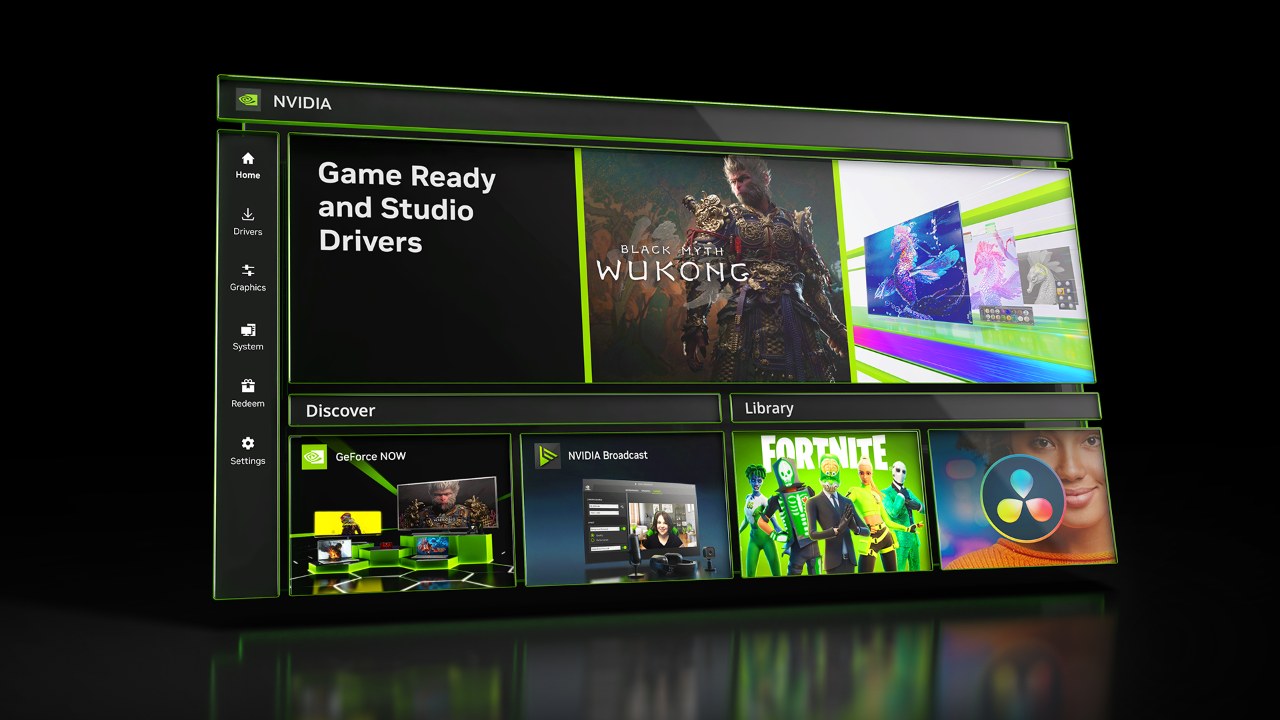
Partly. NVIDIA is moving NVIDIA Control Panel features into the NVIDIA app, so the settings you opened the Control Panel for may already be there. The NVIDIA app runs on Windows 10 and Windows 11 with 2GB of system memory, 600 MB of disk space and the GeForce 551.52 driver or later.
| Setting you want | Where it is in the NVIDIA app |
|---|---|
| 3D settings for every game | Graphics > Global Settings |
| 3D settings for one game | Graphics > Program Settings > Driver Settings |
| Anisotropic filtering, antialiasing modes, PhysX | Under Driver Settings, select Show Legacy Settings at the bottom of the list |
| G-SYNC, Surround and other display options | System > Displays |
| Custom resolution | System > Displays > Display Properties |
| Resizable BAR per game | Graphics > Program Settings > Driver Settings > Resizable BAR |
Get the NVIDIA app from the NVIDIA app page. It can also roll back to a previously installed driver.
How to check NVIDIA Control Panel is working again
- Open NVIDIA Control Panel from Start search; its window should appear within a few seconds instead of doing nothing.
- Open Task Manager > Processes and confirm NVIDIA Control Panel is listed under Apps while the window is open.
- Select Start > Power > Shut down, power the PC back on, and open the app again to confirm the fix survives a cold start.
Fix NVIDIA Control Panel when it still does not open
NVIDIA Control Panel stopped opening after a Windows or driver update
The newly installed graphics driver is the most likely change to undo.
- Right-click Start and select Device Manager.
- Expand Display adapters, right-click the NVIDIA card and select Properties.
- Select the Driver tab, then Roll Back Driver, choose a reason and confirm with Yes.
- Restart the PC when prompted.
NVIDIA Control Panel does not open and other Windows features misbehave too
Missing or corrupted Windows system files.
- Type cmd in Search, right-click Command Prompt and select Run as administrator.
- Run DISM.exe /Online /Cleanup-image /Restorehealth and wait for it to finish.
- Run sfc /scannow and wait for the result.
- Restart the PC and open NVIDIA Control Panel.
NVIDIA Control Panel opens in a clean boot but not normally
Another startup app or service interferes with it.
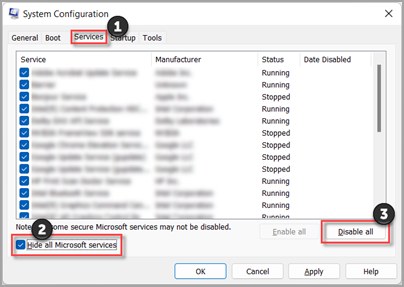
- Sign in as an administrator, type msconfig in Search and open System Configuration.
- On the Services tab, select Hide all Microsoft services, then Disable all, then Apply.
- On the Startup tab, select Open Task Manager and disable each item on the Startup apps tab.
- Restart and open NVIDIA Control Panel. If it works, turn items back on in halves to find the conflict.
- To return to normal, open System Configuration, select Normal Startup on the General tab and Enable all on the Services tab.
NVIDIA Control Panel is missing entirely
The NVIDIA Control Panel app package is not installed.
- Open the NVIDIA Control Panel Microsoft Store page.
- Select the install button and wait for the install to finish.
- Open NVIDIA Control Panel from Start search.
NVIDIA Control Panel not opening FAQ
Why does NVIDIA Control Panel not open when I click it?
A copy that stopped responding or a damaged app package are the first things to rule out. End NVIDIA Control Panel in Task Manager, use Restart, and then repair or reset the app from Settings > Apps > Installed apps if it still does nothing.
Should I repair or reset NVIDIA Control Panel first?
Repair first. Select Reset only if Repair is not available or does not fix the problem. Both are under Advanced options for NVIDIA Control Panel in Settings > Apps > Installed apps on Windows 11, or Apps & features on Windows 10.
Is NVIDIA Control Panel free in the Microsoft Store?
Yes. NVIDIA Control Panel is listed as free in the Microsoft Store, published by NVIDIA Corp. It requires 64-bit Windows 10 version 14393.0 or higher, so it also runs on Windows 11.
Will reinstalling the NVIDIA driver fix NVIDIA Control Panel?
It can when the problem began after an update. If a Windows Update installed a new driver, rolling back to the previous driver in Device Manager often resolves it. If that does not help, uninstall the device and install the current driver from NVIDIA.
Should I turn off Fast Startup to fix NVIDIA Control Panel?
Only if the app works after Restart but fails after Shut down. Fast Startup is on by default and turns Shut down into hibernation, while the setting does not apply to Restart. Microsoft does not recommend disabling Fast Startup.
Can I use the NVIDIA app instead of NVIDIA Control Panel?
For many settings, yes. The NVIDIA app now includes 3D settings, legacy settings such as anisotropic filtering and antialiasing, display options under System > Displays and custom resolution. It runs on Windows 10 and Windows 11 with the GeForce 551.52 driver or later.
Why is NVIDIA Control Panel missing from Windows?
NVIDIA Control Panel is a separate Microsoft Store app, so it does not appear when its app package is not installed. Install it free from the Microsoft Store, then open it from Start search. The PowerShell reinstall above also clears a damaged copy first.