To fix Steam when it will not open, end every Steam process that is still running, restart the computer and launch Steam again.
On this page
If it still fails, update Windows or macOS, use a clean boot or safe mode to find a program conflicting with Steam, and reinstall Steam only after those checks.
The fastest way to fix Steam not opening
| Your computer | Close Steam completely | Then |
|---|---|---|
| Windows 11 or Windows 10 | Right-click Start, select Task Manager, select each Steam entry and choose End task | Go to Start, select the Power button, then Restart, and open Steam |
| Mac | Press Option, Command and Esc together, select Steam and click Force Quit | Choose Restart from the Apple menu, then open Steam from the Applications folder |
If Steam opens after the restart, nothing else on this page is needed.
Why isn't Steam opening?
| Cause | What you notice | Fix |
|---|---|---|
| A Steam process has stopped responding | Clicking Steam does nothing | End it in Task Manager or Force Quit it, then restart |
| Another program conflicts with Steam | The Steam client crashes | Clean boot on Windows or safe mode on Mac to find the program |
| Steam cannot reach its servers | Steam opens but cannot sign in or connect | Check your network; Steam may be under maintenance, so wait a few hours |
| Out-of-date device drivers | Steam opens to a flickering or unresponsive window | Install Windows updates, which include driver updates, or macOS updates |
| The problem is in Steam itself | Steam still fails in a clean boot or safe mode | Reinstall Steam, then contact Steam Support |
How to resolve Steam when it won't launch on Windows
- Right-click Start and select Task Manager.
- Select every entry that belongs to Steam, then select End task for each one.
- Close Task Manager.
- Go to Start, select the Power button, and then select Restart.
- Open Steam again. If it still does not open, select Start > Settings > Windows Update and select Check for Windows updates.
- If updates are listed, select Download & install and restart when prompted, then try Steam again.
On Windows 10 the update page is under Settings > Update & Security > Windows Update. Microsoft ended free Windows 10 updates on October 14, 2025, so a Windows 10 PC may not receive new fixes.
How to resolve Steam when it won't launch on Mac
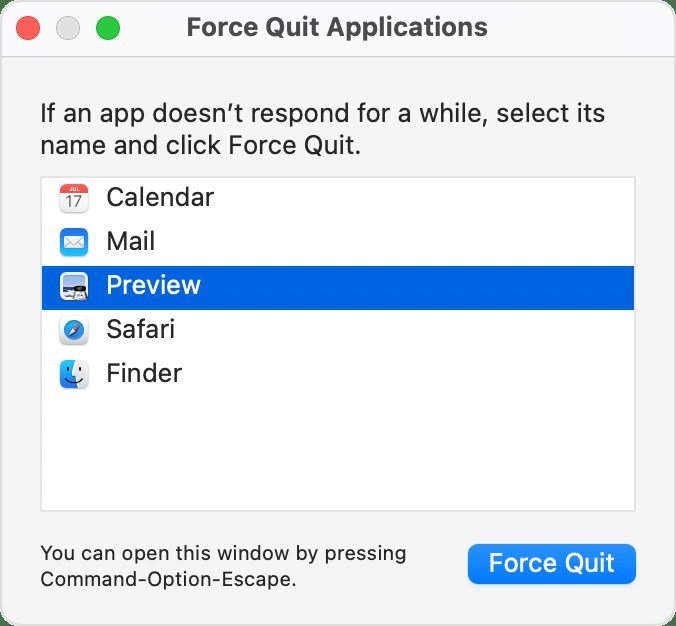
- Choose Force Quit from the Apple menu, or press Option, Command and Esc together.
- Select Steam in the Force Quit window and click Force Quit.
- If Steam is not listed, open Activity Monitor, select any Steam process under Process Name, click the button in the upper-left corner of the window and choose Force Quit.
- Choose Restart from the Apple menu.
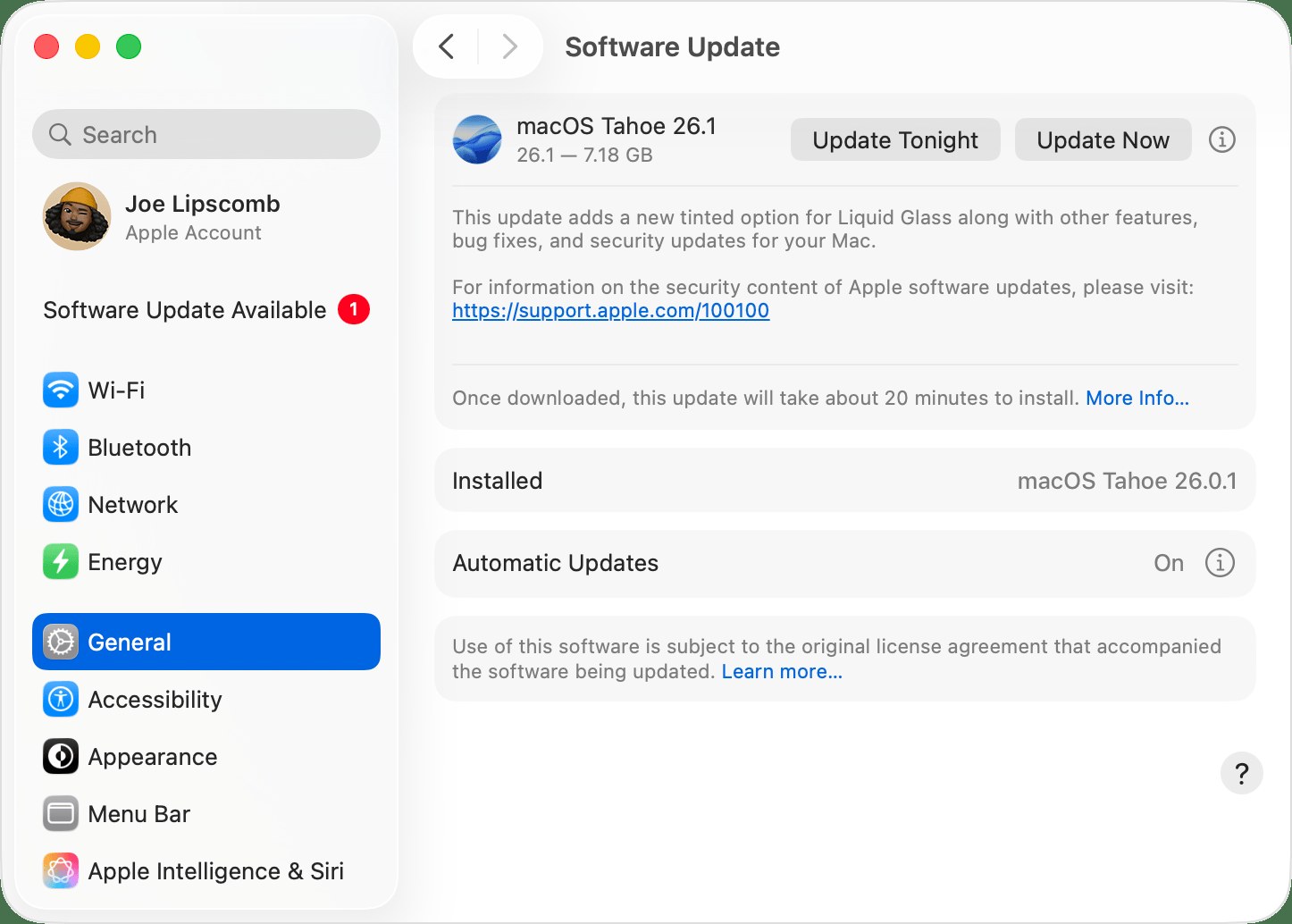
- Open Steam again. If it still does not open, choose System Settings from the Apple menu, click General, then Software Update.
- Install any update offered, entering your administrator password when asked, then try Steam again.
Apple notes that installing the latest macOS updates and updates for third-party apps is more likely than any other step to resolve the kind of startup-software issue that safe mode identifies.
Find the program that interferes with Steam using a clean boot on Windows
Steam Support lists conflicts with other programs as a cause of the Steam client crashing. A clean boot starts Windows with only essential drivers and startup programs, so if Steam opens in it, a startup app or service is to blame.
- Sign in to Windows as an administrator.
- Select Search, type msconfig, and select System Configuration.
- On the Services tab, select Hide all Microsoft services, then Disable all, then Apply.
- On the Startup tab, select Open Task Manager.
- On the Startup apps tab, select each Enabled item and choose Disable, noting which ones you changed.
- Close Task Manager, select OK in System Configuration and restart the PC.
- Open Steam. If it opens, turn the services back on half at a time in System Configuration, restarting after each change, until Steam stops opening; the half you last turned on holds the conflicting service.
- If no service is to blame, repeat the halving with the startup apps you disabled in Task Manager.
To return to a normal start, open System Configuration, select Normal Startup on the General tab, clear Hide all Microsoft services, select Enable all, and re-enable your startup apps in Task Manager. If Steam fails even in a clean boot, the problem is not another program.
Start your Mac in safe mode to rule out login items
Safe mode stops login items and extensions that macOS does not need from loading, checks the startup disk and clears some system caches.
- Unplug all nonessential devices from the Mac, because a connected accessory can also cause the problem.
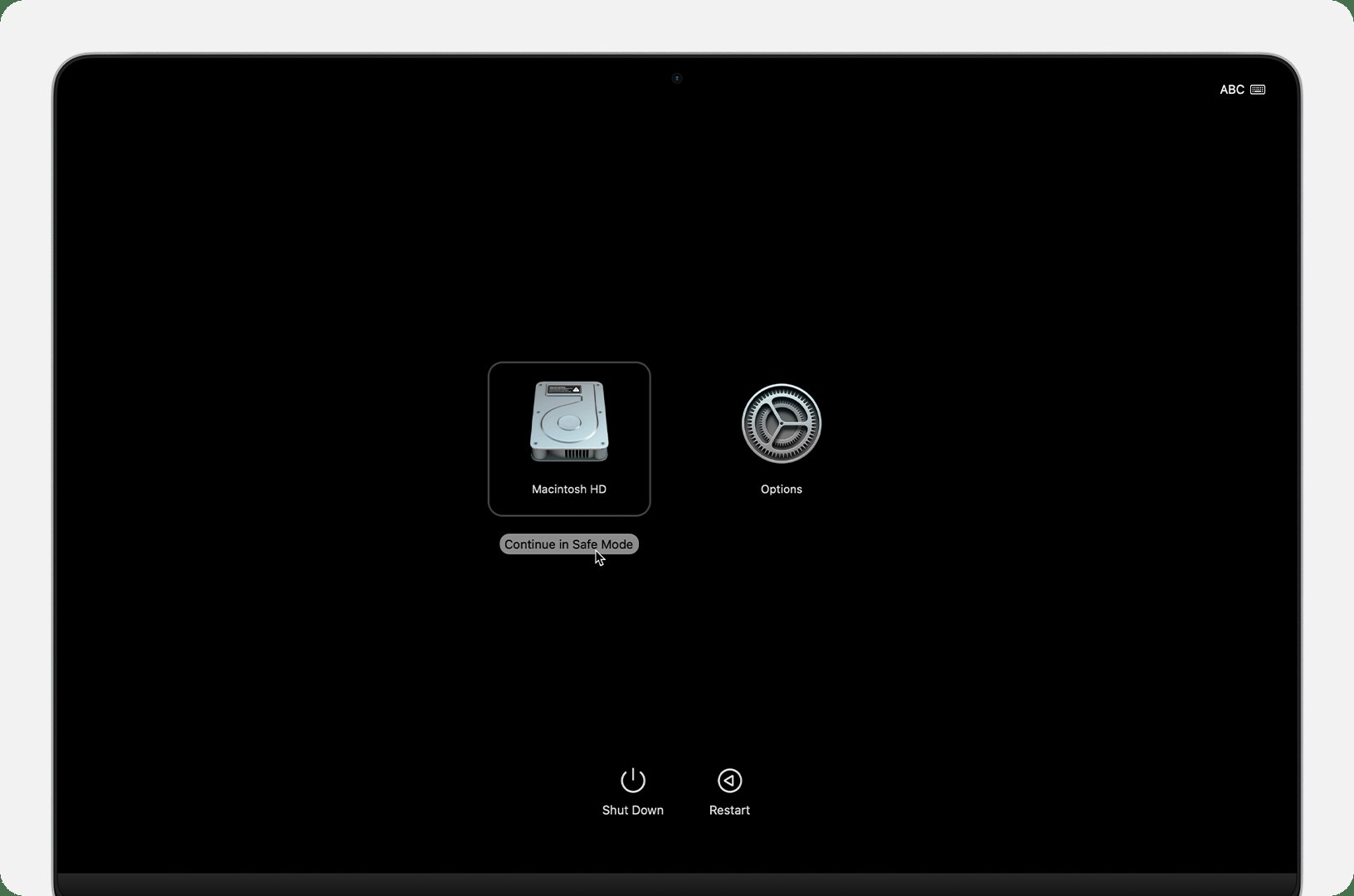
- On a Mac with Apple silicon, shut down, then press and hold the power button until you see "Loading startup options".
- Select your startup disk, press and hold Shift, and click Continue in Safe Mode.
- On an Intel-based Mac, restart and hold Shift until the login window appears.
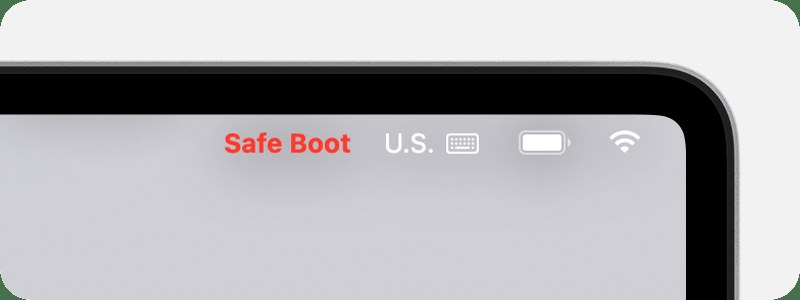
- Log in; "Safe Boot" may appear in red in the upper-right corner of the login window. Open Steam.
- Choose Restart from the Apple menu to leave safe mode, then open Steam normally.
If Steam opens in safe mode and after the normal restart, the disk check or cache clearing may have fixed it. If it fails again only after the normal restart, a login item is the cause: remove login items in System Settings and restart.
Repair Windows system files when Steam and other apps fail to open
Missing or corrupted Windows system files can make Windows features malfunction, show system errors or freeze. Run these two repairs when Steam is not the only program misbehaving.
- Type cmd in the Search box, right-click Command Prompt and select Run as administrator.
- Select Allow or enter the administrator password if prompted.
- Type DISM.exe /Online /Cleanup-image /Restorehealth and press Enter; it can take several minutes.
- Type sfc /scannow and press Enter, and keep the window open until verification is 100% complete.
- Read the result: "Windows Resource Protection did not find any integrity violations" means system files are fine, while "found corrupt files and successfully repaired them" means the repair worked.
- Restart the PC and open Steam.
Uninstall and reinstall Steam on Windows or Mac
Reinstall only after the restart, update and clean boot or safe mode checks, since those show first whether another program, rather than Steam, is the problem.
| Platform | Uninstall Steam | Reinstall |
|---|---|---|
| Windows 11 | Select Start > Settings > Apps > Installed apps, find Steam, select More > Uninstall | Install Steam from store.steampowered.com |
| Windows 10 or 11 (Control Panel) | Open Control Panel > Programs > Programs and Features, right-click Steam and select Uninstall | Install Steam from store.steampowered.com |
| Mac | Quit Steam, open the Applications folder, drag Steam to the Trash, then choose Empty Trash from the Finder menu | Install Steam from store.steampowered.com |
On a Mac, check the Steam folder for an "Uninstall" or "Uninstaller" app first; when an app includes one, Apple recommends it over dragging the app to the Trash.
How to check Steam is working again
- Open Steam and confirm the window appears and stays open.
- Sign in and confirm your games list loads, which shows Steam can reach its servers.
- Restart the computer once more and open Steam again; if it opens a second time, the fix held.
- On Windows, if you used a clean boot, confirm Steam still opens after switching back to Normal Startup.
Fix Steam when it still does not open
Steam opens but cannot sign in or connect
Steam signs in differently from a web browser, so a network setting, maintenance or an ISP problem can block the client alone.
- Restart your modem or router and the computer.
- Work through Steam Support's Troubleshooting Network Connectivity checks.
- If nothing on your side has changed, Steam may be undergoing maintenance; wait a few hours and try again.
Steam opens to a flickering or unresponsive window
Out-of-date device drivers can leave an app flickering or unresponsive.
- On Windows, install all updates from Windows Update, which also delivers device drivers.
- Get the current graphics driver from your card maker: NVIDIA drivers or AMD drivers.
- Restart the PC and open Steam again.
- On a Mac, install macOS updates from Software Update.
Steam not enough disk space on Windows 10/11
The drive Steam installs to is full, and a full drive can also slow the PC and stop Windows updates from installing.
- Open File Explorer, select This PC and check the free space under Devices and drives.
- On Windows 11, select Start > Settings > System > Storage > Cleanup recommendations.
- Review Temporary files, Large or unused files and Unused apps, then select Clean up for each section.
- On Windows 10, type disk cleanup in the taskbar search box, open Disk Cleanup, select the drive, select OK and choose the file types to delete.
- Empty the Recycle Bin and retry the Steam install or update.
Steam still crashes in a clean boot or safe mode
No other program is involved, so the fix lies with the Steam installation itself.
- Uninstall and reinstall Steam using the table above.
- If Steam still crashes, use Steam Support's Steam Client Crashes page to contact Steam Support.
Steam not opening FAQ
Why does nothing happen when I click Steam?
A Steam process may still be running in the background without responding. End every Steam entry in Task Manager on Windows, or force quit Steam on a Mac, then restart the computer and open Steam again.
Can other programs stop Steam from opening?
Yes. Steam Support lists conflicting programs as a cause of the client crashing. A clean boot on Windows or safe mode on a Mac starts the computer without most third-party startup software, which shows whether another program is responsible.
Does reinstalling Steam fix it not opening?
It can when the problem is in Steam itself, which is likely if Steam still fails in a clean boot or safe mode. Try the restart, the operating system update and the conflict check first, because they rule out other causes.
Why does Steam open but not sign in?
The Steam client connects to your account differently from a browser, so network settings, your ISP or Steam maintenance can block it. Restart your router, review Steam's network connectivity checks, and wait a few hours if Steam is under maintenance.
Is Steam not opening on Mac fixed the same way as on Windows?
The steps match but the tools differ. On a Mac, use Force Quit or Activity Monitor instead of Task Manager, Software Update instead of Windows Update, and safe mode instead of a clean boot to rule out conflicting software.
Can a full drive stop Steam from working?
A full drive leaves Steam no room to install or update games, and it can also slow the PC and block Windows updates. Check free space in File Explorer under This PC, then free some with Cleanup recommendations on Windows 11 or Disk Cleanup on Windows 10.