To record gameplay with Nvidia ShadowPlay, install the NVIDIA app, start your game and press Alt+F9; press Alt+F9 again to stop, and the video lands in the overlay's Gallery.
On this page
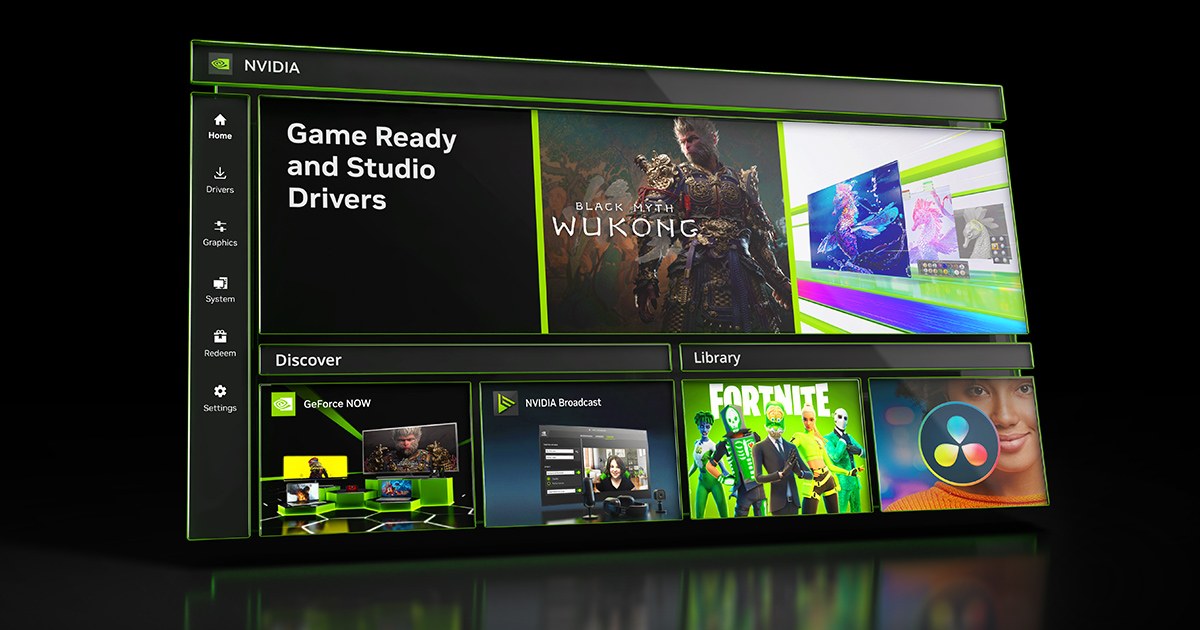
ShadowPlay now lives inside the NVIDIA app overlay, which replaced GeForce Experience, so the sections below cover manual recording, Instant Replay, screenshots, quality settings, performance stats, live streaming and the fixes for a recording that never appears.
The fastest way to record gameplay with Nvidia ShadowPlay
- Download and install the NVIDIA app from nvidia.com.
- Start the game you want to capture.
- Press Alt+Z to open the NVIDIA Overlay, or skip the overlay and use the hotkey directly.
- Select Record, or press Alt+F9, to start capturing the game.
- Press Alt+F9 again when you are done; recording only stops when you press it a second time.
- Press Alt+Z and open Gallery to watch the clip or open its file on disk.
R
e
c
o
r
d
a
l
s
o
c
a
p
t
u
r
e
s
a
n
a
p
p
o
r
t
h
e
W
i
n
d
o
w
s
d
e
s
k
t
o
p
,
n
o
t
j
u
s
t
g
a
m
e
s
,
u
s
i
n
g
t
h
e
s
a
m
e
A
l
t
+
F
9
h
o
t
k
e
y
.
Record, Instant Replay or Highlights: which ShadowPlay mode should you use?
ShadowPlay has three ways to save video, and the choice depends on whether you know in advance that you want the footage or only after the moment has happened.
Record suits a full mission or a complete match, such as a run through the shooting gameplay in ReCore, while Instant Replay suits the surprise kill you did not plan to capture.
| Your situation | ShadowPlay mode | Why |
|---|---|---|
| You want a whole match, walkthrough or tutorial | Record (Alt+F9) | Captures everything from the first press until the second press |
| You want to keep a moment after it happens | Instant Replay | Keeps a rolling recording and saves a clip of the last stretch of play when you press the hotkey |
| You play a supported game and want clips without pressing anything | Highlights | Automatically saves key moments, clutch kills and match-winning plays in compatible games |
| You want a still image instead of video | Screenshot (Alt+F1) or Photo Mode (Alt+F2) | Saves SDR or HDR stills; Photo Mode adds camera and look controls in compatible games |
What you need to run ShadowPlay in the NVIDIA app
ShadowPlay is part of the NVIDIA app, so it runs only on a Windows PC that meets the app's requirements, including a supported GeForce graphics card.
| Requirement | NVIDIA app minimum |
|---|---|
| Operating system | Windows 10, Windows 11 |
| Memory | 2GB system memory |
| Disk space for the app | 600 MB |
| Graphics driver | GeForce 551.52 Driver or later; the latest Game Ready Driver for the best ShadowPlay quality |
| Graphics card | GeForce RTX 20, 30, 40, and 50 Series GPUs |
| CPU | Intel Pentium G Series, Core i3, i5, i7 or higher; AMD FX, Ryzen 3, 5, 7, 9, Threadripper or higher |
| AV1 recording | GeForce RTX 40 Series GPU |
| 240 FPS recording | GeForce RTX 50 or 40 Series GPU |
T
h
e
N
V
I
D
I
A
a
p
p
F
A
Q
s
t
i
l
l
l
i
s
t
s
G
e
F
o
r
c
e
G
T
X
8
0
0
,
9
0
0
,
1
0
0
0
a
n
d
1
6
0
0
S
e
r
i
e
s
G
P
U
s
,
b
u
t
t
h
e
c
u
r
r
e
n
t
s
y
s
t
e
m
r
e
q
u
i
r
e
m
e
n
t
s
p
a
g
e
l
i
s
t
s
o
n
l
y
t
h
e
G
e
F
o
r
c
e
R
T
X
2
0
,
3
0
,
4
0
a
n
d
5
0
S
e
r
i
e
s
.
How to use Instant Replay in Nvidia ShadowPlay
Instant Replay keeps a rolling recording in the background and saves a clip of what just happened only when you press its hotkey. NVIDIA describes it as a DVR-style feature that can save the last 30 seconds of gameplay, which suits an unplanned kill in a shooter like Shadow Warrior 2.
- Press Alt+Z in a game to open the NVIDIA Overlay.
- Find Instant Replay in the overlay panel and note the hotkey listed beside it.
- Select the Settings cog at the top of the overlay to set how long each replay clip should be.
- Close the overlay and keep playing while Instant Replay keeps its rolling recording.
- Press the Instant Replay hotkey, documented by NVIDIA as Alt+Shift+F10, right after the moment you want to keep.
- Open Gallery from the overlay to confirm the clip saved under that game's name.
I
n
s
t
a
n
t
R
e
p
l
a
y
,
R
e
c
o
r
d
a
n
d
H
i
g
h
l
i
g
h
t
s
a
l
l
s
u
p
p
o
r
t
t
h
e
A
V
1
c
o
d
e
c
,
w
h
i
c
h
N
V
I
D
I
A
r
a
t
e
s
a
t
u
p
t
o
4
0
%
b
e
t
t
e
r
c
o
m
p
r
e
s
s
i
o
n
e
f
f
i
c
i
e
n
c
y
.
How to take screenshots in Nvidia ShadowPlay
- Press Alt+F1 during a game to capture a screenshot; ShadowPlay captures both SDR and HDR screenshots.
- For a composed shot in a compatible game, press Alt+F2 to open Photo Mode.
- In Photo Mode, change the camera angle and adjust the look of the scene, then capture the image.
- Press Alt+Z and open Gallery, then switch the view to screenshots only to find the image.
How to change ShadowPlay recording quality, AV1 and save location
ShadowPlay sets its default bitrate from your resolution, frame rate and codec, and every one of those choices can be changed by hand from the overlay.
- Press Alt+Z and select the Settings cog at the top of the NVIDIA Overlay panel.
- Open Video Capture to change the frame rate, bitrate and codec.
- Choose AV1 on a GeForce RTX 40 Series card to get smaller files at the same quality.
- Pick 240 FPS on a GeForce RTX 50 or 40 Series GPU if you need the smoothest source footage.
- Back in Settings, change where files are saved and limit how much disk space captures can use.
- In the same panel, change the sound sources and turn on multi-track audio to record your microphone as a separate track.
- Change any hotkey from the same Settings panel if a game already uses that key combination.
N
V
I
D
I
A
l
i
s
t
s
m
a
n
u
a
l
r
e
c
o
r
d
i
n
g
a
t
u
p
t
o
4
K
H
D
R
a
t
1
2
0
f
p
s
o
r
8
K
H
D
R
a
t
3
0
f
p
s
,
a
n
d
A
V
1
c
a
p
t
u
r
e
a
t
u
p
t
o
4
K
1
2
0
F
P
S
o
r
8
K
6
0
F
P
S
.
How to use Nvidia ShadowPlay for performance monitoring
The same overlay that records video also draws a performance HUD over your game, showing frame rate, utilization and latency while you play.
- Press Alt+R in a game to toggle the performance statistics overlay on or off.
- Press Alt+Z and open Statistics to choose which metrics appear, such as FPS, FPS 1% Low, GPU and CPU utilization, and PC and system latency.
- Set the position, color and size of the HUD from the same Statistics screen; the font color sits under Configure heads-up display.
- To see which DLSS Override model and mode a game is using, select Statistics > Statistics View > DLSS.
How to broadcast live in Nvidia ShadowPlay
Live broadcasting is no longer part of ShadowPlay. NVIDIA discontinued Broadcast to Twitch and YouTube, along with sharing images and video to Facebook and YouTube, when it moved ShadowPlay into the NVIDIA app.
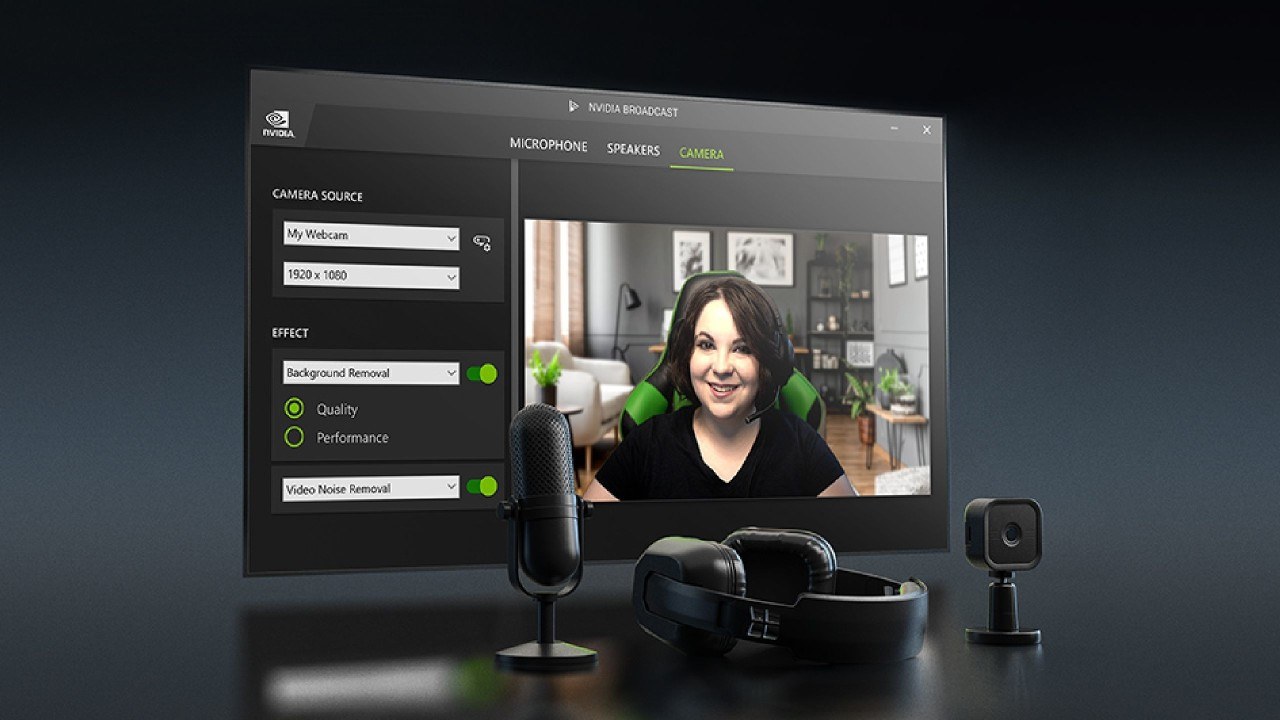
GeForce RTX owners can still pair a streaming app with NVIDIA Broadcast, which adds AI noise removal, room echo removal and virtual backgrounds to a live stream's microphone and webcam.
Use ShadowPlay to record and a separate streaming app to go live, with NVIDIA Broadcast installed from the Discover section on the NVIDIA app's Home tab for mic and camera effects. Broadcast to Twitch and YouTube was discontinued, so a separate broadcaster is the only way to stream while keeping ShadowPlay for local captures.
How to check your ShadowPlay recording worked
- Record a short test clip: press Alt+F9, play for a few seconds, then press Alt+F9 again.
- Press Alt+Z and open Gallery; it appears after your first capture.
- Find the game's name in the Gallery, where captures are sorted per game, and switch to videos only.
- Play the clip in the Gallery to confirm both the picture and the game audio were captured.
- Open the file on disk from the Gallery to confirm the video sits in the save folder you chose in Settings.
Fix Nvidia ShadowPlay not recording
Alt+Z does nothing and the overlay never opens
The hotkey is not reaching the overlay, or an older NVIDIA app build has an overlay bug; NVIDIA fixed the overlay disappearing after a display resolution change.
- Open the NVIDIA app and select the NVIDIA Overlay button at the top right of the window.
- If the overlay opens that way, select the Settings cog and check which hotkey is set to open it.
- If it still does not open, update the NVIDIA app and install the latest Game Ready Driver from Drivers.
The overlay warns that protected content restricts recording
Protected content on screen restricts ShadowPlay recording, and the NVIDIA app overlay tells you when that happens.
- Close the protected app or video that is open on screen.
- Return to the game and press Alt+F9 again.
Recordings fail or never appear in the Gallery
An older NVIDIA app build or driver; NVIDIA fixed recordings failing when a game title contains a special character, and Instant Replay clips not saving to the selected folder.
- Open the NVIDIA app and select Drivers.
- Install the latest GeForce Game Ready Driver offered there.
- Update the NVIDIA app when it prompts.
- Record a short test clip with Alt+F9 and check Gallery.
The microphone is missing from recordings
Microphone recording is off, set to push-to-talk, or the selected device reverted after switching devices, a bug NVIDIA fixed in a later NVIDIA app release.
- Press Alt+Z and check that Microphone is turned on.
- If push-to-talk is set, hold its key while you speak.
- Select the Settings cog and confirm the correct microphone and sound sources.
- Update the NVIDIA app if the microphone selection keeps resetting.
Nvidia ShadowPlay FAQ
Is ShadowPlay still part of GeForce Experience?
No. ShadowPlay now runs inside the NVIDIA app, which completed the migration of GeForce Experience features when it officially released on November 12, 2024. Open its recording tools with Alt+Z once the NVIDIA app is installed.
What is the ShadowPlay hotkey to start recording?
Press Alt+F9 to start recording a game, app or the desktop, and press Alt+F9 again to stop. You can change the hotkey from the Settings cog at the top of the Alt+Z overlay panel.
Does ShadowPlay work on AMD or Intel graphics?
No. ShadowPlay is a feature of the NVIDIA app, and the app's system requirements list only GeForce GPUs, currently the RTX 20, 30, 40 and 50 Series. A PC without a supported GeForce card cannot run it.
Can ShadowPlay record at 4K 120 FPS?
Yes. The NVIDIA app records up to 4K HDR at 120 fps or 8K HDR at 30 fps, and GeForce RTX 50 and 40 Series cards can also record at 240 FPS. Set it under Settings, then Video Capture.
Where does ShadowPlay save recordings?
Recordings appear in the Gallery on the Alt+Z overlay, sorted per game, with an option to open the file on disk. Change the save folder and the disk space limit from the Settings cog in the overlay.
Does ShadowPlay need an NVIDIA account login?
No. A login is only required to redeem rewards and bundles in the NVIDIA app. Recording, Instant Replay, screenshots and the performance overlay all work without signing in to any account.
Can ShadowPlay stream to Twitch or YouTube?
No. NVIDIA discontinued Broadcast to Twitch and YouTube when it moved ShadowPlay into the NVIDIA app. Use a separate streaming app to go live and keep ShadowPlay for local recordings.
Does ShadowPlay lower my frame rate?
NVIDIA says ShadowPlay records with minimal impact to performance, even at 4K HDR at 120 fps. For the best image quality and performance while recording, NVIDIA requires the latest GeForce Game Ready Driver.