To roll back an NVIDIA driver in Windows 10 or Windows 11, open Device Manager, expand Display adapters, open your NVIDIA card's Properties, and select Roll Back Driver on the Driver tab.
On this page
When that button is unavailable, the NVIDIA app can return to the previously installed driver, or you can remove the current driver and install an older version from nvidia.com.
Rollback NVIDIA driver in Device Manager
After a recent driver update, Device Manager can reinstall the previous driver with one button, so this is the quickest way back. The steps are the same in Windows 10 and Windows 11, and you must be signed in with administrator permissions.
- Save your work and close open apps.
- Right-click the Start button and select Device Manager.
- Select the arrow next to Display adapters to expand it.
- Right-click your NVIDIA graphics card and select Properties.
- Open the Driver tab and select Roll Back Driver.
- Choose a reason when prompted, then select Yes to confirm.
- Restart the PC if Windows asks you to.
Roll Back Driver works only when a recent driver update was installed. If it is greyed out, use the NVIDIA app or the older-driver route below instead.
Which NVIDIA rollback method should you use?
| Your situation | Method | Why |
|---|---|---|
| A recent NVIDIA driver update broke games or the display | Roll Back Driver in Device Manager | Returns to the previous driver with no download |
| The screen stays black after the update | Start in Safe Mode, then use Roll Back Driver | Safe Mode starts Windows with a limited set of drivers |
| You installed the new driver through the NVIDIA app | Driver roll-back in the NVIDIA app | The app can return to the previously installed driver |
| Roll Back Driver is greyed out, or you need a release older than the previous one | Download an older driver from nvidia.com | The All download type shows every available driver option for your card |
| The rollback finished but the card still misbehaves | Uninstall the device and delete its driver software, then reinstall | Removes the driver package before the older install |
Roll back an NVIDIA driver with the NVIDIA app
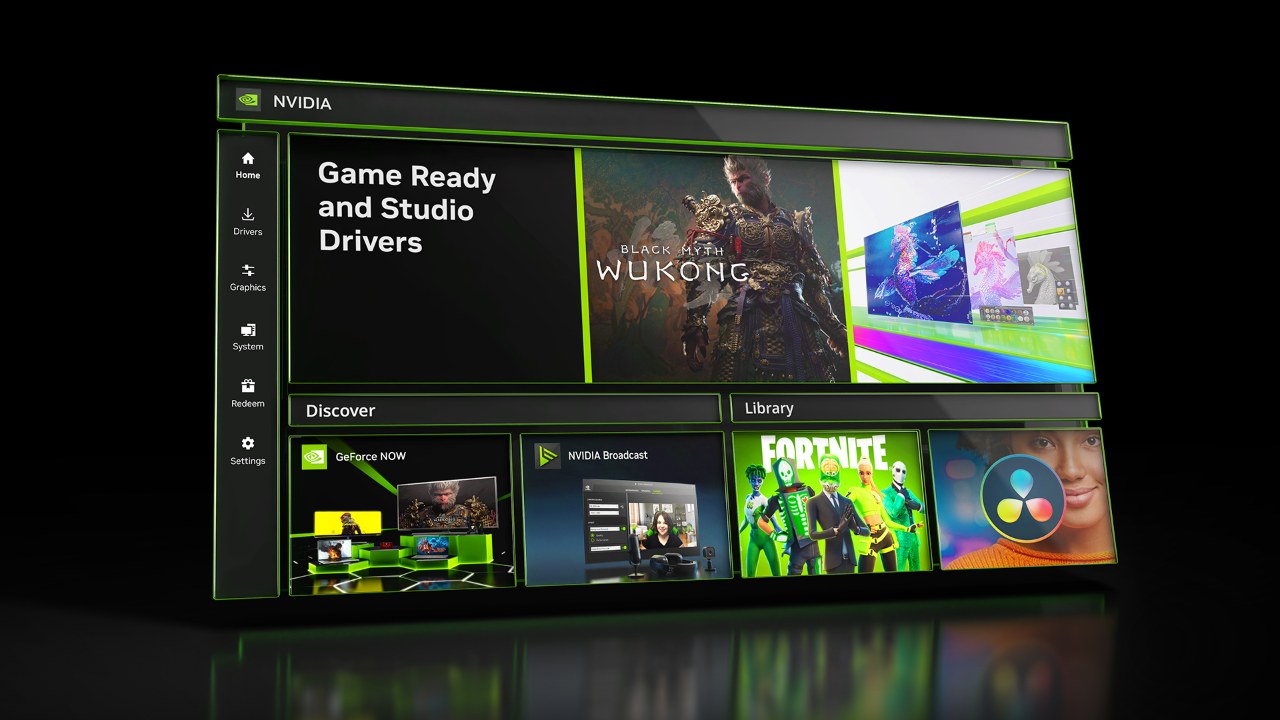
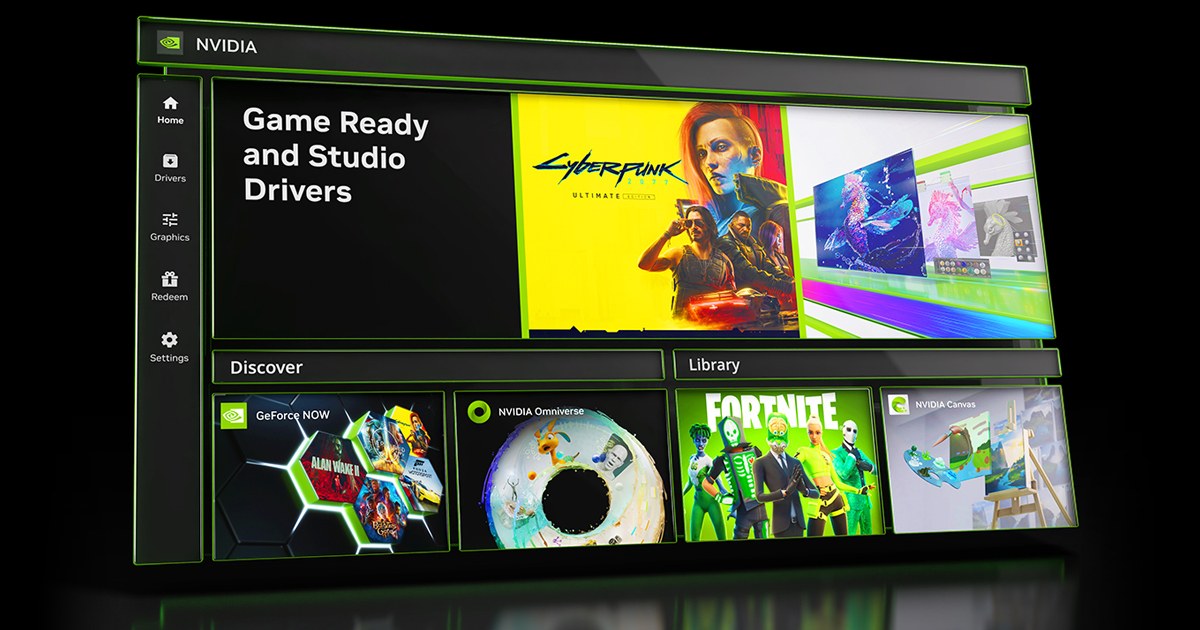
The NVIDIA app, which now takes the place of GeForce Experience on NVIDIA's download page, added roll-back to the previously installed driver in version 10.0.3. The option becomes available following the next driver installation through the app.
- Open the NVIDIA app from the Start menu.
- Go to the app's driver section.
- Choose the roll-back to the previously installed driver and confirm.
- Let the install finish, then restart the PC if prompted.
If no roll-back is offered, use Roll Back Driver in Device Manager or install an older driver manually.
Download and downgrade to an older NVIDIA driver version
To install old NVIDIA drivers by hand, download the exact release you want from NVIDIA's driver page. Microsoft advises against downloading drivers from any site other than the manufacturer's official one.
- Open the NVIDIA driver page at nvidia.com/en-us/drivers and go to Manual Driver Search.
- Select your graphics card and your version of Windows.
- Set the download type to All so every available driver option for that card is listed, not only the newest.
- Pick the older version you want. Game Ready Drivers suit gaming; Studio Drivers suit creative apps.
- Download the package, then save your work and close open apps.
- Run the downloaded NVIDIA installer, follow its prompts, and restart when it finishes.
Skip Beta drivers when downgrading: NVIDIA says they are still under qualification testing and may include significant issues. For a clean start, uninstall the current driver first using the steps in the next section.
Uninstall NVIDIA graphics drivers only
Uninstalling the NVIDIA card in Device Manager removes its driver, and ticking the delete option removes the driver package as well. Microsoft recommends creating a system restore point before making the change.
- Create a system restore point.
- Type Device Manager in Windows search and select Device Manager.
- Select the View menu and turn on Show hidden devices.
- Expand Display adapters, right-click the NVIDIA card and select Uninstall device.
- Tick Delete the driver software for this device, then select Uninstall or OK.
- Restart the PC.
- Run the older NVIDIA installer you downloaded.
The delete option might not appear unless you are signed in with administrator privileges. After the restart, Windows might rediscover the card and reinstall a driver on its own, so run the older NVIDIA installer straight away.
Rollback to a specific NVIDIA driver version in Device Manager
Roll Back Driver goes back to the previous version only. Device Manager's Browse my computer for drivers route installs a downloaded driver only when Windows finds it is an updated version; otherwise it shows The best drivers for your device are already installed.
| Version you want | What to do in Device Manager | Result |
|---|---|---|
| The driver you had just before the last update | Properties > Driver > Roll Back Driver | Windows restores the previous version |
| An older version, through Update driver > Browse my computer for drivers | Point it at the extracted older driver files | Refused as not newer, with The best drivers for your device are already installed |
| Any older version | Uninstall device with Delete the driver software for this device ticked, restart, then run the older NVIDIA installer | The chosen version installs after the current package is removed |
List NVIDIA driver packages with PnPUtil
Windows keeps installed driver packages in its driver store, and an old package left there can be reinstalled. PnPUtil, available from Windows 10 version 1607, shows which NVIDIA packages are still there.
pnputil /enum-driversRun it in a Command Prompt opened with Run as Administrator. It lists every third-party driver package in the driver store, each under its oem#.inf published name.
You should see: The NVIDIA display driver packages appear in the list. To remove one completely, run pnputil /delete-driver followed by its oem#.inf name and /uninstall.
Be careful with /delete-driver: if no other matching package is left, the card has no driver and will not function until you install one.
How to check the NVIDIA rollback worked
- Open Device Manager, expand Display adapters, right-click the NVIDIA card and select Properties.
- On the General tab, under Device status, confirm the message reads This device is working properly.
- Open the Driver tab and confirm the driver version listed there matches the older release you wanted.
- Launch the game or app that broke after the update and confirm the problem is gone.
Stop Windows Update reinstalling the newer NVIDIA driver
Windows Update delivers video card drivers and can reinstall a driver it detects as missing. Rolling back with Roll Back Driver prevents the problem driver from reinstalling automatically the next time Windows updates, which a plain uninstall does not.
- Undo the update with Roll Back Driver rather than only uninstalling the device.
- On a PC managed with Group Policy, open Computer Configuration > Administrative Templates > Windows Components > Windows Update.
- Enable Do not include drivers with Windows Updates.
- Install new NVIDIA drivers yourself from the NVIDIA app or nvidia.com when a fixed version is released.
That policy keeps driver packages out of quality updates but not out of feature updates, so check the version on the Driver tab after each major Windows update.
How to update NVIDIA drivers on Windows 10 and Windows 11 again
Once NVIDIA releases a driver that fixes the problem, move forward again with one of three routes. NVIDIA recommends the NVIDIA app for downloading Game Ready and Studio drivers.
- NVIDIA app: open it, go to its driver section and install the latest Game Ready or Studio driver it offers.
- Manual download from the NVIDIA website: use Manual Driver Search on nvidia.com, pick your card and Windows version, download the newest driver and run the installer.
- Device Manager: right-click the NVIDIA card, select Update driver, then Search automatically for updated driver software.
- Restart the PC and confirm the new version on the Driver tab.
Fix NVIDIA driver rollback problems
Roll Back Driver is greyed out
Roll Back Driver needs a recently installed driver update to reverse and an account with administrator permissions.
- Sign in with an administrator account and open the Driver tab again.
- If the NVIDIA app installed the current driver, roll back from the app instead.
- Otherwise download the older version through Manual Driver Search on nvidia.com and install it.
Black screen after the NVIDIA driver update
Windows cannot show the desktop, so Device Manager has to be reached from Safe Mode, which loads a limited set of drivers.
- Turn the PC on and, as soon as the Windows logo appears, hold the power button until it shuts down. Do this twice.
- Turn it on a third time; at the Automatic Repair screen select Advanced options.
- Select Troubleshoot > Advanced options > Startup Settings > Restart. Have your BitLocker recovery key ready if the drive is encrypted.
- On the Startup Settings screen, press the number or function key shown for Enable Safe Mode.
- In Safe Mode, open Device Manager and use Roll Back Driver, then restart normally.
NVIDIA graphics card not detected after the rollback
The card was uninstalled and Windows has not reinstalled it yet.
- In Device Manager, select View > Show hidden devices and look under Display adapters.
- Right-click the PC name at the top of the device list and select Scan for hardware changes.
- If the card appears without an NVIDIA driver, run the NVIDIA installer for the version you want.
Code 43 on the NVIDIA card after changing drivers
Code 43 means the graphics driver told Windows the device is not working properly, from a hardware problem or a failing driver.
- Open the card's Properties > Driver tab and select Roll Back Driver if it is available.
- If not, select Uninstall device, confirm with OK, then use Scan for hardware changes to reinstall it.
- Check Device status on the General tab; if the error stays, contact the card's manufacturer.
Is it safe to update your NVIDIA drivers?
Yes. Install NVIDIA drivers from the NVIDIA app, nvidia.com or Windows Update, and create a system restore point before any driver change. Game Ready and Studio drivers are certified by Microsoft's Windows Hardware Quality Labs (WHQL). Beta drivers are still in qualification testing and may include significant issues, so skip them unless a beta fixes your specific problem. Roll Back Driver and the NVIDIA app give you a way back if a release misbehaves.
NVIDIA driver rollback FAQ
How can I roll back NVIDIA drivers in Windows 11?
Right-click Start, open Device Manager, expand Display adapters, open the NVIDIA card's Properties and select Roll Back Driver on the Driver tab. Choose a reason, select Yes and restart. Windows 11 and Windows 10 use the same steps.
Why is Roll Back Driver greyed out for my NVIDIA card?
Roll Back Driver works only after a recent driver update, and only for an account with administrator permissions. Sign in with an administrator account, try the NVIDIA app's roll-back, or download the older version from nvidia.com and install it.
Can I install a specific older NVIDIA driver version?
Yes. On nvidia.com, use Manual Driver Search, pick your card and Windows version, set the download type to All and choose the release you want. Uninstall the current driver first if the older installer will not run over it.
Do I need administrator rights to roll back an NVIDIA driver?
Yes. Microsoft requires administrator permissions to roll back drivers, and the Delete the driver software for this device option might not appear without them. PnPUtil also has to run in a Command Prompt opened with Run as Administrator.
Will Windows Update reinstall the NVIDIA driver I rolled back?
Rolling back with Roll Back Driver prevents the problem driver from reinstalling automatically at the next Windows update. On Group Policy-managed PCs, the Do not include drivers with Windows Updates policy keeps driver packages out of quality updates.
Should I update Windows 10 before rolling back an NVIDIA driver?
Yes, if updates are available. Microsoft notes that updates might resolve driver management issues. Windows 10 support ended on October 14, 2025, so it no longer gets free updates from Windows Update, but Roll Back Driver works the same as on Windows 11.
Is GeForce Experience still used to download NVIDIA drivers?
No. The GeForce Experience download page now leads to the NVIDIA app, which incorporates its main features and adds driver roll-back. NVIDIA recommends the NVIDIA app for downloading Game Ready and Studio drivers.
What is the difference between Game Ready and Studio drivers?
Game Ready Drivers target day-of-launch support for new games, patches and DLC. Studio Drivers prioritize reliability in creative apps such as video editing and photography. Both are WHQL certified and either one runs games and creative apps.