In Minecraft Java Edition, press F3+G inside a world to draw chunk borders; in Bedrock Edition, turn on Show Coordinates and treat every X or Z value that is a multiple of 16 as a chunk edge, or switch on chunk boundary lines in the Bedrock Editor on a Windows PC.
On this page
Below are the Java shortcut and its Debug Options setting, the Bedrock coordinate method and game rule, the Editor setting, a coordinate-to-chunk table, and fixes for when borders refuse to appear.
How to see chunks in Minecraft on each edition
A chunk is a portion of the world 16 blocks wide and 16 blocks long that runs from the bottom to the top of the world. The way to see one depends on the edition you play.
| Your edition and device | What to do | What you see |
|---|---|---|
| Java Edition on PC | Press F3+G inside a world | Chunk border lines in the world around you, until you press the keys again |
| Java Edition, borders wanted all the time | Press F3 + F6 and set chunk border rendering to always visible | Borders stay on without opening the debug overlay, and the choice is saved between launches |
| Bedrock Edition on any device | Turn on Show Coordinates in the game settings or with a command | Your X, Y and Z position on screen; a chunk edge sits wherever X or Z is a multiple of 16 |
| Bedrock Edition on a Windows PC, building a map | Open the Bedrock Editor and turn on its chunk boundary option in Settings | Boundary lines between chunks inside an Editor project |
Turn on chunk borders in Minecraft Java Edition
- Load a singleplayer world or join a server.
- Hold F3 and press G once (the F3+G combination).
- Look around: chunk border lines now appear in the world around you.
- Walk across a line to step into the next chunk.
- Press F3+G again to hide the borders.
Pressing F3 on its own opens the debug screen, where your coordinates sit on the XYZ line. Since Java Edition 1.21.9 the overlay shows less information by default, and you choose what it lists from the Debug Options screen.
Keep chunk borders on with the Java Debug Options screen
Java Edition 1.21.9 added a Debug Options screen that controls each debug element, chunk border rendering included. Each element can stay off, show only while the debug overlay is open, or be set to always visible.
- Press F3 + F6 to open the Debug Options screen.
- Find the chunk border entry in the list.
- Set it to always visible if you want borders on screen without opening the F3 overlay.
- Close the screen and return to the world.
- Restart the game later: the Debug Options state is saved between launches, so the borders come back on their own.
- Pick the Default profile on the same screen to put every debug element back the way it started.
How to see chunks in Minecraft Bedrock Edition
Bedrock Edition finds chunk edges through coordinates. Show Coordinates puts your current position on screen, and every X or Z value that divides by 16 marks a chunk edge.
- In a world, pause the game and open Settings.
- Under Game, scroll down to the World Options section.
- Turn on Show Coordinates and return to the world.
- Read your position: X runs west to east and Z runs north to south, with east and south counted as positive numbers.
- Walk until X reads a multiple of 16 (0, 16, 32, -16 and so on); that block is the first one of a new chunk on the X axis.
- Do the same along Z to find the other two edges.
- Mark the corners with a block so the chunk stays visible after you turn coordinates off.
Turn on coordinates in Bedrock with the showcoordinates game rule
The same switch is the showcoordinates game rule, which is quicker to type on a server or in a map. The /gamerule command needs the Game Directors permission level but does not require cheats.
/gamerule showcoordinates trueSets the Bedrock game rule that controls whether coordinates are displayed. Replace true with false to hide them again.
You should see: Your X, Y and Z coordinates appear on screen for players in that world.
How to show chunk boundaries in the Minecraft Bedrock Editor
The Bedrock Editor is a separate building mode of Bedrock for a Windows 10 or later PC with a keyboard and mouse. It is not available on mobile or console. Its settings include an option that draws the boundary lines between chunks, the 16 by 16 block areas.
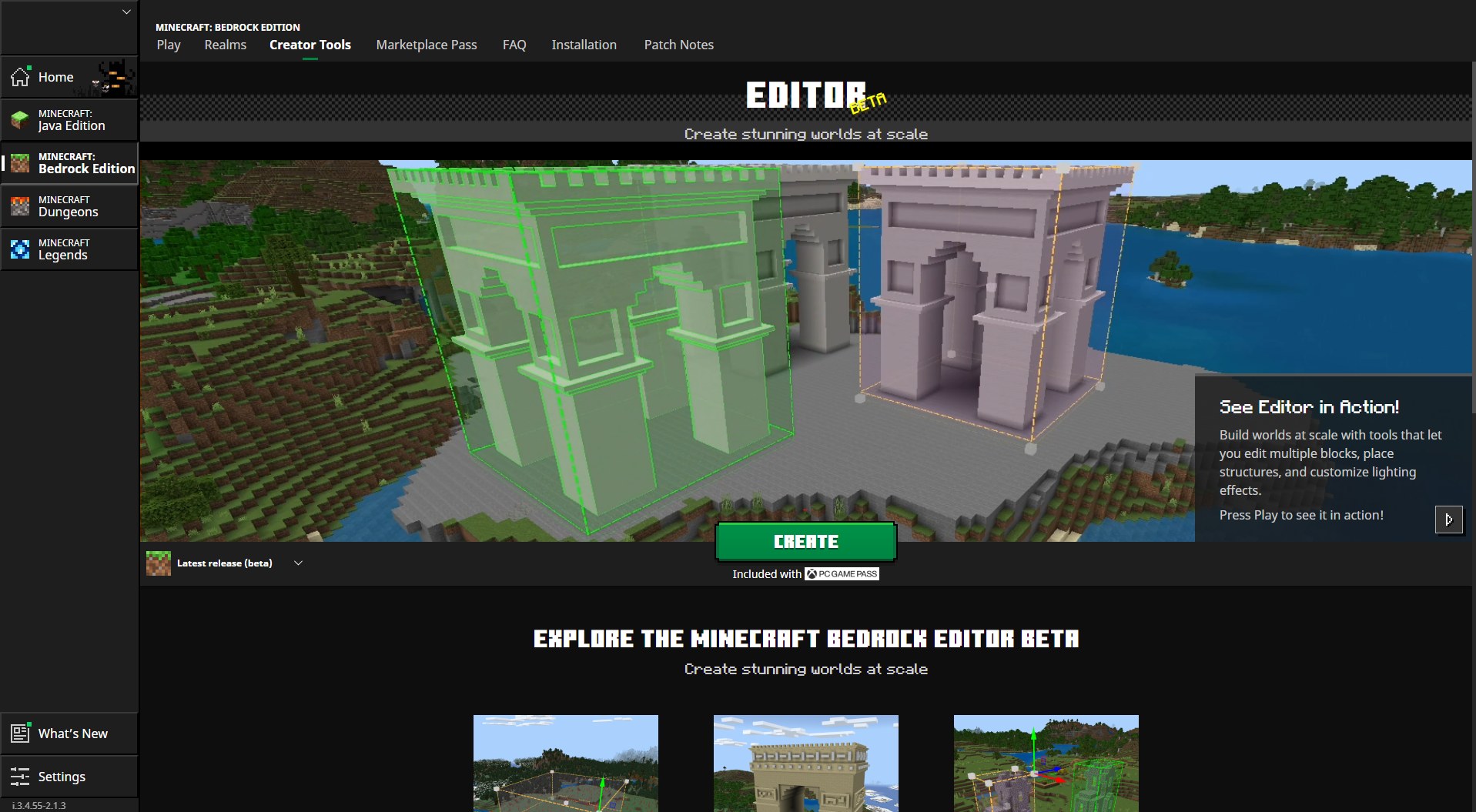
- Open the Minecraft Launcher and go to the Creator Tools tab.
- Install Bedrock Retail or Preview there if it is not already installed.
- Select Create; the Launcher opens Bedrock in Editor mode.
- Start a project from the Create New Project screen.
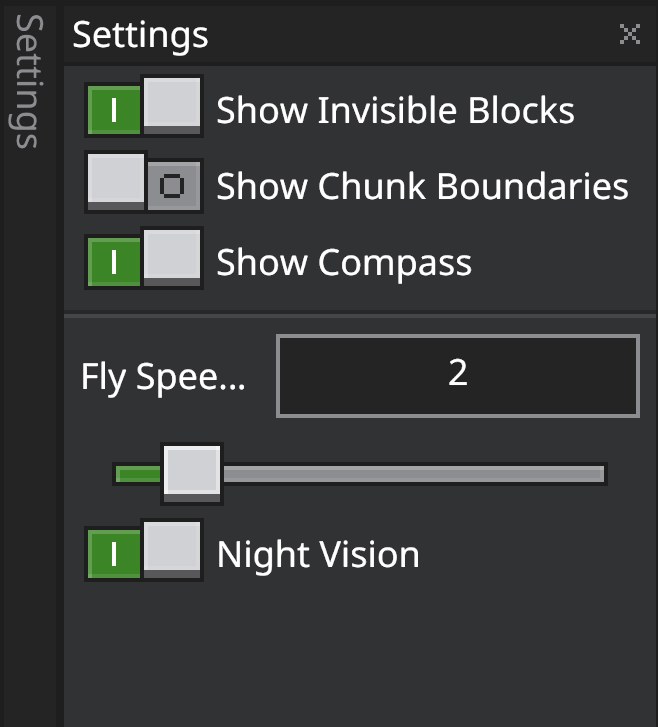
- Open the File menu and select Settings, or click the Settings icon on the Action Bar.
- Under the world visualization settings, turn on the option that shows chunk boundaries.
A desktop shortcut to minecraft://creator/?Editor=true opens the Editor too. Opening Bedrock the normal way does not.
Do you need to install a resource pack or mod to see chunks?
Java Edition needs no resource pack or mod for chunk borders, because F3+G and the Debug Options screen are built in.
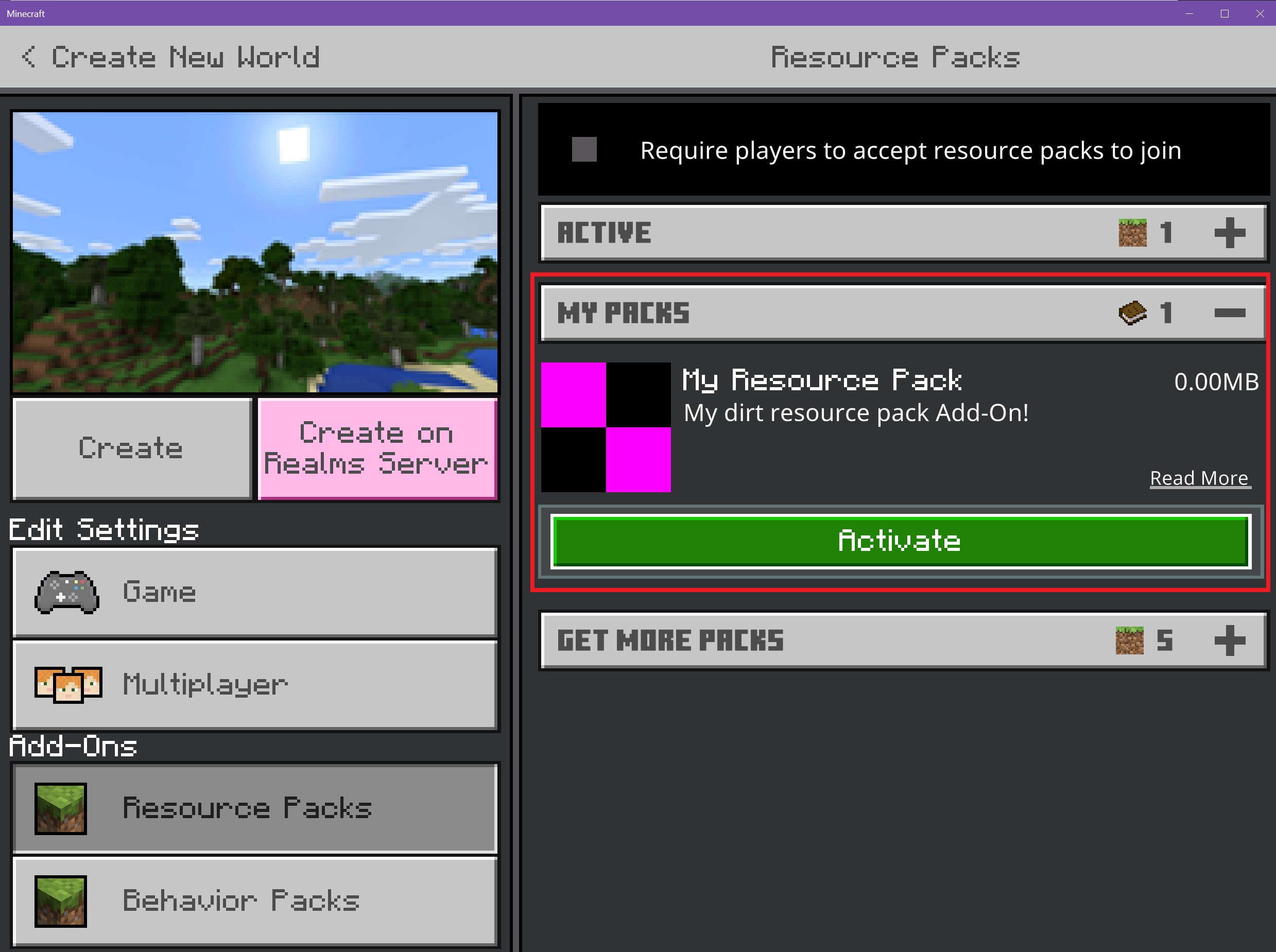
On Bedrock, a resource pack holds models, textures, sounds and other custom content, and it is switched on per world. If you already have a pack that marks chunks, these steps activate it when you start a world.
- Launch Minecraft Bedrock and select Play.
- Select Create New World.
- Under Settings, scroll down to the Add-Ons section.
- Select Resource Packs to see every available pack.
- Open the MY PACKS drop-down, choose the pack and select Activate.
- Select Create to start the world with the pack applied.
Packs stack: when two packs replace the same file, the one applied last wins, so move the pack you want above the others.
How to work out which chunk you are in from your coordinates
Chunk edges fall on multiples of 16 blocks. Read X or Z from the XYZ line on the Java F3 screen or from Bedrock's coordinate display, divide by 16 and round down to get the chunk number on that axis.
| X or Z coordinate | Chunk number on that axis | Edge blocks of that chunk |
|---|---|---|
| 0 to 15 | 0 | 0 and 15 |
| 16 to 31 | 1 | 16 and 31 |
| 32 to 47 | 2 | 32 and 47 |
| -16 to -1 | -1 | -16 and -1 |
| -32 to -17 | -2 | -32 and -17 |
Negative coordinates round down too, so X = -1 belongs to chunk -1, not chunk 0.
Why seeing chunks matters for farms and builds
Minecraft generates, loads and processes the world chunk by chunk, so chunk borders decide what keeps running and how far each distance setting reaches.
| What you are doing | Edition | Why the chunk border matters |
|---|---|---|
| Building a farm or contraption that keeps running | Java | Fixed spawn chunks are gone since 1.21.9. A dimension keeps processing chunks and entities while it has player activity, forceloaded chunks, active portals or Ender Pearls in flight. |
| Building a farm near where you play | Bedrock | Plant growth, mob spawning and fluid movement run only within simulation distance, counted in chunks: 4 by default, up to 12 on some devices. |
| Keeping a farm running with nobody nearby | Bedrock | A ticking area stays active with no player close by. A world can have up to 10, each holding up to 100 chunks, and /tickingarea requires cheats. |
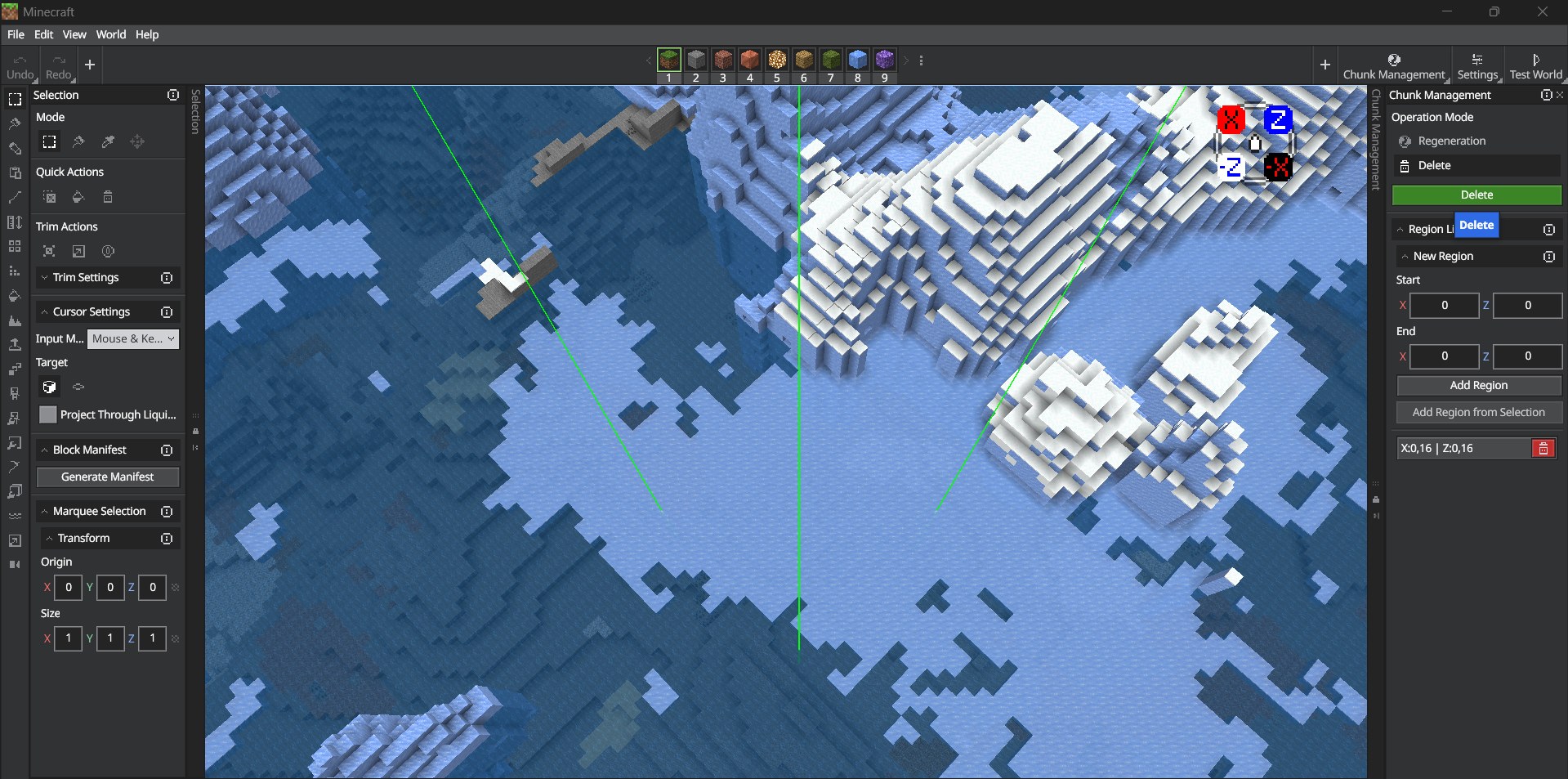
| Regenerating or deleting terrain in the Bedrock Editor | Bedrock | Chunk Management snaps every region to chunk boundaries, multiples of 16 blocks, and regeneration cannot be undone. |
| Setting render and simulation distance | Java and Bedrock | Both settings count in chunks, so a chunk's 16-block width tells you how far each one reaches. Bedrock render distance runs from 4 to 96 chunks. |
How to check you are seeing chunk borders
- Java: stand still after pressing F3+G and confirm the lines form a square around you, 16 blocks along each side.
- Java: walk across one line and press F3; the X or Z value on the XYZ line should be a multiple of 16 or just past it.
- Bedrock: stand on a block where X reads 16, step back one block west and confirm X reads 15; the border runs between those two blocks.
- Editor: fly up and look down; the boundary lines should form a regular grid of equal squares.
Fix chunk borders not showing in Minecraft
F3+G does nothing on a Java server or in a map
The world has reducedDebugInfo turned on, and with it on F3+G does nothing; before Java Edition 1.21.9, chat still said the borders were toggled.
- Try F3+G in a singleplayer world you created; if borders appear there, the server or map is restricting debug info.
- Ask the server owner whether reduced debug info is enabled.
- Find chunk edges from your coordinates instead, using the multiples-of-16 table above.
F3+G does nothing in Bedrock Edition
F3+G is a Java Edition shortcut; Bedrock finds chunk edges through Show Coordinates or the Editor's chunk boundary setting.
- Pause the game, open Settings, and under Game turn on Show Coordinates in World Options.
- Or run the command /gamerule showcoordinates true in chat.
- Find borders at every multiple of 16 on X and Z.
Coordinates are missing in a Bedrock map or server
Map makers can set the showcoordinates game rule to false to hide player positions.
- Run /gamerule showcoordinates true if you have the Game Directors permission level in that world.
- Otherwise ask the world owner to turn coordinates on.
- Use a world you own to measure the chunk, then build to the same layout.
The Bedrock Editor shortcut opens the game instead of the Editor
The shortcut text is wrong, Bedrock is not installed, or with both Retail and Preview installed Windows opens the minecraft link with the wrong one.
- Check the shortcut location reads exactly minecraft://creator/?Editor=true; it is case-sensitive.
- Install Bedrock from the Creator Tools tab in the Minecraft Launcher if it is missing.
- Press Windows + I, select Apps > Default apps and choose Minecraft.
- Select the MINECRAFT link entry, choose Minecraft in the pop-up and click OK, then try the shortcut again.
Frequently asked questions about seeing chunks in Minecraft
What is the key to see chunks in Minecraft Java?
Press F3+G inside a world. Hold F3, tap G, and chunk border lines appear around you. Press the same keys again to hide them. Since 1.21.9 you can also keep chunk borders on permanently from the Debug Options screen with F3 + F6.
Can you see chunk borders in Minecraft Bedrock?
Yes, through coordinates in a normal world: turn on Show Coordinates and treat every X or Z value that is a multiple of 16 as a chunk edge. On a Windows PC, the Bedrock Editor can also draw chunk boundary lines inside a project from its Settings pane.
How big is a chunk in Minecraft?
A chunk is 16 blocks wide and 16 blocks long and runs from the bottom to the top of the world. In the vanilla Overworld that is 384 blocks high; in the Nether and the End it is 256 blocks high. World maps are generated chunk by chunk.
How do I find out which chunk I am standing in?
Divide your X coordinate by 16 and round down, then do the same for Z. The two results are your chunk position. A player at X 20 and Z -5 stands in chunk 1 on the X axis and chunk -1 on the Z axis.
How do I turn on coordinates in Minecraft Bedrock?
Pause the game, open Settings, and under Game scroll to World Options and turn on Show Coordinates. Or type /gamerule showcoordinates true in chat, which needs the Game Directors permission level but not cheats. Your X, Y and Z position then appears on screen.
Why do chunk borders not show on some Java servers?
The server has reducedDebugInfo turned on, and with it on F3+G does nothing. Before 1.21.9, chat still announced that borders were toggled even though nothing appeared. Use your coordinates and multiples of 16 to find chunk edges on those servers.
Does the Bedrock Editor work on Xbox or mobile?
No. The Bedrock Editor runs only on a Windows 10 or later PC with a keyboard and mouse. It opens from the Creator Tools tab in the Minecraft Launcher or from a desktop shortcut, and it is not available on mobile or console.
Do chunk borders stay on after I restart Java Edition?
Only if you set them in the Debug Options screen. Opened with F3 + F6, that screen saves its state between launches, so chunk border rendering set to always visible comes back on its own. A plain F3+G toggle is the quick on and off switch.
How many chunks does Bedrock keep running around me?
Bedrock processes game mechanics such as crop growth and mob spawning within your simulation distance, which is 4 chunks by default and up to 12 on some devices. Areas outside it keep running only inside a ticking area made with /tickingarea.