To use Discord, create a free account at discord.com or in the app, verify your email, join a server from an invite link, then type in its text channels and click a voice channel to talk.
On this page
Below are the steps for desktop, browser and phone, adding friends, voice and screen sharing, your own server, Discord voice on Xbox and PS5, the overlay, soundboard, themes, Nitro and fixes for the usual problems.
The fastest way to start using Discord
Discord is a free communication app for text, voice and video, organized into communities called servers.
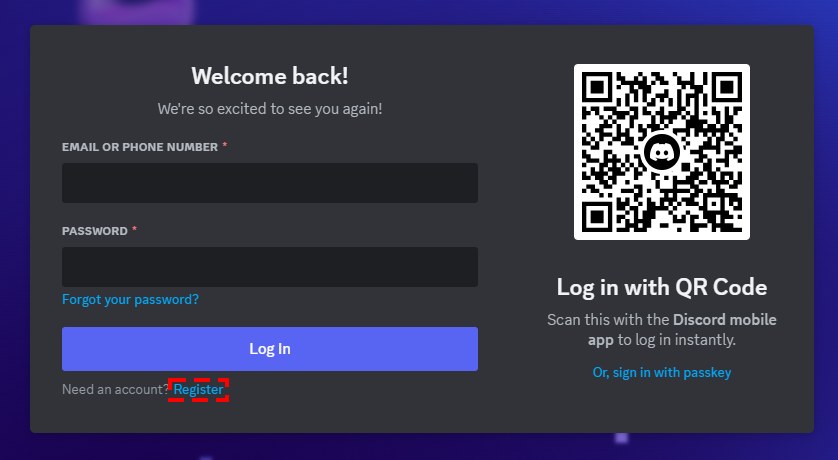
- Open the desktop app or go to discord.com/login in a browser and select Register.
- Enter your email, username, password and date of birth, then press Continue and complete the CAPTCHA if one appears.
- Open the email Discord sends you and press Verify Email.
- Select the + icon at the bottom of the server list on the left, choose Join a Server, paste an invite link and press Join Server.
- Select a text channel and type in the chat bar at the bottom to send a message.
- Click a voice channel to join it and talk; there is no calling or ringing, people in the server can see you and drop in.
Should you use the Discord desktop app, browser or phone?
| Your situation | Use this | Why |
|---|---|---|
| You game on a PC and want the overlay and push to talk in every app | Desktop app (Windows 10+, macOS 12+ or Linux) | The game overlay works only on Windows, and push to talk works system-wide only in the desktop app |
| You are on a shared or work computer and cannot install anything | Web client at discord.com | Runs in Chrome 108+, Firefox 142+, Edge 86+, Safari 15.4+ or Opera 72+; push to talk only works while the tab is in focus |
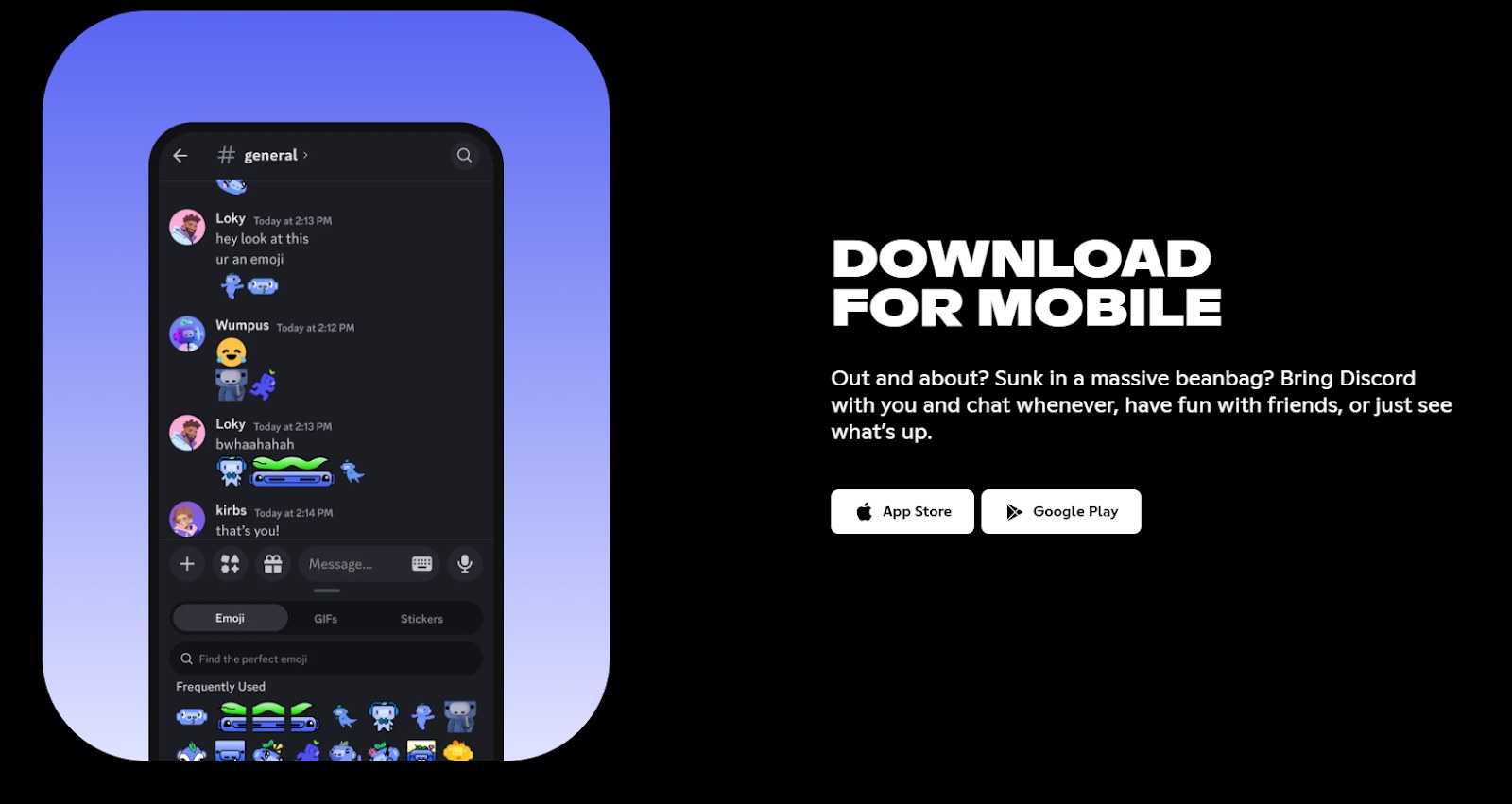
| You want Discord with you away from the desk | Mobile app (Android 7+ or iOS 16.0+) | Running Discord in a mobile browser is not supported, so install the app from the App Store or Google Play |
| You want Discord voice chat on a console | Link your Xbox or PlayStation account | Discord has no standalone console app; you transfer a voice channel to an Xbox or PS5 instead |
The desktop app is a free download from discord.com/download. One account works on every version, so you can start in the browser and move to the app later.
What you need before you sign up for Discord
| Requirement | Detail |
|---|---|
| Age | At least 13, and as old as 16 in some countries; an account found to be under the minimum age is permanently suspended |
| An email address you will keep | Discord Support cannot change your account email, and changing it yourself needs access to the original address |
| A phone number | Optional on desktop; you can add and verify one later under My Account in User Settings |
| A supported device | Windows 10+, macOS 12+, Ubuntu 20.04+ or Debian 11+, Android 7+, iOS 16.0+, or a recent desktop browser |
Getting started with Discord: create and claim your account
Registration takes the same details everywhere. Claiming the account by verifying your email is what keeps your username and the servers you have joined.
- On desktop or in a browser, select Register, fill in email, username, password and date of birth, and press Continue.
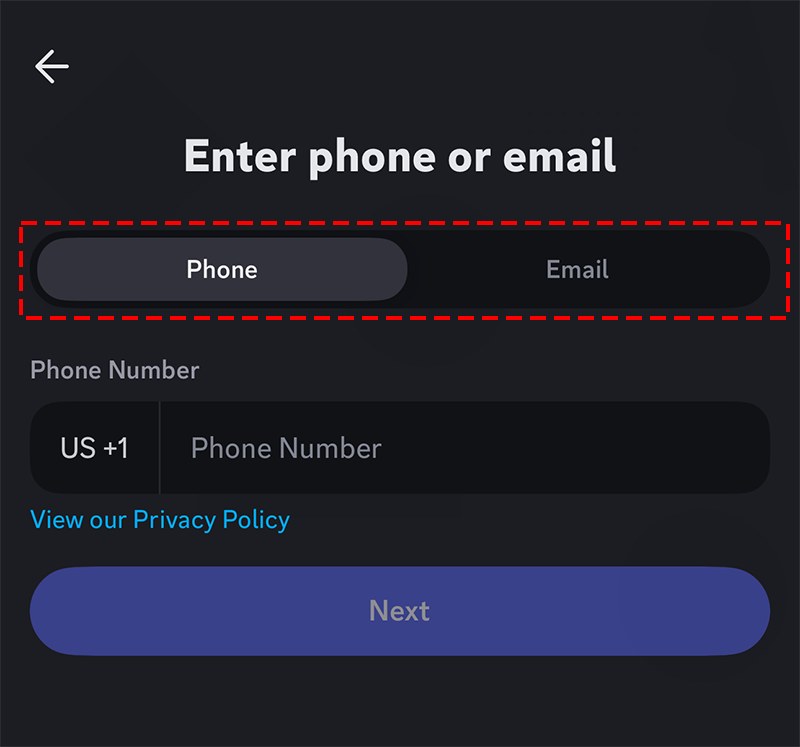
- On a phone, open the Discord app, tap Register, enter your phone number or email address, follow the prompts and tap Register again after your date of birth.
- Open the verification email and press Verify Email; if it never arrived, press Resend in the green banner at the top of the app.
- To add a phone number, open User Settings > My Account, press Add next to the phone number, enter the 6-digit code from the text and confirm with your password.
- Set a profile picture: on mobile tap your profile icon, then Edit Profile, select your profile icon, choose a photo, press Choose and then Save.
An unverified account gets 5 random digits added to the end of its username 7 days after it was created. Verify early to keep the name you picked.
How to join a Discord server and send your first message
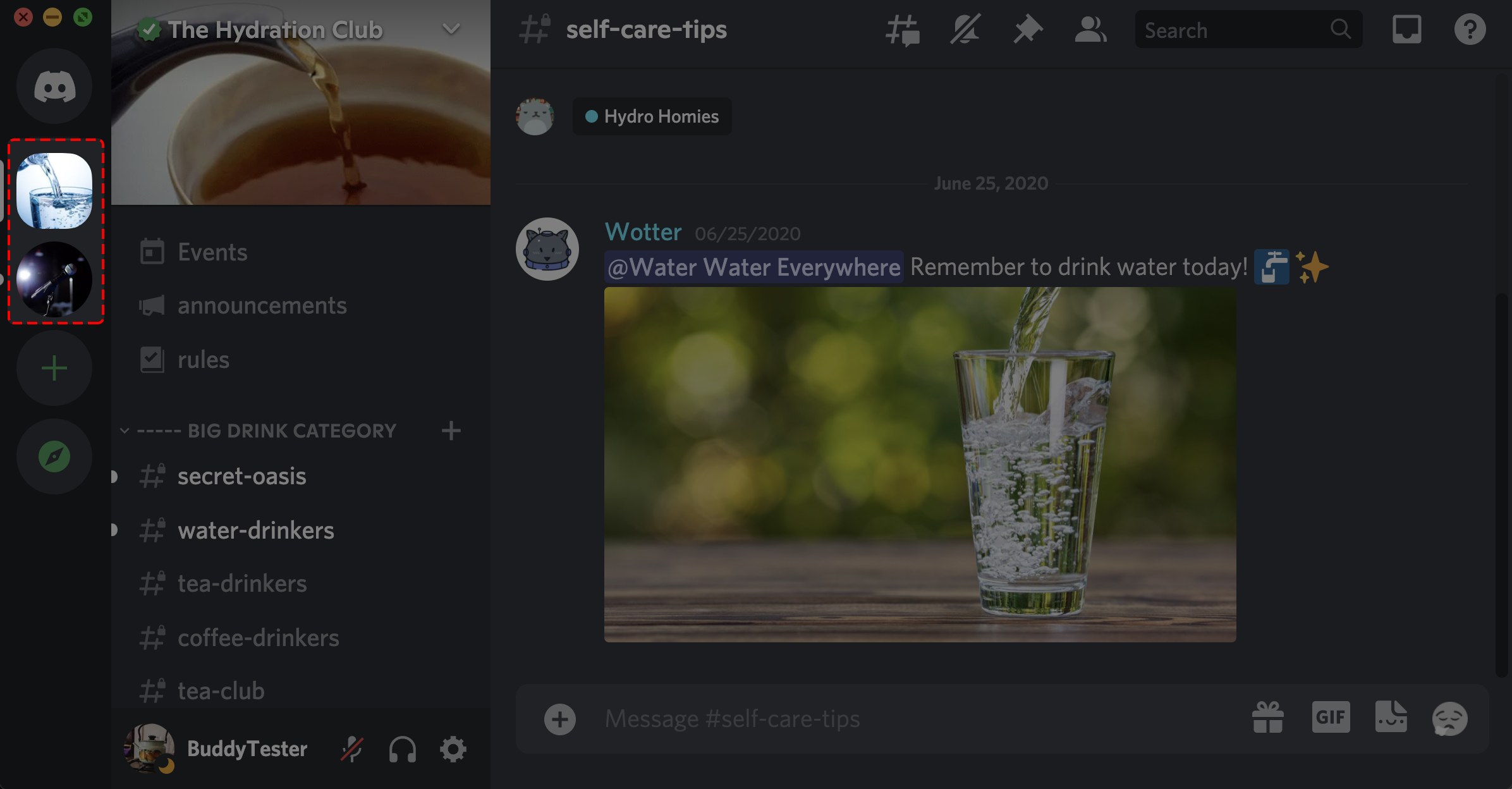
A server is a group space made of text channels for written chat and voice channels for talking. The column of round icons on the far left is your server list.
- Select the + icon at the very bottom of the server list.
- Choose Join a Server, paste the invite link and press Join Server.
- If you open an invite link directly instead, set your server nickname, direct-message and activity options first, then press Accept.
- Open a text channel, type in the message box and press Enter.
- Attach images, videos or files with the + on the left of the chat bar, or drag them into the window.
- Keep messages under 2000 characters; longer ones are converted into a text file, and Nitro raises the cap to 4000.
Each account can join up to 100 servers, or 200 with Nitro. Drag server icons up and down to reorder them, or drop one onto another to group them in a folder.
How to add friends on Discord
- On desktop or browser, press the Discord logo in the top-left corner and select the Friends tab.
- Press Add Friend, type or paste your friend's exact username and press Send Friend Request.
- Check the Pending tab to confirm the request went out.
- On mobile, tap the chat bubble in the top-left corner, then Add Friends > Add by Username, enter the username and tap Send Friend Request.
- To add someone you share a server with, right-click their name on desktop and select Add Friend, or tap their profile on mobile and press Add Friend.
Discord warns you before you accept a request from someone with no mutual friends and no shared small server. An account holds up to 1,000 friends.
How to use Discord voice chat and share your screen
- Click a voice channel in a server to join it; your mic and headset icons sit in the panel at the bottom left.
- Mute with the mic icon and deafen with the headset icon; a slash through either means it is off.
- To call one person, open the direct message and select the phone or video icon in the top header.
- To share your screen, select the screen streaming icon in the voice status panel near the bottom left.
- Pick an application window or a whole screen, then press Go Live.
- To stop, hover over the small picture-in-picture window and end the stream.
- To watch a friend's stream, join the voice channel where their name shows the Go Live badge, click their name and select Watch Stream.
Every account can stream at up to 720p/30fps, and Nitro raises that to 4K/60fps. Up to 50 people can watch one stream at a time. Stream audio is captured on Windows, macOS, Chrome and mobile, but not on Linux.
How to use push to talk on Discord
Discord picks up your voice in one of two ways: Voice Activity transmits whenever you speak, and Push to Talk transmits only while you hold a key.
- Select the cogwheel in the lower-left corner to open User Settings, then open Voice & Video.
- Under Input Mode, choose Push to Talk.
- Select the Edit Keybind icon and press the key you want to hold while talking.
- Confirm the key now shows under Shortcut, and move the Push to Talk Release Delay slider if your last word gets cut off.
- To go back to open mic, choose Voice Activity and turn on Automatically determine input sensitivity, or drag the slider so the bar stays in the yellow while you are silent.
Voice Activity carries an inherent 200ms delay; push to talk has almost none. In the browser, push to talk only works while the Discord tab is in focus.
How to create your own Discord server
- Select the Add a Server icon at the bottom of the server list; scroll down if you are in many servers.
- Choose Create My Own, or pick a template.
- Choose a community or friends setup, or skip that step.
- Enter a server name and upload an icon of at least 128×128.
- Press Create, then send your friends an invite link.
The name and icon can be changed later, so there is no need to perfect them now.
How to use Discord on Xbox
Discord is not a standalone app on Xbox. You link your accounts once, then join Discord voice channels from the console guide or move a call over from your phone. The console must be on the latest update.
- On the console, press the Xbox button and go to Profile & System > Settings > Account > Linked social accounts.
- Under Not Linked, choose the Discord tile, select Link and follow the prompts.
- Press the Xbox button again, open Parties & chats and select Discord Voice.
- Choose the server, then the voice channel to join from the console.
- To move a call from your phone instead, install the Xbox app, join a voice channel in Discord, swipe up, select Join on Xbox, choose your console and press Transfer Audio.
- From the desktop app, right-click the voice channel name, select Transfer Voice to Xbox and scan the QR code with a phone that has both the Discord and Xbox apps installed.
- To stream gameplay, join a voice channel from the console and select Stream your game, then Start stream.
Joining Discord voice on Xbox takes you out of any Xbox party chat. Each Discord account links to one Xbox account at a time.
How to use Discord on PS5
Discord voice chat works on PS5 only; a PS4 can show what you are playing on your Discord profile but cannot join voice. The PS5 must be on the latest system version.
- In Discord, open User Settings > Connections, press the PlayStation Network icon and sign in to authorize the link.
- On the PS5, open the Game Base in the control center and select the Discord tab.
- Choose a voice channel in a server or group message and select Join.
- To move a call from your phone, join the voice channel in the Discord app, swipe up, choose Join on PlayStation, pick the console and press Transfer Voice.
- From the desktop app, right-click the voice channel name, choose Transfer Voice to PlayStation, pick the console and press Transfer Voice.
Transferring Discord voice to the PS5 removes you from a PlayStation Party. If you linked accounts before voice on PS5 arrived, disconnect and link them again.
How to use the Discord overlay and soundboard while gaming
- Open User Settings, select the Overlay tab and turn on Enable Overlay; the overlay works on Windows 10 and 11 only.
- Start a game and press Shift + ` to open the overlay, where you can read messages, see who is speaking and answer calls.
- To use the soundboard, join a voice channel and press the confetti icon at the bottom right, or the soundboard icon at the bottom left.
- Hover over a sound and press Play; everyone in the voice channel hears it unless they are deafened.
- Press the speaker icon to preview a sound for yourself only, and the star icon to favorite it.
- Add your own clip with Add Sound, which works on desktop or browser only.
In the overlay on Windows, Ctrl + ` opens the soundboard. Servers start with 8 sound slots, and Nitro lets you play sounds from one server in another.
Discord redesign brings new themes: how to change yours
The mobile visual refresh brings the desktop's four base themes to phones, including Ash and Onyx. Onyx, called Midnight on mobile before the redesign, uses a true black background.
- On desktop, select the cogwheel to open User Settings, then select Appearance.
- Choose Light, Ash, Dark, Onyx or Sync with computer.
- On mobile, tap your avatar, tap the cogwheel, then Appearance > Theme.
- To follow your phone's light and dark mode, turn on Same as Device Theme and pick a theme for each mode.
- Without Nitro, select Preview Theme on desktop to try the color themes; applying them needs a Nitro subscription.
UI Density in the same menu switches between Compact, Default and Spacious spacing.
Is Discord free, and what do Nitro and Orbs add?
Discord is free to download and use. Nitro is an optional subscription; Orbs are rewards earned through Quests and spent in the Shop.
| Feature | Free account | Nitro ($9.99/month) |
|---|---|---|
| Message length | 2000 characters | 4,000 characters |
| Servers you can join | 100 | 200 |
| Screen share quality | Up to 720p/30fps | Up to 4K/60fps |
| Soundboard sounds from other servers | No | Yes |
| Orbs | Earned from Quests | 250 a month plus a 1.2x Quest multiplier |
Nitro Basic costs $2.99/month and covers custom emoji anywhere, 50MB uploads and custom app icons. To earn Orbs, open Discover > Quests on desktop, accept a Quest and claim the reward; Orbs cannot be bought, gifted or converted to money.
How to check your Discord account is set up correctly
- Look at the top of the app: if the green banner with a Resend button is still there, your email is not verified yet.
- Open Friends > Pending to see requests you sent still waiting for an answer.
- Open User Settings > Voice & Video, pick your microphone under Input Device and press Let's Check under Mic Test to confirm it works.
- Join a voice channel and check that your mic and headset icons have no slash through them.
- If you linked Xbox or PlayStation, open User Settings > Connections and turn on Display on Profile (Display on User Profile for PlayStation) so friends can see the account.
Fix Discord when it does not work
Nobody can hear you in a voice channel
You are muted, on the wrong input device, or set to push to talk without knowing it.
- Check the mic icon in the bottom-left panel; a slash means you are muted.
- Open User Settings > Voice & Video and confirm Input Mode is the mode you expect.
- Select the right microphone as the input device and raise the input volume.
- On Windows, allow Discord to use the microphone in the Windows privacy settings.
- Still silent? Open the Debugging tab in Voice & Video and select Reset Voice and Video Settings.
You cannot hear one person, or anyone
A per-user volume slider was lowered, or the wrong output device is selected.
- Right-click the person in the voice channel and raise their volume slider; on mobile, long-press their profile.
- In Voice & Video, select your headphones or speakers as the output device.
- Check whether a server admin has server-muted or deafened you, and ask them to lift it.
The invite link says invalid or expired
The link expired, was mistyped, you hit the server cap, or you are banned from that server.
- Ask for a new invite link; invite codes are case sensitive.
- If you are in 100 servers, leave one before joining another.
- If you were banned, contact the server admins to have the ban lifted.
A friend request will not send
"Friend Request Failed" means the other person has friend requests turned off; "Hm, didn't work" means the username was typed wrong.
- For "Hm, didn't work", check every letter, number, underscore and period in the username, and its capitalization.
- For "Friend Request Failed", or a correctly typed username that still fails, ask your friend to send the request to you instead; Discord Support cannot add friends manually.
The Discord overlay does not show in a game
The game is in exclusive full screen, or the overlay is off.
- Confirm Enable Overlay is on in User Settings > Overlay.
- Switch the game's display mode to windowed or borderless windowed.
- If the game lags or crashes with the overlay on, disable the overlay for that game.
Discord voice will not transfer to Xbox or PS5
The console is out of date, or the accounts were linked before console voice existed.
- Install the latest console system update.
- Disconnect the console account under User Settings > Connections and link it again.
- On Xbox, open the privacy settings in the Xbox mobile app, set communicating outside of Xbox with voice and text to Everybody, then try the transfer again.
Discord for beginners FAQ
How old do you have to be to use Discord?
You must be at least 13 to use Discord, and in some countries the minimum is as high as 16. Discord asks for your date of birth at sign-up and permanently suspends accounts it learns are below the minimum age for their region.
Can you use Discord on PS5?
Yes, for voice chat. Link your PlayStation Network account in Discord's Connections settings, then join a voice channel from the Game Base on the PS5 or transfer a call from the Discord app. There is no standalone Discord app on PlayStation, and PS4 supports only game activity status.
Can I use Discord on PS4?
Only for game activity. Linking your PlayStation Network account shows the game you are playing on a PS4 in your Discord profile, but Discord voice chat and voice transfer work only on PS5. There is no Discord app to install on either console.
Can you use Discord on Xbox?
Yes. Link your accounts under Linked social accounts on the console, then open Parties & chats and select Discord Voice to join a voice channel. You can also stream your game to a Discord voice channel and watch friends' streams from the console.
Can I use Discord without a phone number?
Yes. Desktop and browser sign-up asks for an email, username, password and date of birth, and the mobile app accepts an email address instead of a phone number. Adding a phone number later is optional, though some servers require a verified account.
How do you use the Discord soundboard?
Join a voice channel, press the confetti icon at the bottom right, hover over a sound and press Play. Everyone in the channel hears it. Uploading your own sounds works on desktop or browser only, and using sounds from other servers needs Nitro.
How do you use Discord Orbs?
Earn Orbs by accepting and completing Quests from Discover > Quests on desktop, then spend them in the Shop on items from the main collections or the Orbs Exclusives tab. Orb purchases are final, and Orbs cannot be transferred, gifted or exchanged for money.
How do you use Discord webhooks?
Open Server Settings, go to Integrations and press Create Webhook. Choose the channel it posts to, give it a name, then press Copy Webhook URL and paste that address into the service sending the messages. For a GitHub repository, add /github to the end of the URL.
How do you use text to speech on Discord?
Type /tts before your message, for example /tts hello everyone, and Discord reads it aloud to people in the channel who have text-to-speech notifications on. The voice depends on your browser or operating system, so it sounds different on each platform.
What font does Discord use?
Discord uses gg sans, its own custom typeface, across the desktop and mobile apps and its website. The switch began on December 1, 2022. The font is not open source, so it is not available for personal projects.
Can you use Discord in a browser?
Yes, on a computer. Sign in at discord.com to use the web client in Chrome, Firefox, Edge, Safari or Opera without installing anything. Running Discord in a mobile browser is not supported, so phones need the app.
Why use Discord?
Discord puts text chat, drop-in voice channels, video calls and screen sharing in one free app, organized into servers for friends, classes or gaming groups. It runs on Windows, Mac, Linux, phones and browsers, and links to Xbox and PS5 for console voice chat.