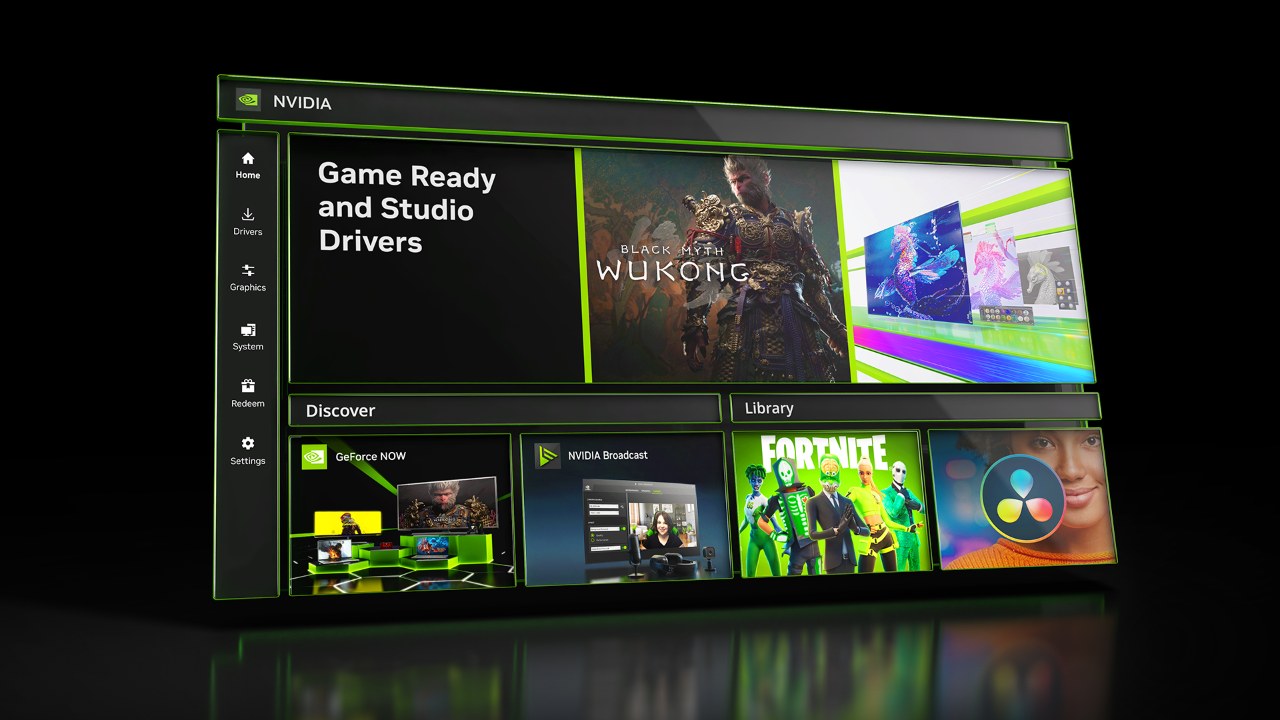
NVIDIA's GeForce Experience download page now serves the NVIDIA App instead, a Windows 11 and Windows 10 program that carries over GeForce Experience's driver updates, optimal game settings and in-game overlay, and there is no version of either app for Mac or iPhone.
On this page
Below: the official download location, install and driver-update steps, system requirements, where each GeForce Experience feature lives now, what Mac and iPhone owners can use instead, and fixes for failed driver downloads.
Which GeForce Experience download do you need?
Both of NVIDIA's GeForce Experience addresses, nvidia.com/en-us/geforce/geforce-experience/ and its /download/ page, open the NVIDIA App page. Pick the row that matches your device.
| Your device | What to download | Official link |
|---|---|---|
| Windows 11 or Windows 10 PC with a GeForce GPU, and you want automatic driver updates, the overlay and optimal settings | NVIDIA App (the successor to GeForce Experience) | NVIDIA App download page |
| Windows PC where you only want the graphics driver, no companion app | A Game Ready or Studio Driver from Manual Driver Search | NVIDIA Drivers |
| Mac (macOS 10.15 or later) | No GeForce Experience or NVIDIA App build exists; GeForce NOW cloud gaming has a Mac app | GeForce NOW download |
| iPhone or iPad (iOS 15.4 or later) | No GeForce Experience or NVIDIA App build exists; GeForce NOW supports iPhone and iPad | GeForce NOW download |
Nvidia GeForce Experience download on Windows 11 and Windows 10
The only official GeForce Experience download location is nvidia.com, and it now delivers the NVIDIA App. NVIDIA recommends the app for downloading drivers, and it keeps your PC up to date with the latest NVIDIA drivers. Microsoft also advises against downloading drivers from any site other than the manufacturer's official site.
- NVIDIA App (replaces GeForce Experience): Windows 11 and Windows 10, needs 600 MB of disk space; select Download Now
- GeForce Game Ready and Studio Drivers: manual driver download without the app
- NVIDIA Drivers (all products, including workstation): use Manual Driver Search to pick your GPU
How to download and install GeForce Experience on Windows 11
The same steps work on Windows 10. Install a GeForce 551.52 driver or later first if your PC has an older one, because the app requires it.
- Open the NVIDIA App page on nvidia.com.
- Select Download Now and save the installer.
- Run the downloaded installer and follow the prompts on screen.
- Open the NVIDIA App. Signing in to an NVIDIA account is optional and only needed to redeem GPU bundles and rewards.
- Open the driver page in the app and install the latest Game Ready Driver if one is offered.
- Check it worked: the driver page lists "what's new" and "what's fixed" for the current driver, and pressing Alt+Z in a game opens the NVIDIA overlay.
The NVIDIA App installs over an existing GeForce Experience setup: its release notes list a fix that removed a redundant restart prompt after upgrading from GeForce Experience.
GeForce Experience system requirements and disk space
These are the NVIDIA App requirements, since the app is what the GeForce Experience page now installs.
| Requirement | NVIDIA App |
|---|---|
| Operating system | Windows 10, Windows 11 |
| RAM | 2GB system memory |
| Disk space | 600 MB |
| Driver | GeForce 551.52 Driver or later |
| CPU | Intel Pentium G Series, Core i3, i5, i7, or higher; AMD FX, Ryzen 3, 5, 7, 9, Threadripper or higher |
| GPU (requirements page) | GeForce RTX 20, 30, 40, and 50 Series |
| GPU (NVIDIA App FAQ, additionally) | GeForce GTX 800, 900, 1000, 1600 Series; GeForce MX100, MX200, MX300, 800M, and 900M |
| Latest version in NVIDIA's release highlights | NVIDIA App 11.0.9 |
Microsoft ended Windows 10 support on October 14, 2025, so a Windows 10 PC no longer gets free updates from Windows Update even though the NVIDIA App still lists it.
What does GeForce Experience do? Key features and where they are now
The NVIDIA App took over GeForce Experience's jobs and merged them with the NVIDIA Control Panel. Per NVIDIA, it installs in half the time, has a 50% more responsive UI and uses 17% less disk space than GeForce Experience.
| GeForce Experience feature | Where it is in the NVIDIA App |
|---|---|
| Driver updates (Game Ready and Studio Drivers) | Driver page, with "what's new" and "what's fixed" bullets and a roll-back to the previously installed driver |
| Optimal game settings | Graphics tab, merged with the NVIDIA Control Panel 3D settings; covers over 1000 games |
| ShadowPlay recording and Instant Replay | In-game overlay (Alt+Z); Instant Replay saves the last 30 seconds; capture settings under Alt+Z > Settings > Video Capture |
| Performance overlay (FPS counter) | Alt+R toggles the statistics overlay |
| Freestyle game filters | Overlay, now with RTX HDR and RTX Dynamic Vibrance; over 1200 games supported |
| Broadcast to Twitch and YouTube, sharing to Facebook and YouTube, Photo Mode 360 and Stereo | Discontinued, not carried over |
NVIDIA Control Panel settings moved into the same Graphics tab: Background Application Max Frame Rate is one of the 3D settings NVIDIA migrated, alongside Anisotropic Filtering, Antialiasing and Texture Filtering. Change a setting for every game under Graphics > Global Setting, or for one game under Graphics > Program Settings.
How to update Nvidia drivers and install graphics drivers with GeForce Experience
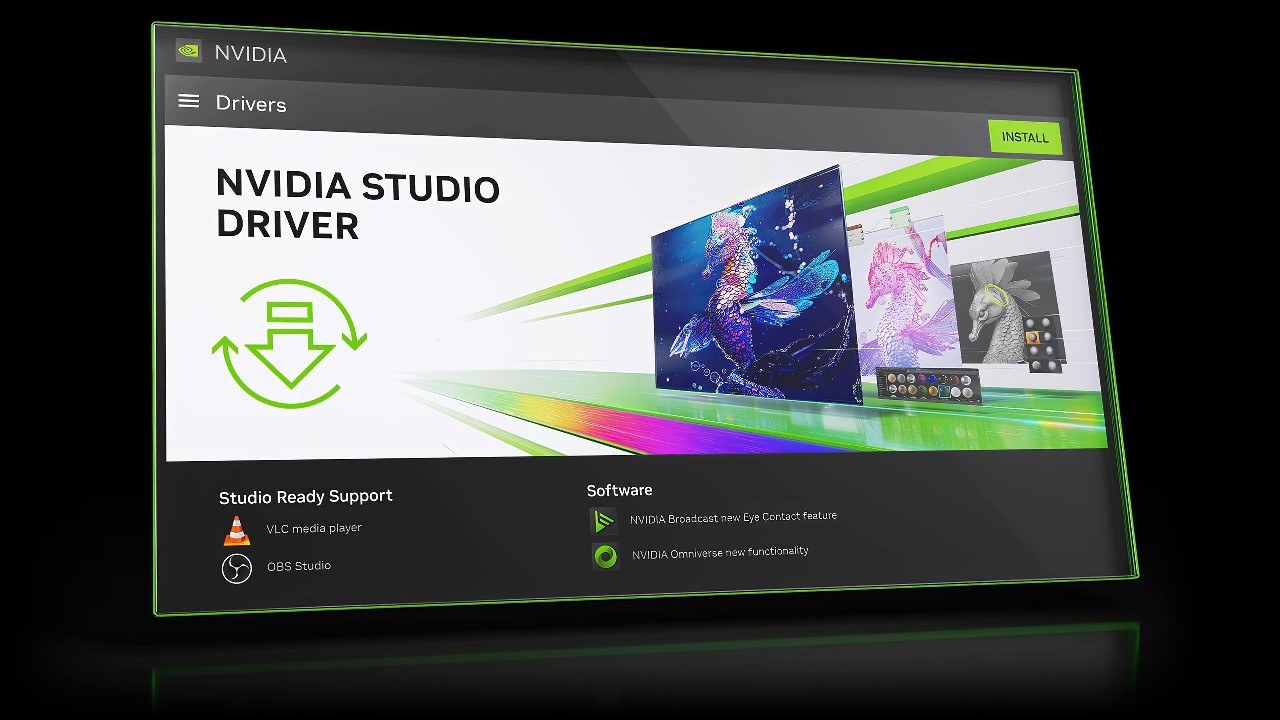
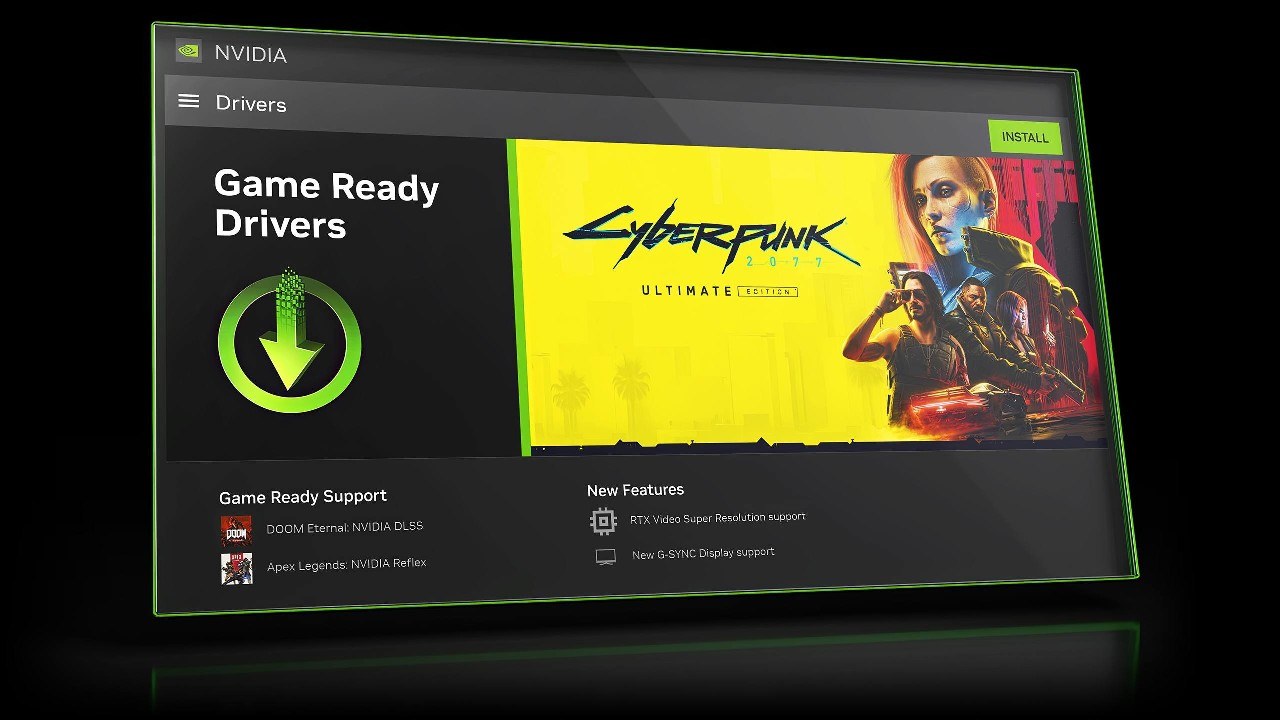
Choose Game Ready Drivers if you want day-of-launch support for new games, patches and DLC, or Studio Drivers if you prioritize reliability in creative apps. Either runs games and creative apps.
- Open the NVIDIA App and go to its driver page.
- Download and install the latest Game Ready or Studio Driver the app offers.
- Restart the PC if the installer asks.
- Without the app: open NVIDIA Drivers, use Manual Driver Search to select your GPU, set Download Type to Game Ready Drivers or Studio Drivers, then select Download and run the file.
- To get an older driver, set Download Type to All, which shows all available driver options for your product.
- Check it worked: right-click Start, open Device Manager, expand Display adapters, and confirm your GeForce GPU is listed under its own name.
Can you download GeForce Experience on Mac?
No: the NVIDIA App that replaced GeForce Experience runs on Windows 10 and Windows 11 only, and NVIDIA offers no Mac build of either app. NVIDIA's own Mac software for gaming is GeForce NOW, a cloud gaming service with a native macOS app that needs macOS 10.15 or higher on a Mac introduced in 2009 or later. It streams games from NVIDIA data centers rather than tuning a local GPU, and needs at least 15 Mbps for HD at up to 60 FPS.
Get the Mac app from the GeForce NOW download page, or play in Safari 16.4 or later from play.geforcenow.com.
GeForce Experience on iPhone and Android
There is no GeForce Experience or NVIDIA App for iPhone or Android. The NVIDIA option on phones is GeForce NOW: iPhone and iPad need iOS 15.4 or later, and Android needs Android 7.0 or later with 1GB of available memory. On iPhone you need a gamepad to play, since a keyboard or mouse only works for menus and NVIDIA does not recommend the on-screen virtual gamepad for long sessions.
- GeForce NOW for iOS, iPadOS and Android: NVIDIA's official GeForce NOW download page, listing every supported device
Fix Driver download failed error in NVIDIA GeForce Experience
Driver download failed or the GeForce driver will not download
The download did not complete, and GeForce Experience's own pages on nvidia.com now install the NVIDIA App rather than a new GeForce Experience build.
- Install the NVIDIA App over GeForce Experience and retry the driver from its driver page.
- If it still fails, download the driver directly with Manual Driver Search on NVIDIA Drivers.
- Run the downloaded file and restart when the installer finishes.
7-Zip CRC error when installing NVIDIA drivers
A CRC error means a file in the driver package failed its integrity check during extraction, so the downloaded installer is incomplete or damaged.
- Delete the driver file you downloaded.
- Download the driver again from NVIDIA Drivers, not from a mirror site.
- Run the new file and let it finish before restarting.
GeForce driver update error after installing
The new driver does not work with your setup.
- In the NVIDIA App, roll back to the previously installed driver from the driver page; the option appears after a driver installation.
- Or right-click Start > Device Manager, expand Display adapters, right-click the GPU and select Properties.
- Open the Driver tab, select Roll Back Driver, choose a reason and select Yes. This needs administrator permissions.
Fix Nvidia GeForce Experience not working or missing
GeForce Experience is missing or the download page shows the NVIDIA App
NVIDIA's GeForce Experience pages now point to the NVIDIA App, which incorporates GeForce Experience's top features.
- Download the NVIDIA App from the official page.
- Install it, then open its driver page to confirm your current driver is detected.
AMD or NVIDIA drivers uninstalled automatically on PC
Windows Update installs recommended drivers automatically, including video card drivers, and Microsoft notes that reinstalling the previous driver often resolves an issue that began after a Windows Update.
- Reinstall the NVIDIA driver from the NVIDIA App or NVIDIA Drivers.
- If the problem began after a Windows Update, use Roll Back Driver in Device Manager on the GPU's Driver tab.
- Restart the PC.
GeForce Experience opens every time Windows starts: how to disable GeForce Experience on startup
Apps registered in Windows with a startup task launch at sign-in, and Settings and Task Manager both control that list.
- Select Start > Settings > Apps > Startup.
- Set the toggle next to the NVIDIA app to Off.
- Or right-click Start, select Task Manager, open the Startup apps tab, select the app and select Disable.
How to uninstall/reinstall GeForce Experience
- Select Start > Settings > Apps > Installed apps.
- Find GeForce Experience or the NVIDIA App, select More > Uninstall, and confirm.
- If it is not listed there, type Control Panel in taskbar search, select Programs > Programs and Features, right-click the app and select Uninstall.
- To reinstall, download the NVIDIA App again from the official page and run the installer.
- To reinstall the graphics driver itself, open Device Manager, right-click the GPU under Display adapters, select Uninstall device, confirm with Uninstall and restart; Windows attempts to reinstall the driver.
GeForce driver download FAQ
What is the GeForce driver?
The GeForce driver is the software that lets Windows communicate with an NVIDIA GeForce graphics card. NVIDIA publishes it as Game Ready Drivers and Studio Drivers, both certified by Microsoft's Windows Hardware Quality Labs (WHQL), through the NVIDIA App and nvidia.com.
What is the GeForce Game Ready Driver?
A Game Ready Driver is the GeForce driver branch tuned with game developers for day-of-release support. NVIDIA tests games from early access through each DLC release for performance, stability and functionality, so it suits players who want new titles supported at launch.
What GeForce driver should I download?
Download the Game Ready Driver if you mainly play games and want launch-day support for new releases and patches. Pick the Studio Driver if you prioritize reliability in video editing, animation, photography, design or livestreaming apps. Either one runs both games and creative software.
How do I download an older GeForce driver?
Open NVIDIA Drivers on nvidia.com, use Manual Driver Search to select your GPU, and set Download Type to All to see every available driver for that product. In the NVIDIA App, the driver page can also roll back to the previously installed driver.
How do I install the GeForce driver after download?
Run the downloaded file from NVIDIA and follow the installer prompts, then restart if asked. Device Manager offers a manual route too: right-click the GPU under Display adapters, select Update driver, then Browse my computer for drivers and point it at the extracted driver folder.
How do I reinstall the GeForce driver?
Open Device Manager, expand Display adapters, right-click your GeForce GPU and select Uninstall device, then confirm and restart. Windows attempts to reinstall a driver on restart; then install the latest GeForce driver from the NVIDIA App or nvidia.com to get NVIDIA's current release.
How do I uninstall the GeForce driver?
Right-click Start, open Device Manager, expand Display adapters, right-click the GeForce GPU and select Uninstall device, then select Uninstall to confirm. Restart the PC afterwards. To remove only the companion app, uninstall the NVIDIA App or GeForce Experience from Settings > Apps > Installed apps.
Why can't I download the GeForce driver?
If the download fails inside GeForce Experience, move to the NVIDIA App, which is what NVIDIA's GeForce Experience download page now installs. Install the NVIDIA App and retry from its driver page, or skip the app and download the driver directly with Manual Driver Search on nvidia.com/drivers.
How do I download drivers on GeForce NOW?
GeForce NOW is installed from its own download page, not from the NVIDIA App's driver page. On Windows it needs a GPU that supports DirectX 11 or later; on Linux, NVIDIA GPUs need driver 580.126.07 or newer, and NVIDIA says to reinstall the GeForce NOW app after a new driver.