To play PC games on your TV, connect the PC to the TV with an HDMI cable and send the picture there with Windows key + P, or leave the PC where it is and stream your Steam library to the TV with Valve's Steam Link app.
On this page
Below are the cable route in Windows, Steam Link on Apple TV, Google TV and Android TV, and Fire TV, which controllers each one takes, and fixes for no picture, no sound, a stretched picture and lag.
The fastest way to play PC games on your TV: an HDMI cable
A cable shows exactly what the PC shows, so every game works whatever launcher it came from. A laptop works as well as a desktop.
- Plug an HDMI cable into the PC's HDMI output and into a free HDMI input on the TV, then switch the TV to that input.
- On the PC, press the Windows key + P and choose Duplicate to show the same picture on both screens, or Second screen only to use just the TV.
- If the TV stays blank, select Start > Settings > System > Display > Multiple displays > Detect.
- To get game sound from the TV speakers, open Start > Settings > System > Sound and pick the TV in the Output section.
- Connect a controller to the PC, open Steam and switch to Big Picture, the Steam layout built for a TV and a game controller.
- Start a game from the couch.
Which way to play PC games on a TV suits your setup?
| Your situation | Do this | Why |
|---|---|---|
| The PC or laptop can sit near the TV | Run an HDMI cable and press Windows key + P | No extra device and no network in the way; every game on the PC works |
| You want a PC that lives under the TV for good | Hook a small dedicated PC, such as a mini PC, up to the TV with HDMI and run Steam in Big Picture | Valve built Big Picture for exactly this: a PC connected to a TV and driven with a controller |
| The gaming PC stays in another room and an old laptop or second PC can sit by the TV | Connect that laptop to the TV with HDMI, sign in to Steam on both computers and start the game from the laptop's Steam Library | Steam Remote Play streams between two PCs signed in to the same Steam account; no TV app needed |
| The gaming PC stays in another room and you own an Apple TV | Install Steam Link from the App Store on the Apple TV | Requires tvOS 11.0 or later and streams from a PC running Steam |
| You have a Google TV device (including Chromecast with Google TV) or an Android TV | Install Steam Link from Google Play on the TV | Valve lists Android (5.0+) TV as a supported Steam Link device |
| You have an Amazon Fire TV | Install Steam Link from the Amazon Appstore | Valve publishes Steam Link for Fire TV; the listing names Android 9.0 as the minimum |
| The TV has no streaming box, but you own a Raspberry Pi 3, 3+, 4 or 5 | Plug the Raspberry Pi into the TV, install Steam Link on it and stream from the gaming PC | Valve offers Steam Link for those four Raspberry Pi models |
| The TV has no streaming box but a wireless display adapter is plugged into it | Press Windows key + K on a Windows 11 PC to open Cast and pick the adapter | Mirrors the PC screen to the TV without a cable |
What you need to stream Steam games to a TV
| Item | Requirement |
|---|---|
| Gaming PC | A computer running Steam on Windows, Mac or Linux, signed in to your account |
| Apple TV | tvOS 11.0 or later |
| Android TV or Google TV | Android 5.0 or later |
| Fire TV | Android 9.0 or later (the minimum operating system on the Amazon Appstore listing) |
| Network | The TV device and the PC on the same local network; for Android TV and Fire TV, Valve advises Ethernet from both the PC and the TV device to the router |
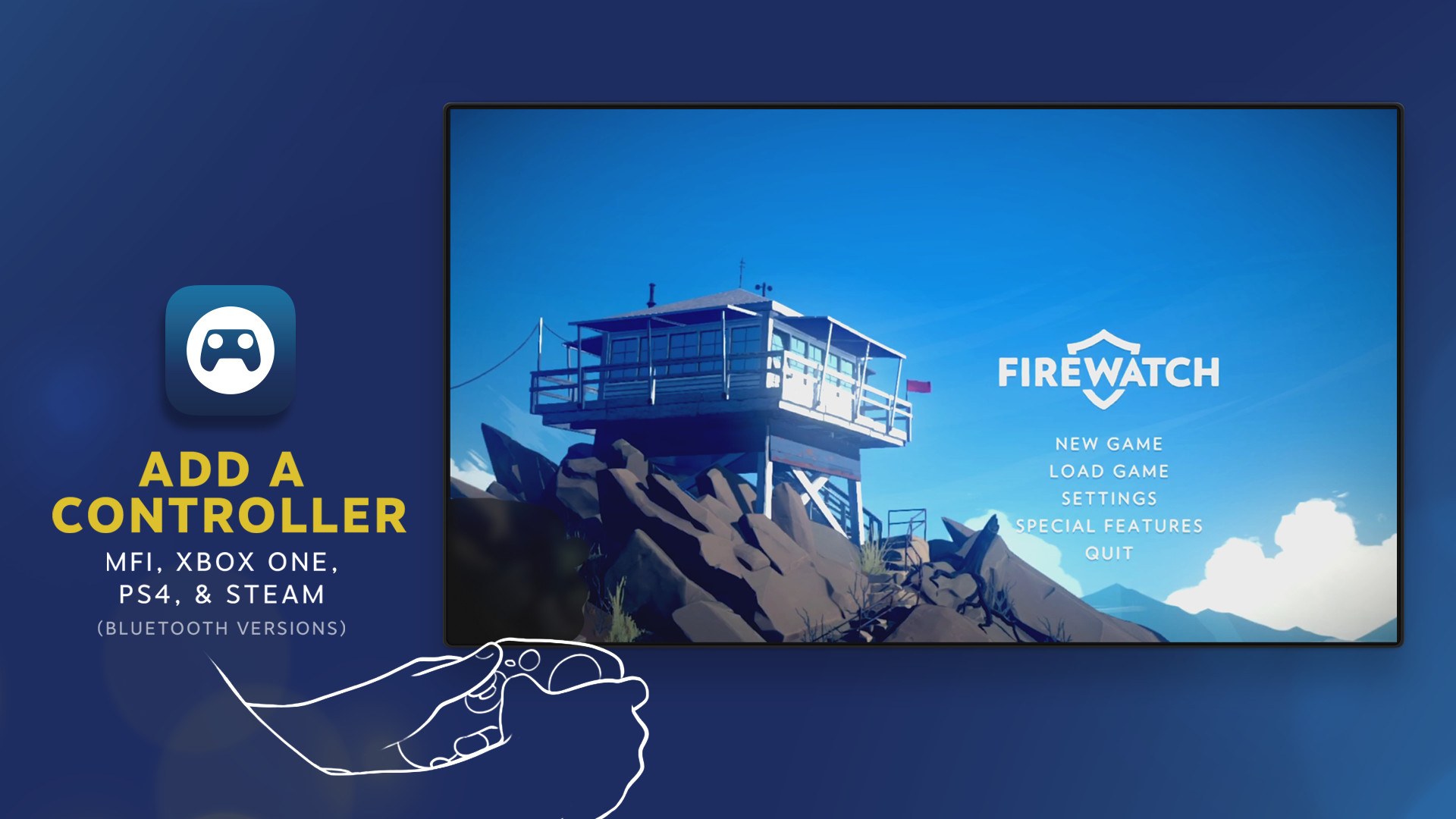
| Controller | A Bluetooth controller or Steam Controller paired to the TV device; on Apple TV, an MFi, Xbox, PlayStation or other Bluetooth game controller |
How to set up the Steam Link on your TV
Steam Link sends the game's video and audio from the gaming PC to the TV device and sends controller input back. The steps below are the same on every TV device; the install and controller details for each one follow.
- On the gaming PC, open Steam and sign in. Leave it running.
- Connect the PC to the router with an Ethernet cable, and connect the TV device by Ethernet too if it has a port.
- Pair a controller with the TV device (see the Apple TV, Google TV and Fire TV sections below).
- Install Steam Link on the TV device from its app store and open it.
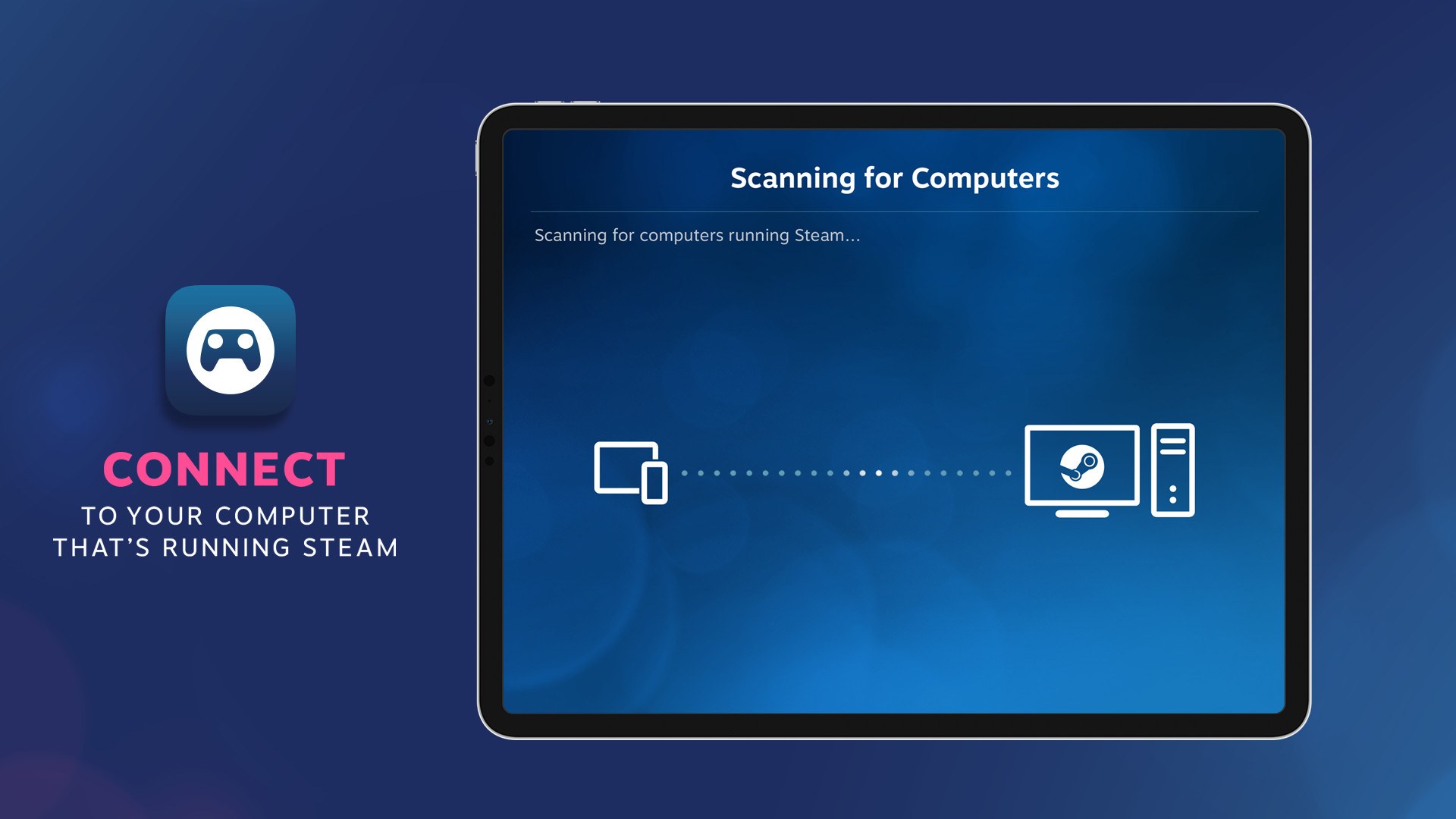
- Select your PC from the list of computers on your network and complete the pairing the app asks for.
- Start a game from your Steam library; it runs on the PC and plays on the TV.
How to stream Steam games to Apple TV with Steam Remote Play
Steam Link on Apple TV uses Valve's Remote Play technology to stream from the PC. The same App Store listing covers iPhone, iPad, Mac, Apple Vision Pro and Apple TV.
- Put your controller into pairing mode, as its maker's instructions describe.
- On the Apple TV, open Settings > General > Remotes and Devices > Bluetooth and select the controller.
- Open the App Store on the Apple TV, search for Steam Link and install the Valve app. It requires tvOS 11.0 or later.
- Make sure the Apple TV is on the same local network as the PC running Steam.
- Open Steam Link, select the PC and start playing.
Apple TV 4K and Apple TV HD take up to four Bluetooth game controllers at once, or one when a Bluetooth audio accessory is also connected. The Steam Link app for Apple devices also offers enhanced 1080p and 4K streaming configurations; 120 FPS streaming and HDR streaming from Windows both require one of them.
How to stream Steam games to TV with Chromecast with Google TV or Android TV
Valve lists Android TV among its Steam Link devices on Google Play, and Google TV devices, including Chromecast with Google TV and Google TV Streamer, install apps straight from the home screen.
- Put the controller into pairing mode.
- From the Google TV home screen, select your profile picture or initial at the top right, then Settings > Remote & Accessories > Pair remote or accessory.
- Select the controller in the list and select Pair on the Bluetooth pairing request screen.
- Back on the home screen, press the Assistant button or select Search, and type Steam Link.
- On the app page for Steam Link on Google Play, select Install.
- Open Steam Link, select your PC and start a game.
How to stream Steam games to Fire TV
Valve publishes Steam Link for Fire TV in the Amazon Appstore. The app is free to download and works with game controllers and the Fire TV Voice Remote.
- Open Steam Link on the Amazon Appstore and select Get App, or search for Steam Link in the Fire TV's own app search and install it there.
- Pair a Bluetooth controller or a Steam Controller with the Fire TV.
- Connect the Fire TV to your router with Ethernet if you can; Valve gives this advice, along with a wired PC, for the best performance on Fire TV.
- Open Steam Link on the Fire TV, select your PC and start a game.
Input devices and controller support for each TV setup
| Setup | What it accepts | Limit or note |
|---|---|---|
| PC on HDMI, Steam in Big Picture | A game controller, or keyboard and mouse | The controller connects to the PC, not to the TV, so no TV pairing is needed |
| Steam Link on Apple TV | MFi, Xbox, PlayStation and other Bluetooth game controllers, or a Steam Controller | Up to four controllers, or one while a Bluetooth audio accessory is connected; the app supports gyro on DualShock and DualSense controllers |
| Steam Link on Google TV or Android TV | A Bluetooth controller or Steam Controller | Google TV connects several Bluetooth devices, such as game controllers, but only one Bluetooth audio device at a time |
| Steam Link on Fire TV | A Bluetooth controller or Steam Controller; the Fire TV Voice Remote | Pair the controller before opening the app |
How to check the PC picture and sound are reaching the TV
- On an HDMI setup, open Start > Settings > System > Display and select Identify; a number appears on the TV if Windows sees it.
- Play any sound on the PC and confirm it comes from the TV speakers. If it does not, recheck the TV in the Output section of Sound settings.
- On Steam Link, start a game and press a few buttons on the controller paired to the TV device; the game on the TV should respond.
- In the Apple app, turn on the performance graph from the streaming overlay to watch how the stream is holding up while you play.
Fix PC games on a TV when there is no picture, no sound or lag
The TV shows no picture from the PC
Windows has not detected the TV, or it is sending the picture to the wrong screen.
- Check the HDMI cable is seated at both ends and the TV is on the right input.
- Select Start > Settings > System > Display > Multiple displays > Detect.
- Press the Windows key + P and choose Duplicate or Second screen only.
The picture on the TV is stretched, edged with black or the text is tiny
Windows is sending a resolution below the TV's native one, or the scale setting does not suit a screen viewed from the couch.
- Select Start > Settings > System > Display and select the TV in the section that shows your displays.
- In the Display resolution row, choose the option marked (Recommended).
- Under Scale & layout, open Scale and pick a larger value if text is still hard to read from the couch.
The game plays on the TV but there is no sound
Windows is still sending audio to the PC's speakers, or to a monitor without speakers.
- Select Start > Settings > System > Sound.
- In the Output section, select the TV. Selecting it also makes it the default device.
- Raise the TV volume and test again.
Steam Link stutters, lags or looks blurry
Wi-Fi between the PC, the router and the TV device is the weak link.
- Connect the PC to the router with Ethernet.
- Connect the TV device to the router with Ethernet too; Valve gives this advice for Android TV and Fire TV.
- If the TV device must use Wi-Fi, put it on the 5GHz band and keep it within reasonable range of the router.
Steam Link cannot find the PC
The TV device and the PC are on different networks, or Steam is not running.
- Open Steam on the PC and sign in.
- Make sure the TV device and the PC are on the same local network.
- Reopen Steam Link and select the PC again.
The controller will not connect to the Apple TV
A stale pairing or too many Bluetooth devices.
- Install the latest software for the Apple TV and any firmware update from the controller's maker.
- In Bluetooth settings, select the controller and choose Forget This Device.
- Disconnect Bluetooth devices you are not using, then pair the controller again.
The controller will not connect to Google TV
The controller or the TV needs a reset, or other paired devices are in the way.
- Turn the controller off and back on, then try pairing again.
- Disconnect paired devices you are not using.
- Unplug the TV for 10 seconds, plug it back in and pair again.
Frequently asked questions about playing PC games on a TV
Can I play PC games on my TV without Steam?
Yes, with an HDMI cable. The TV becomes another display for Windows, so games from any launcher show up on it. Steam Link is the route that needs Steam, because it streams from a computer running the Steam client.
Can I play PC games on my TV wirelessly?
Yes. Steam Link streams your Steam games over your home network to an Apple TV, Google TV, Android TV or Fire TV. Without a streaming box, a wireless display adapter in the TV's HDMI port lets a Windows 11 PC cast to it with Windows key + K.
Is Steam Link free?
Yes. Valve's Steam Link app is listed as free on the App Store and free to download on the Amazon Appstore, and it plays the Steam games you already own. You still need a computer running Steam for it to stream from.
Does Steam Link work on a Chromecast?
It works on Chromecast with Google TV and other Google TV devices, which install apps from the home screen. Search for Steam Link, select Install, then pair a Bluetooth controller in Settings under Remote & Accessories.
Should I choose Duplicate or Second screen only?
Choose Duplicate if you want the picture on the PC monitor and the TV at the same time. Choose Second screen only to send everything to the TV, which suits a PC that sits next to the TV with its own monitor switched off.
Why is there no sound on my TV when the PC is connected by HDMI?
Windows is still sending audio to another device. Open Settings, then System, then Sound, and select the TV under Output. Selecting it there also makes the TV the default audio device until you change it back.
Can Steam Link stream in 4K and HDR?
The Steam Link app for Apple devices, which includes Apple TV, offers enhanced 1080p and 4K streaming configurations. HDR streaming from Windows and 120 FPS streaming both require selecting one of those enhanced configurations in the app's streaming settings.
Do I need Ethernet for Steam Link on a TV?
It is not required, but Valve's advice for best performance on Android TV and Fire TV is to connect both the PC and the TV device to the router with Ethernet. On Wi-Fi, use the 5GHz band.