To uninstall a Steam game, open your Steam Library, right-click the game, select Manage, then select Uninstall.
On this page
The steps below also cover freeing up drive space, uninstalling from Windows 11 settings, hidden games, demos, and games that vanish or refuse to uninstall.
Uninstalling through Steam: the quickest method
Uninstalling deletes the game's installed files from your drive. A purchased game stays in your library, so you can download it again later without buying it twice.
- Open the Steam desktop client and select Library.
- Right-click the game in the game list on the left.
- Select Manage.
- Select Uninstall.
Which way to uninstall a Steam game should you use?
| Your situation | What to do | Why |
|---|---|---|
| You are finished with one game | Library > right-click > Manage > Uninstall | The fastest route, and a purchased game stays in your library |
| You need space on one drive but will play again | Move the game to a library folder on another drive | Valve recommends moving infrequently played games from an SSD to a storage HDD rather than uninstalling and downloading them again |
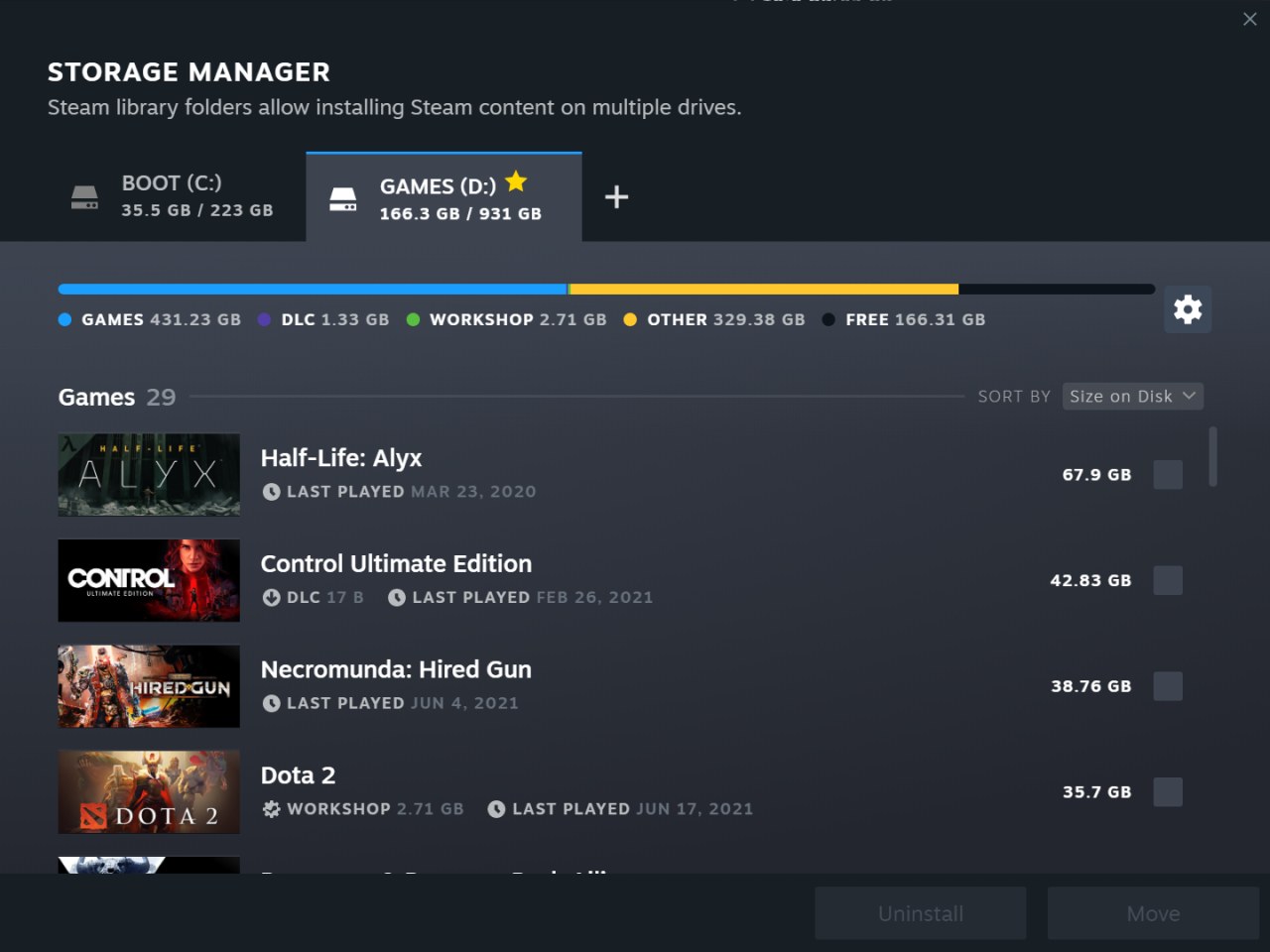
| You want to see which games are filling a drive | Settings > Storage | Shows each drive's Steam library folder and the games installed on it |
| You are already removing apps in Windows | Windows Settings > Apps > Installed apps | Lists the installed programs on Windows 11 and Windows 10, with Control Panel as the fallback |
| The item is a demo you no longer want | Right-click > Manage > Remove from account | Takes the demo out of your library as well as off the drive |
How to uninstall Steam games to free up space
The storage page in Steam settings manages game content across multiple drives, so it shows which drive is full and which games are on it. It also shows shader cache disk usage.
- In the Steam client, open Settings and select Storage.
- Select the drive that is short of space to see the games installed in that library folder.
- Note the games you no longer play.
- Uninstall each one from your Library with right-click > Manage > Uninstall.
To keep a game but take it off a full drive, move it to a library folder on another drive instead of uninstalling it. When a drive has no library folder yet, create one with Add a new Steam library folder.
How to uninstall Steam games on Windows 11 from Settings
Windows 11 and Windows 10 can also start an uninstall for a game that appears in the Windows app list. Some apps cannot be uninstalled from the Settings app, so Control Panel is the fallback.
- Select Start > Settings > Apps > Installed apps.
- Find the game in the list, select More, then select Uninstall.
- If the game does not appear or will not uninstall there, type Control Panel in the taskbar search and open it.
- Select Programs > Programs and Features.
- Right-click the game and select Uninstall or Uninstall / Change, then follow the prompts.
Afterwards, open Steam and check the game in your Library. If Steam still lists it as installed, uninstall it from Manage so the client's record matches the drive.
Find hidden games on Steam and delete a hidden game
Hidden games are kept out of the main game list, so a hidden game you forgot about can still be taking up space. Uninstall it from the hidden list.
- In the Steam desktop client, open the View menu and select Hidden Games.
- Right-click the hidden game you want to delete.
- Select Manage > Uninstall.
In Big Picture mode, which you can drive with an Xbox controller, hidden games appear in their own tab rather than in the All and Library tabs.
How to remove a demo from your Steam library
Demos behave differently from purchased games. When you uninstall a demo, Steam removes it from your library automatically.
- Open your Steam Library and right-click the demo.
- For a demo that is still installed, select Manage > Uninstall; Steam deletes the files and drops the demo from the library.
- For a demo that is no longer installed but still listed, select Manage > Remove from account.
An installed demo that is no longer playable shows Uninstall instead of Play as its main button. Demos can also be uninstalled remotely from your profile games list on the Steam website.
How to check a Steam game is fully uninstalled
- Open Settings > Storage and select the drive the game was on. The game should no longer be listed.
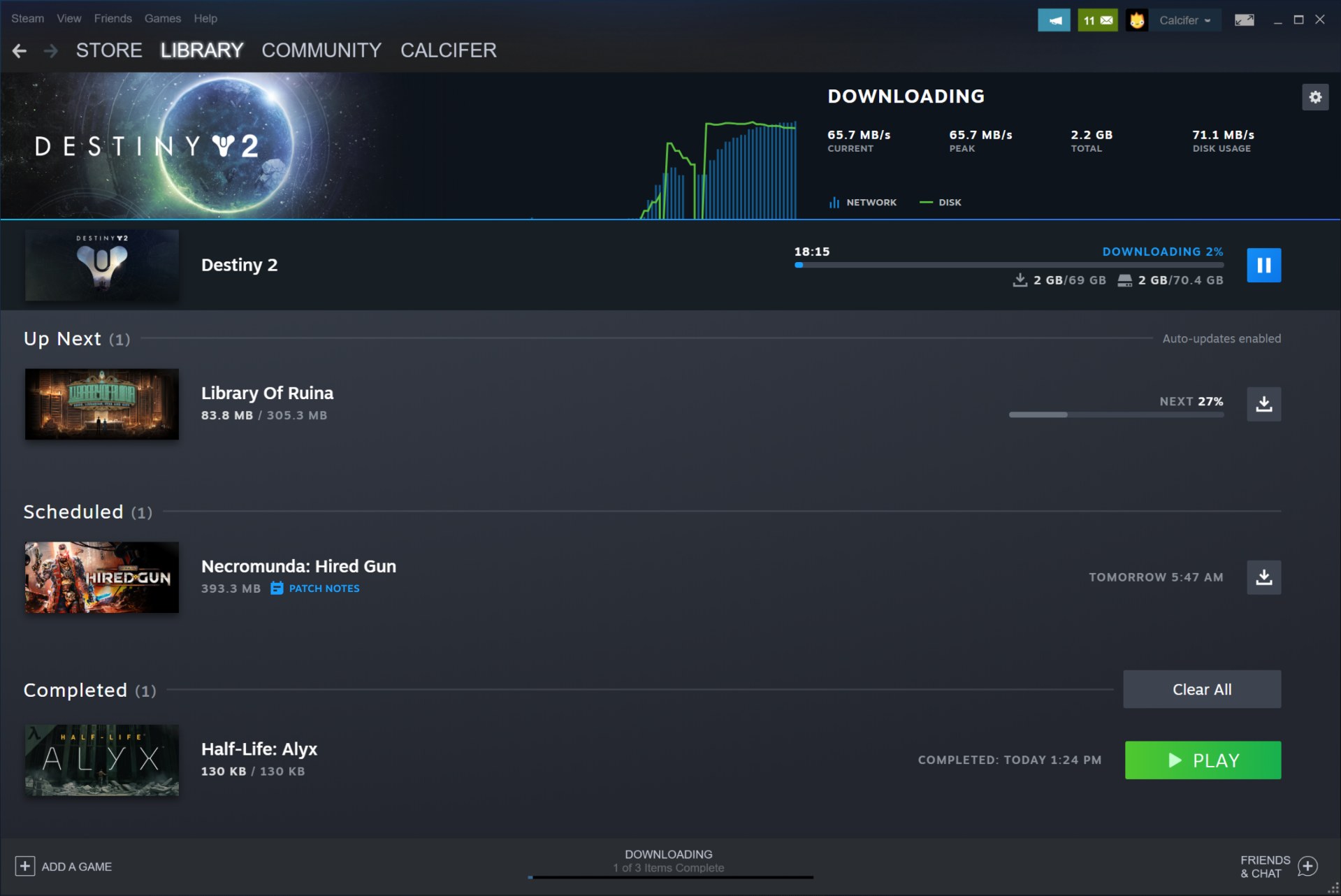
- Open the Steam downloads page and confirm the game is not waiting in the queue.
- To check the folder itself, open the game's Properties and select Browse Local Files before you uninstall, note the folder path, then check that path in File Explorer afterwards.
Fix Steam games that won't uninstall or uninstall on their own
Why won't my Steam games uninstall?
A download or update for the game can block the uninstall. Steam client updates have fixed the Uninstall Game dialog blocking the window while a game was downloading, and uninstalled games staying in the download queue.
- Open the downloads page and pause or remove the game's download.
- Restart Steam so it downloads the latest client update.
- Uninstall the game again from Manage > Uninstall.
Steam games won't uninstall from PC through Windows
Windows cannot complete the program's uninstaller.
- Try the other Windows route: if Installed apps failed, use Control Panel > Programs > Programs and Features.
- If Windows shows an error message, run the Program Install and Uninstall Troubleshooter from Microsoft.
- Uninstall from the Steam Library instead with Manage > Uninstall.
Why did all my Steam games uninstall?
One known cause is Steam forgetting the library folder that holds them. A Steam client update fixed a bug that could make Steam forget non-primary library folders.
- Reconnect the drive that holds the games and restart Steam.
- Open Settings > Storage and check whether that drive's library folder is listed.
- If it is missing, add the folder back with Add a new Steam library folder, then check your Library again.
Frequently asked questions
How do I uninstall Steam games on PC?
Open the Steam Library, right-click the game, select Manage, then Uninstall. Steam deletes the installed files from your PC and keeps a purchased game in your library, so you can download it again at any time without paying again.
How do I uninstall Steam games on Windows 11?
Use Manage > Uninstall in the Steam Library, or open Start > Settings > Apps > Installed apps, find the game, select More, then Uninstall. If the game is not listed there, use Control Panel > Programs > Programs and Features and right-click the game.
How do I uninstall Steam games to free up space on the C drive?
Open Steam Settings > Storage and select the C drive to see which games are installed there, then uninstall the ones you no longer play from Manage > Uninstall. To keep a game playable, move it to a library folder on another drive instead.
How do I uninstall Steam games completely?
Uninstall from Manage > Uninstall, then confirm the game is gone from Settings > Storage and from the download queue. For a demo, also use Manage > Remove from account if it still appears in your library after the files are deleted.
Does uninstalling a Steam game remove it from my library?
No for purchased games: the game stays in your library so you can download it again. Demos are the exception, because Steam removes an uninstalled demo from your library automatically, and you can remove one by hand with Manage > Remove from account.
Why did all my Steam games uninstall?
One known cause is Steam forgetting a non-primary library folder, a bug a Steam client update fixed. Reconnect the drive that holds the games, restart Steam and check Settings > Storage; if the folder is missing, add it back as a Steam library folder.
Why won't my Steam games uninstall?
A download or update in progress can get in the way of the uninstall. Pause or remove the game from the downloads page, restart Steam so the client updates, and try Manage > Uninstall again. Windows Installed apps and Control Panel are the other routes.
Can I install Steam games on an external drive?
Yes. Steam supports library folders on external drives, created with Add a new Steam library folder, and its storage settings manage games across multiple drives. Keep the drive connected whenever you want to play the games installed on it.