To use the Discord overlay, open User Settings > Game Overlay in the Windows desktop app, turn on Enable Overlay, run your game in windowed or borderless fullscreen, and press Shift + ` in game to bring it up.
On this page
The overlay runs on Windows 10 and 11 only, so this covers the Windows setup, its settings and keybinds, the separate Android voice bubble, and a fix for each way the overlay fails.
How do I turn on the overlay in Discord?
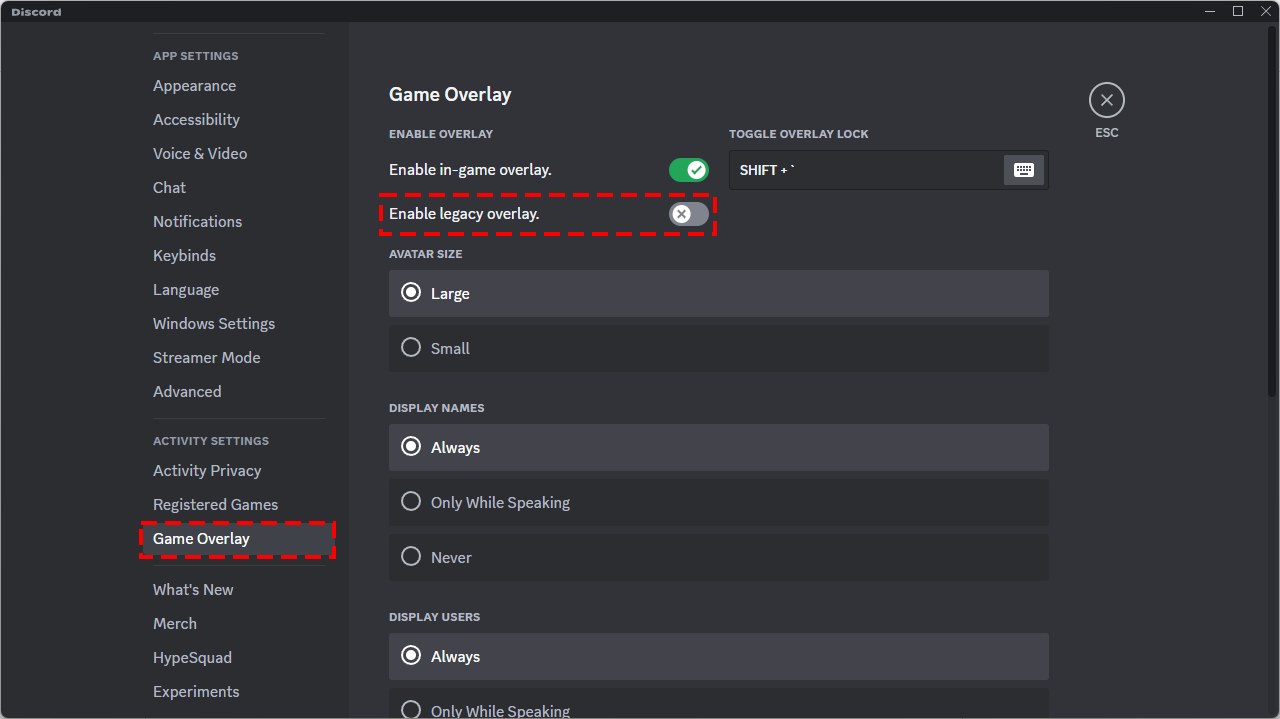
Discord's revamped overlay is enabled by default for all games. Check the toggle anyway, because a game in true fullscreen hides the overlay even when the setting is correct.
- Open the Discord desktop app on your Windows PC.
- Open Discord settings: select the cogwheel next to your username at the bottom left to open User Settings.
- Navigate to the overlay settings: select the Game Overlay tab (also shown as Overlay).
- Enable the overlay toggle: turn on Enable Overlay. A check mark means it is on; an x means it is off.
- Set the game's display mode to windowed or borderless fullscreen in the game's own video settings.
- Start the game and press Shift + ` (the default overlay keybind) to open the overlay over your gameplay.
What is Discord overlay, and what are the benefits in games?
The Discord overlay is a built-in layer that draws Discord's interface on top of a running game, so you can read messages, see who is talking and answer calls without switching windows.
| Overlay feature | What it does in game | Notes |
|---|---|---|
| Message pop-ups | New DMs, group messages and server messages appear over your gameplay once Messages is on | Nothing shows from a muted server, DM or group, or while Streamer Mode is on |
| Voice widget | Shows who is in the call, who is speaking and who is muted or deafened | Works in DMs, group calls and server voice channels |
| Incoming calls | Answer with your overlay keybind, or hover the call and press Join Call or Decline | No need to switch to the Discord window |
| Pinned windows | Keeps Notifications, Voice, Video, Activity or Streams visible while you play | Set per window with the pin icon |
| Chat from the overlay | Reply to text messages without leaving the game | Slash commands, stickers and GIFs arrive as messages but cannot be sent from the overlay |
System requirements for Discord overlay
Discord publishes no separate hardware minimum for the overlay. What decides whether it appears is the operating system and the game's display mode.
| Requirement | What Discord supports | How to check |
|---|---|---|
| Operating system | Windows 10 and 11 only; the overlay does not work on macOS or Linux | Start > search "about" > About your PC |
| Windows architecture | 64-bit Windows; Discord ended support for 32-bit Windows on June 15, 2024 | System Type in About your PC reads 64-bit operating system or 32-bit operating system |
| Display and resolution | Discord lists no minimum resolution. The overlay works in windowed fullscreen and borderless windowed fullscreen, not true fullscreen | The display mode option in the game's video settings |
| Hardware specifications | No overlay-specific spec; Discord's general troubleshooting recommends a minimum of 4GB RAM | Task Manager > Performance |
| Software considerations | The Discord desktop app for Windows, updated to the latest version; keybinds, including the overlay toggle, are desktop-only | Check for updates under Settings > App Settings |
| Network considerations | No overlay-specific figure; voice chat shown in the overlay needs a minimum of 300kbps up and down | The Discord Status page for outages |
Preparing your system for Discord overlay
- Update Discord: check for updates under Settings > App Settings, or install a fresh copy from discord.com.
- Update Windows and your graphics drivers to the latest versions.
- Switch each game you want the overlay in to borderless or windowed fullscreen.
- If a game runs with administrator rights, plan to run Discord as administrator too (next section).
- Join a voice channel or call so the voice widget has something to show when you test it.
Run Discord as administrator for games with elevated permissions
A game started with administrator rights can block Discord keybinds, including push-to-talk and the overlay toggle, until Discord runs with the same rights.
- Make sure every open Discord window is fully closed.
- Right-click the Discord shortcut and select Run as administrator.
- Approve the Windows prompt and start the game again.
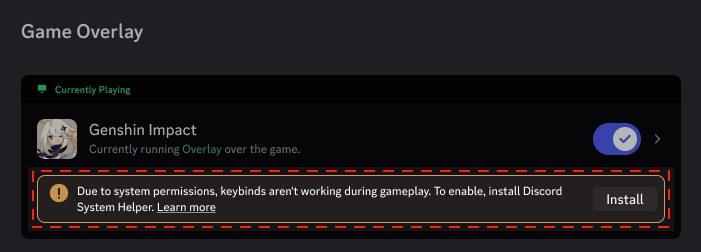
- If Discord shows a prompt to install Discord System Helper in Game Overlay settings or Keybinds settings, press Install and accept the administrator prompt. This experimental helper is offered only to some Windows users and makes keybinds register in games with elevated permissions.
- To remove the helper later, go to User Settings > Windows Settings and select Uninstall.
How to change Discord overlay settings and the overlay keybind
Every option below sits in User Settings > Game Overlay, except the keybinds, which live under User Settings > Keybinds.
| Setting | Options | Effect |
|---|---|---|
| Messages | On or off | Shows new messages over the game |
| Display Users | Always or Only While Speaking | Lists everyone in the call, or only people whose mic is picking up audio |
| Display Names | Always, Only While Speaking or Never | Controls when names appear next to avatars |
| Avatar Size | Large or Small | Switches voice widget avatars between large and small; preview it in the Overlay Voice Widget section |
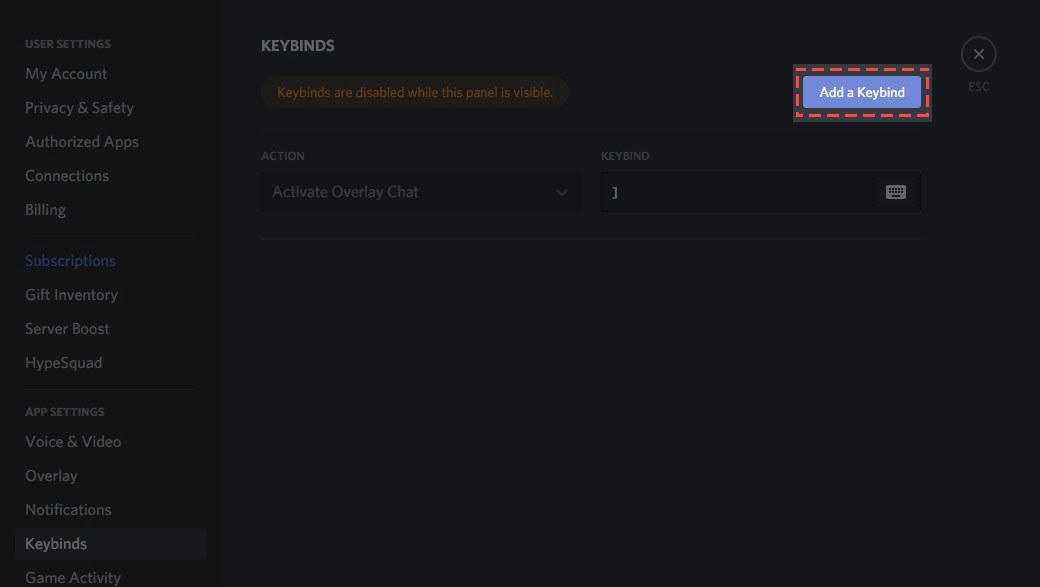
| Toggle Overlay keybind | Select Add a Keybind, choose Toggle Overlay, click the box and press your keys | Turns the overlay on or off in game |
| Toggle Overlay Lock keybind | Same route, choose Toggle Overlay Lock | Locks or unlocks the overlay in game |
Keybinds are disabled while the Keybinds page is open, so leave it before testing a new combination.
How to use the Discord voice overlay on Android
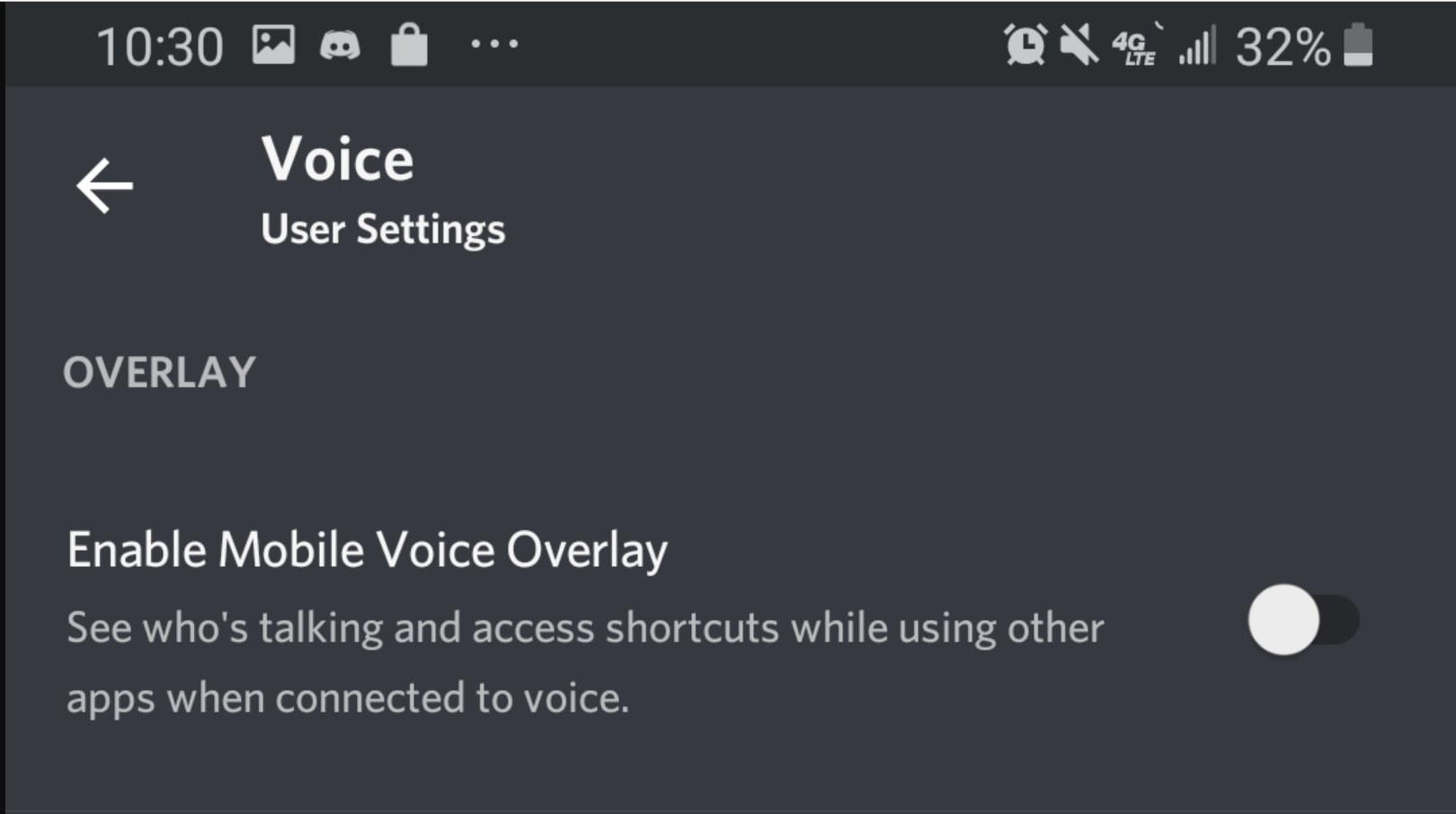
The Game Overlay is Windows only. Android has a separate Mobile Voice Overlay: a bubble that shows who is talking and offers speaker, mute and hang-up shortcuts while you use other apps.
- Open Discord on Android and go to Settings > Voice & Video.
- Turn on Enable Mobile Voice Overlay.
- Allow Discord to draw on top when Android opens its permission screen.
- Join a voice call or channel; the bubble appears, and tapping it expands the controls.
- To hide the bubble, drag it onto the X at the bottom of the screen. This does not hang up; use the hang-up button in the expanded overlay or in Discord.
How to verify Discord overlay functionality in a game
- Join a voice channel and start the game in borderless or windowed fullscreen.
- Talk, or ask someone in the channel to talk: the voice widget should show the speaker's avatar.
- Press Shift + ` (or your custom Toggle Overlay keybind): the overlay should open over the game.
- Ask a friend to send you a DM: with Messages on, it should pop up over your gameplay.
- Alt-Tab out and back: the overlay hides while the game is out of focus and returns when you click back in.
Discord overlay not working: fixes by symptom
The Discord overlay does not show up in a game at all
The game is in true fullscreen, which the revamped overlay does not support.
- Change the game's display mode to borderless fullscreen or windowed fullscreen.
- If the game must stay in true fullscreen, open User Settings > Game Overlay and turn on Enable legacy overlay. Discord may remove this option in future.
- Confirm Enable Overlay is still on, then restart the game.
The overlay disappears when I click another window
The overlay is hidden whenever the game window is not in focus. This is expected behavior.
- Click back into the game window.
The overlay keybind or push-to-talk does nothing in game
The game runs with elevated permissions, so it ignores keys sent to a normal Discord process.
- Close Discord fully, right-click its shortcut and select Run as administrator.
- If Discord offers Discord System Helper, press Install instead so keybinds keep working.
- Check the binding under User Settings > Keybinds and leave the page before testing.
Discord messages do not pop up over the game
Pop-ups are off, the conversation is muted, or Streamer Mode is on.
- Turn on Messages in User Settings > Game Overlay.
- Unmute the server, DM or group you expect messages from.
- Turn off Streamer Mode.
The game lags or crashes with the overlay on
The overlay conflicts with that game; Discord recommends disabling the overlay for the affected game.
- If Enable legacy overlay is on, turn it off and use borderless fullscreen; Discord built the revamped overlay not to interfere with games.
- If problems continue, turn off Enable Overlay while you play that game.
- If the game crashed, copy the log at
%appdata%\discord\0.0.<highest number>\modules\discord_hook\hook(open the 0.0 folder with the highest number). - Send the log to Discord Support with the game's name and what happened.
Friends cannot see the overlay in my screen share
Sharing only the game window does not capture the overlay.
- Stop the share.
- Share your full screen instead; a full-screen share still captures the overlay.
The overlay still fails after every fix above
An outdated client, a damaged cache or a Discord outage.
- Fully close Discord from Task Manager, wait 30 seconds and reopen it.
- Check for updates under Settings > App Settings.
- Clear the cache folder at
%appdata%/discord/Cachewith Discord closed. - Check the Discord Status page for an outage.
Additional tips for using the Discord overlay in games
| Goal | Setting to use |
|---|---|
| Silence every pop-up for a match | Add a Toggle Streamer Mode keybind under User Settings > Keybinds; overlay messages do not display while Streamer Mode is on |
| Silence one noisy server | Mute the server; muted servers, DMs and groups send no overlay pop-ups |
| Show only active speakers in a big channel | Set Display Users and Display Names to Only While Speaking |
| Hide names entirely | Set Display Names to Never and keep the avatars |
| Free up Shift + ` for the game | Add a Toggle Overlay keybind on a key the game does not use |
How to turn off the Discord overlay
- Select the cogwheel next to your username to open User Settings.
- Select Game Overlay.
- Turn off Enable Overlay; the toggle shows an x when it is off.
- If you had turned on Enable legacy overlay, turn that off as well.
Discord overlay FAQ
Does the Discord overlay work on Mac or Linux?
No. The Discord Game Overlay works only on Windows 10 and Windows 11. It does not function on macOS or Linux. On Android, a separate Mobile Voice Overlay shows voice call controls.
Does the Discord overlay work in fullscreen?
Not in true fullscreen. The revamped overlay works in windowed fullscreen and borderless windowed fullscreen. If a game must run in true fullscreen, turn on Enable legacy overlay under User Settings > Game Overlay, an option Discord says may be removed later.
What is the default Discord overlay keybind?
The default overlay keybind is Shift + ` (the backtick key). You can add your own Toggle Overlay or Toggle Overlay Lock keybind under User Settings > Keybinds by selecting Add a Keybind and pressing the keys you want.
Can I send GIFs or stickers through the Discord overlay?
No. Slash commands, stickers and GIFs can arrive as messages in the overlay, but you cannot send them from it. Plain text replies work; switch to the Discord window to send anything else.
Why does my screen share not show the Discord overlay?
Sharing a single game window does not capture the revamped overlay. Share your full screen if viewers should see it, or keep sharing only the window when you want the overlay kept private from the stream.
Is Discord System Helper an official Discord tool?
Yes. Discord System Helper is a verified component developed by Discord, and only signed, trusted components can run through it. It keeps keybinds working in games with elevated permissions, is offered to some Windows users only, and is removed under User Settings > Windows Settings > Uninstall.
Why are there so many Discord processes when the overlay is on?
Discord is built on Chromium, which uses several processes. Turning on the overlay adds an overlay host process, an overlay GPU process and one overlay renderer for each game, so extra Discord entries in Task Manager are normal.
Can I still use the legacy Discord overlay?
Yes, for now. The Enable legacy overlay option under User Settings > Game Overlay keeps it available, but Discord plans to move everyone to the revamped overlay and may remove the option in the future.